
Introduction
The Recent search feature automatically saves your search history. It allows you to quickly repeat previous searches without having to re-enter search terms or recreate complex search criteria. This feature works with all types of searches in Censhare including Quick search (text searches and filtered searches), Detailed search, and Expert search.
Why to use Recent search
This feature enhances search productivity by eliminating the need to recreate frequently used searches. This makes it easier to work with complex search patterns and maintain search context across sessions.
How to use Recent search
Accessing Recent search
-
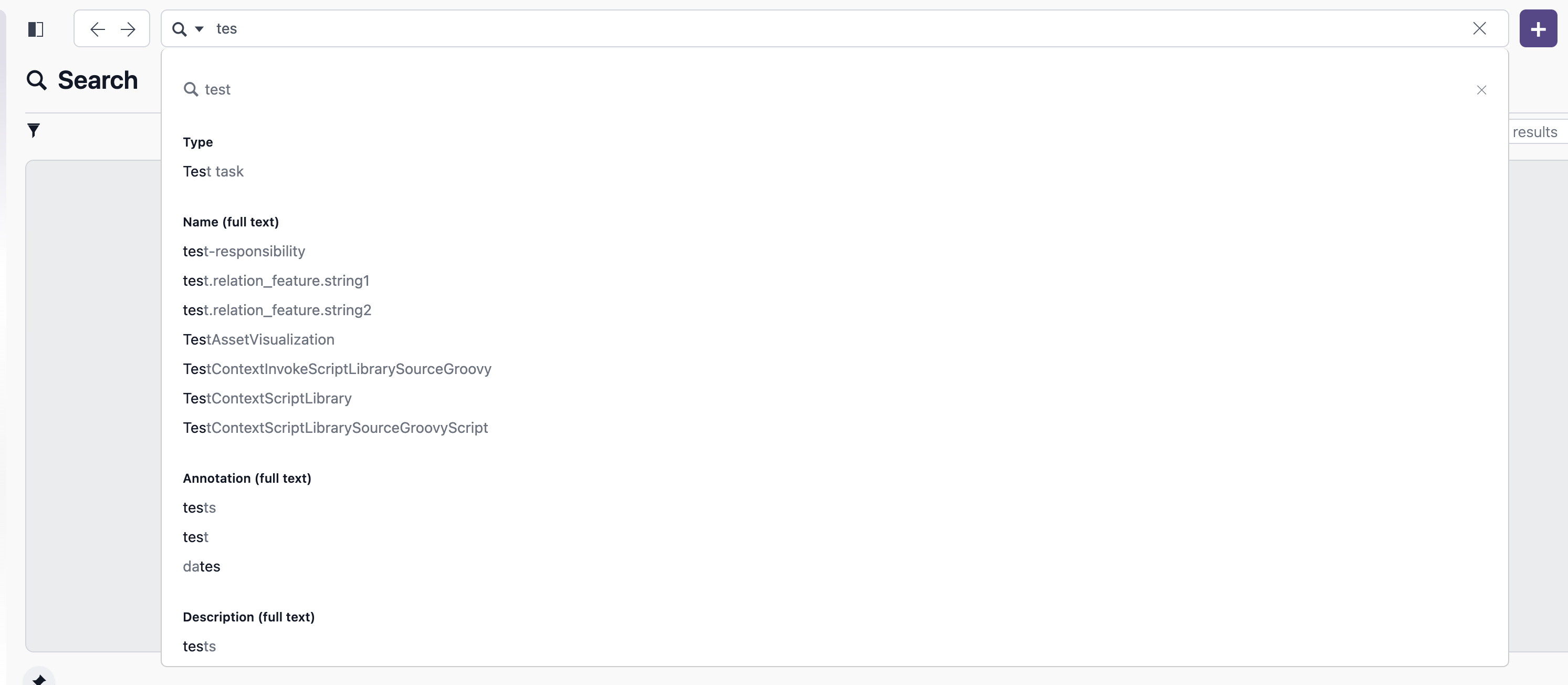
In the Search Field: When you click in or start typing in the main search field, recent searches appear as suggestions in the dropdown list.
-
Visual Identification: Recent searches are grouped at the top of the drop-down list with suggested filters.
What Gets Saved
Recent search automatically captures:
-
Quick search - text searches: Simple text searches that you enter in the search field on the top:
-
Quick search - filtered searches: Searches with applied filters, for example asset type, file type, date range, author, etc.
-
Detailed Search: Form-based searches created using the Detailed search dialog. It allows you to search for specific asset attributes easily:

-
Expert Search: Advanced searches created through the Expert Search dialog. This allows you to define very sophisticated search terms:

When searches are saved
Search terms are automatically saved at your recent history list when:
-
You press Enter in the search field.
-
You loose focus from the search field after entering a search.
-
You submit a Detailed Search.
-
You submit an Expert Search.
Using Recent search
-
Quick selection: Click on any recent search entry from the dropdown list below the Quick search field to immediately execute that search again.
-
Complete restoration: When you select a Recent search, it restores:
-
the original search text
-
all applied filters
-
advanced search criteria applied with Detailed/Expert searches
-
-
Immediate execution: The search runs automatically when selected.
-
Remove individual Recent search entries: Click the x at the right of a Recent search entry:

Recent search display format
Recent searches are displayed with descriptive labels that help you identify the type and the content:
Quick Search
-
Format:
"search term", Filter type: Value, Filter type: Value -
Example:
"annual report", Type: Document, Author: John Smith
Detailed search
-
Format:
Detailed Search: (Asset attribute: value, Asset attribute: value) -
Example:
Detailed Search: (Asset type: Image, Name (full text): product)
Expert search
-
Format:
Expert Search: (Asset attribute: value, Asset attribute: value) -
Example:
Expert Search: (Domain: Marketing, Status: Released)
User Benefits
Time savings
-
No re-typing: Avoid retyping complex search terms
-
No filter recreation: Do not require to rebuild filter combinations
-
No dialog setup: Skip recreating Detailed/Expert search terms
Search history
-
Track your searches: See what you have searched for recently
-
Pattern recognition: Identify frequently used search patterns
-
Quick access: One-click access to previous searches
Workflow efficiency
-
Context switching: Quickly switch between different search contexts
-
Iterative searching: Easily modify and refine previous searches
-
Search templates: Use complex searches as starting points for new ones
Configuration
Configure Recent search
-
Click on your user profile icon at the right of your top navigation.
-
Select "Preferences" from the dropdown menu.
-
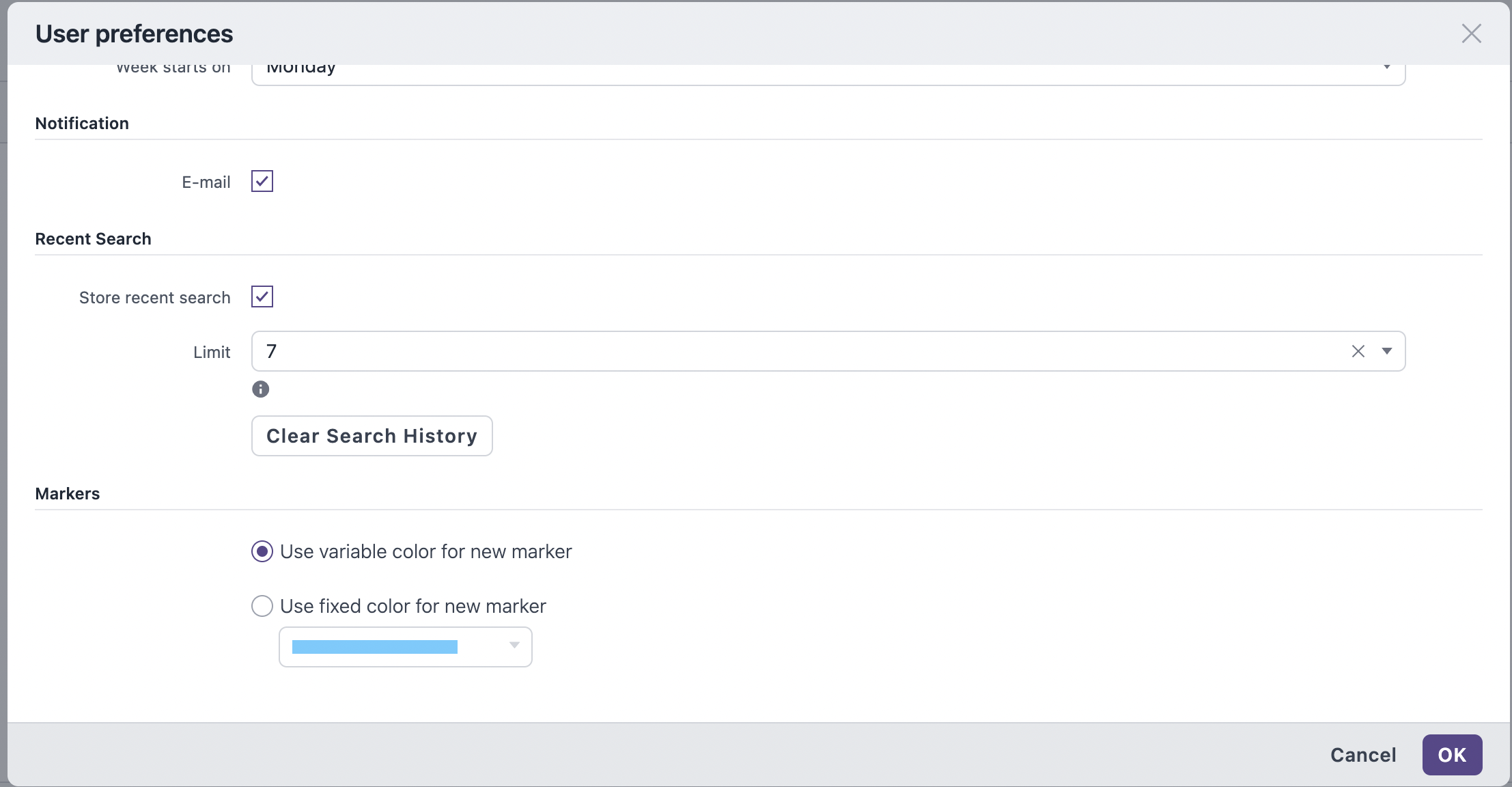
Go to "Recent Search" under General tab.
-
Configure the Feature:
-
Store recent search: Check the box to turn the feature on/off.
-
History Limit: Select in the drop-down list how many recent searches to keep (range: 1-50, default: 10).
-
-
Click OK to save your changes.
-
Changes take effect immediately.
For more information, also see Edit user preferences.
Reset history
-
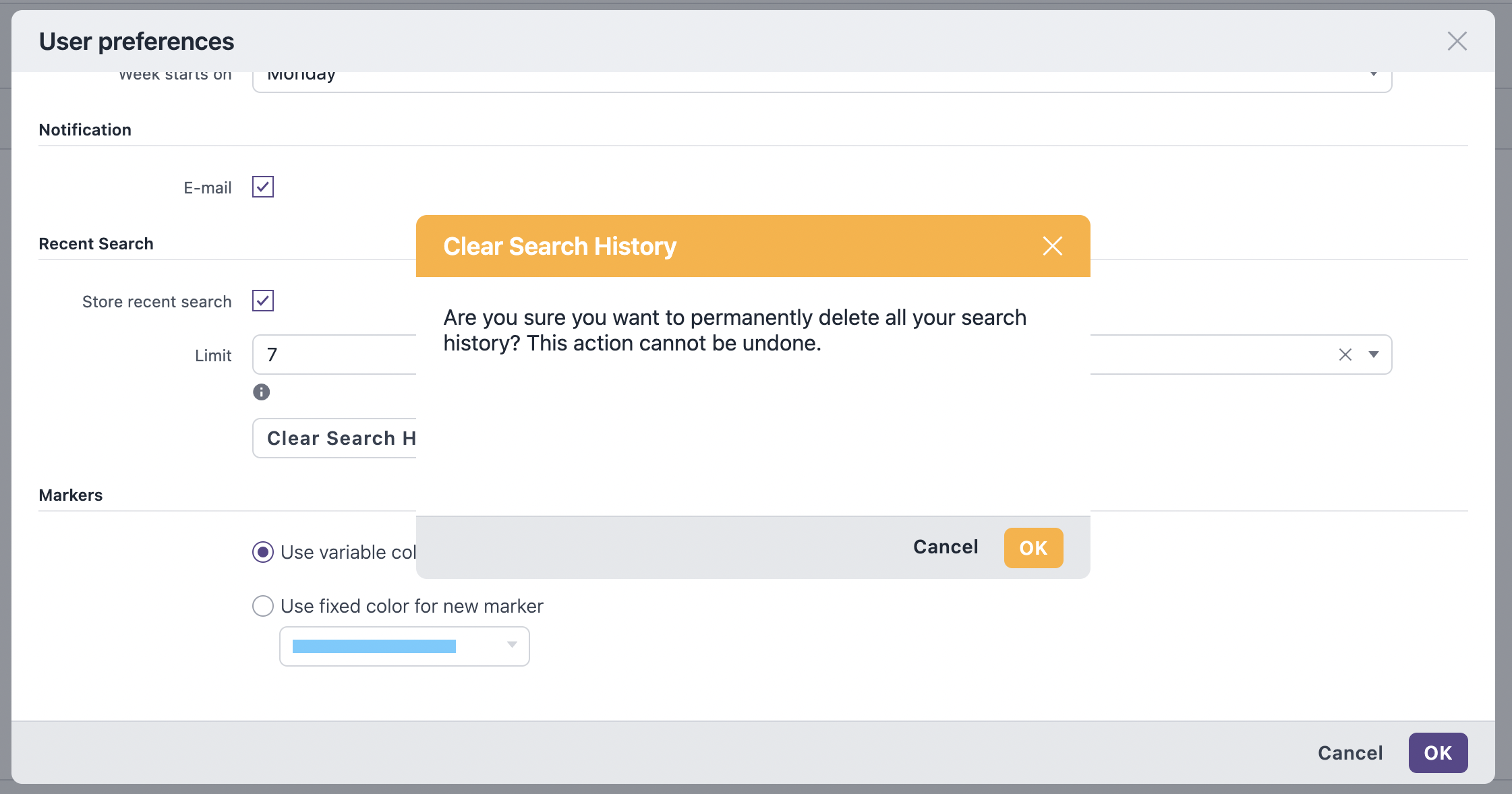
Use the Clear Search History button to remove all saved searches.
-
Confirm your action:
Privacy
-
Recent search is user-specific: You can only see your own search history.
-
The search terms are stored in your user preferences.
-
You can clear your history at any time in your user preferences.
Tips for Best Use
-
Start broad, then narrow: Use Recent search as starting point.
-
Combine with filters: Add new filters to previous text searches.
-
Iterate on expert searche: Refine complex queries over time.
-
Clear outdated searches periodically to keep the list relevant.
Troubleshooting
Recent searches not appearing
-
Check that the feature is enabled in User preferences.
-
Ensure that you are completing searches (press Enter or submit dialogs).
-
Verify that you have set a sufficient history limit.
Searches not restoring correctly
-
Complex searches may take a moment to fully restore.
-
Ensure that all required filters and fields are still available in the system.
-
Check that you have the necessary permissions for all search criteria.
Performance considerations
-
Large search histories may slightly slow dropdown display.
-
Consider reducing history limit if performance is affected.
-
Clear history periodically for optimal performance.