
Overview
The Asset list based on related assets and Asset list based on multiple related assets widgets supports configurable filters. These filters allow you to control which assets appear when a user is adding new relations. The filters narrow down the list of available assets, making it easier to find and select the right items.
Filters, that are configured in the widget, work in addition to any relation constraints that are defined in the Censhare Admin Client. They do not replace or override constraints that are already defined in the Censhare Admin Client. The widget filters further refine the asset list results for the specific widget instance where they are defined at.
Setting Up a Filter
Step 1: Open the widget configuration
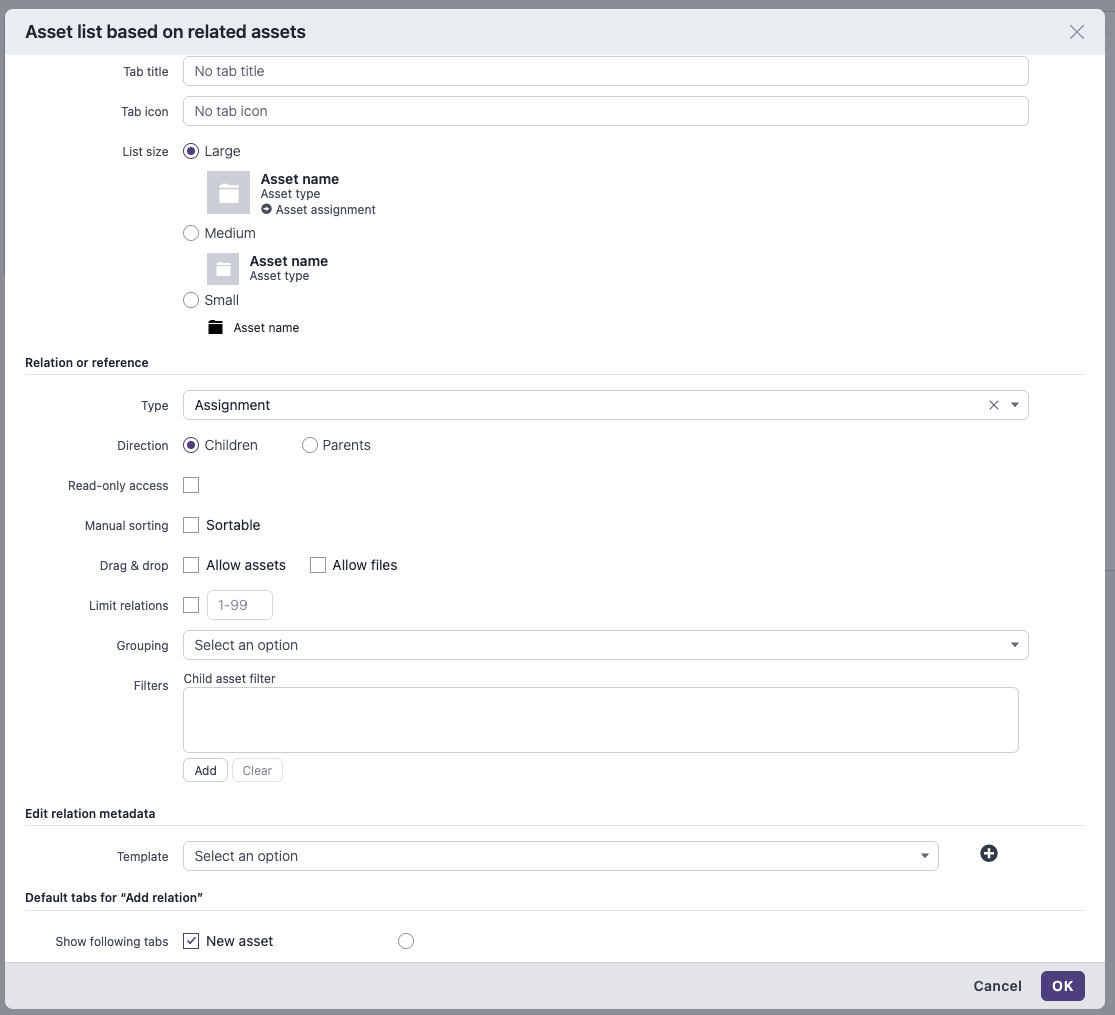
Right-click the widget header or use the action menu to open the configure widget dialog.
For Asset list based on related assets widget, look for filters control in Relation or reference section:
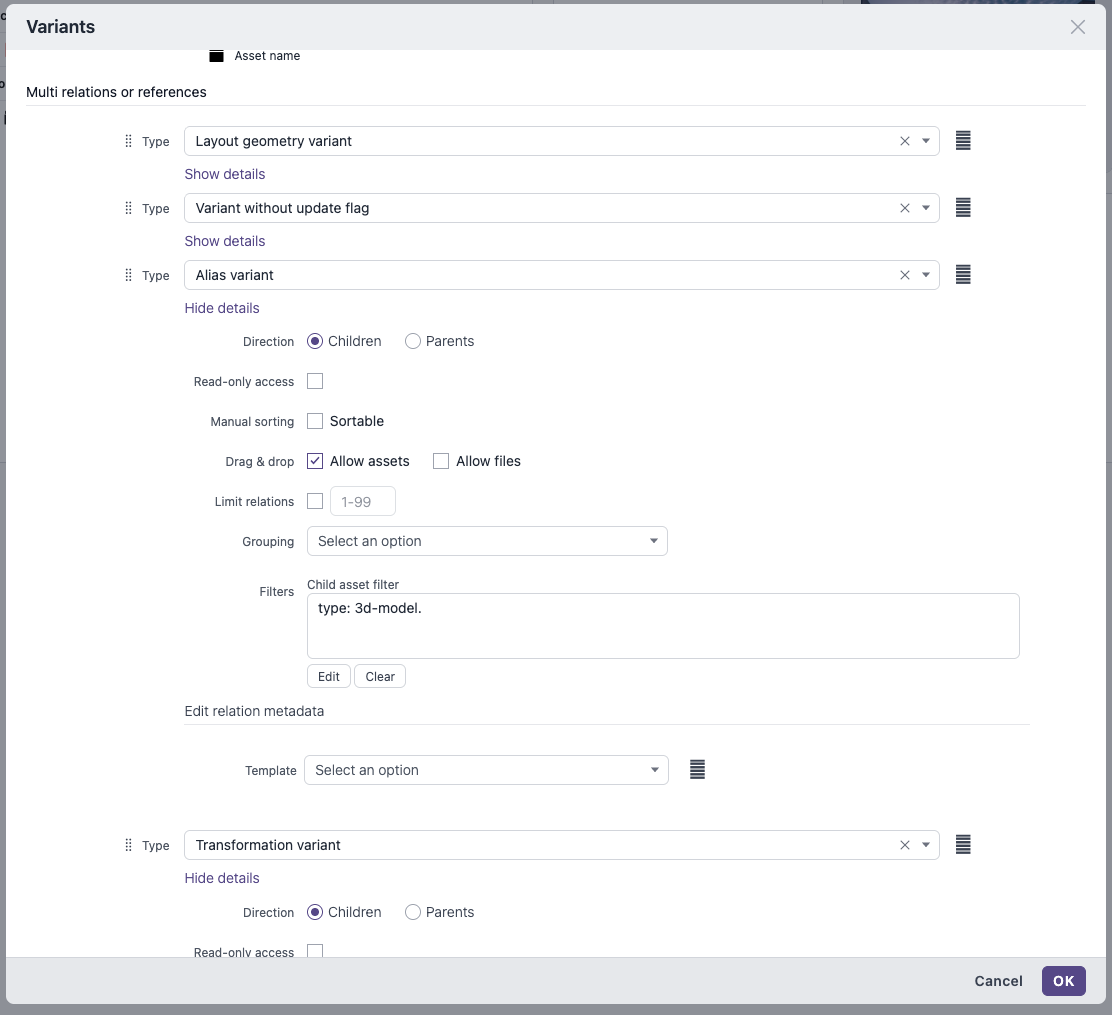
For Asset list based on multiple related assets widget, look for filter controls in Show details submenu for of one of configured relations:
Step 2: Select the direction for the filter
Choose the direction of your relation: either children or parents. Filters are configured independently for each direction. Switching the direction restores the filters previously configured for the selected direction.
Step 3: Add a filter
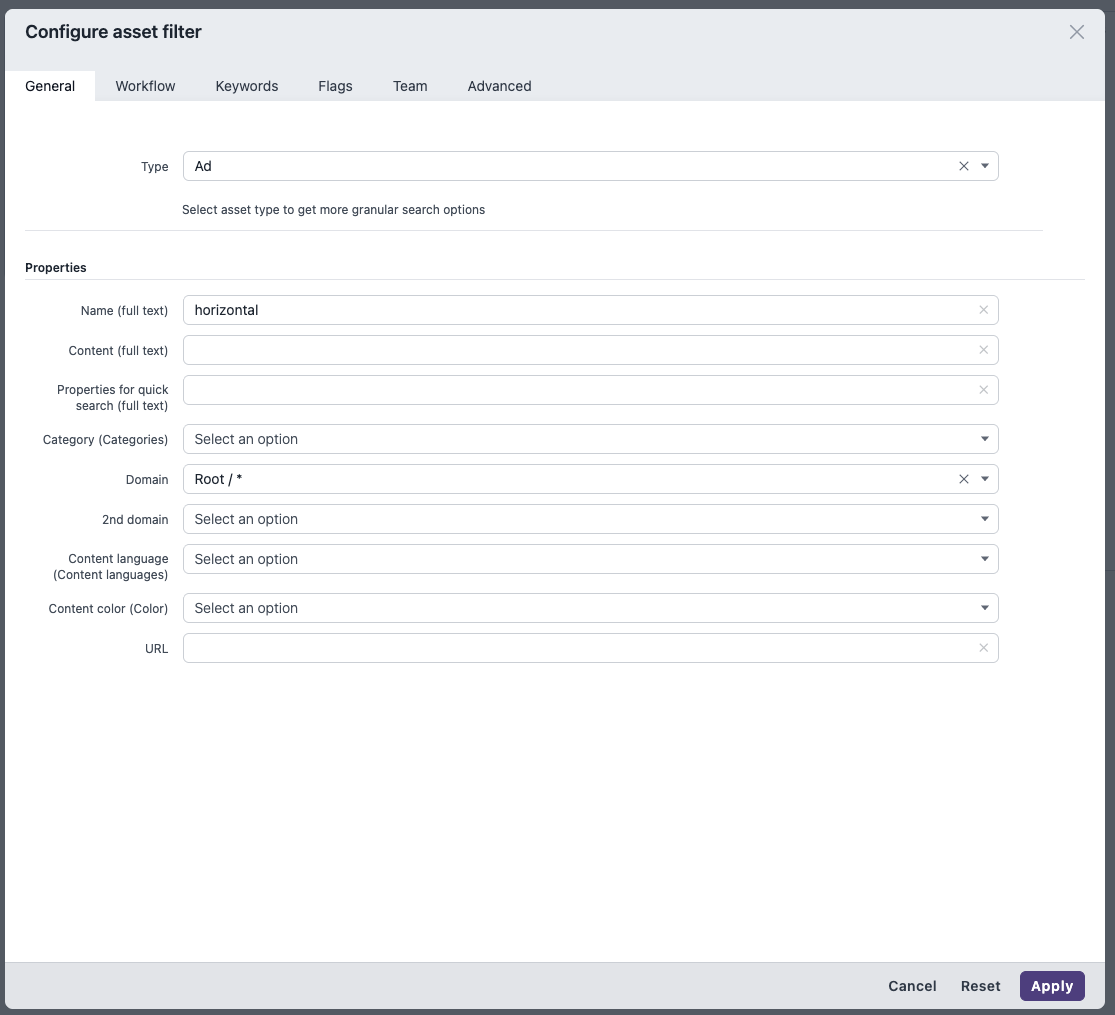
In the Filters control, click the Add button. This opens the configure asset filter dialog:
The filter dialog offers several tabs with different filter criteria:
|
Tab |
What you can filter by |
|---|---|
|
General |
Asset type, name, domain, category, content language, color, URL |
|
Workflow |
Workflow step and status |
|
Keywords |
Assigned keywords |
|
Flags |
Asset flags |
|
Team |
Team assignments |
|
Advanced |
Additional search properties |
Select the desired filter criteria. For example, you can restrict the list to a specific asset type, for example Ad, and a specific domain, for example Root / *.
Step 4: Apply the filter
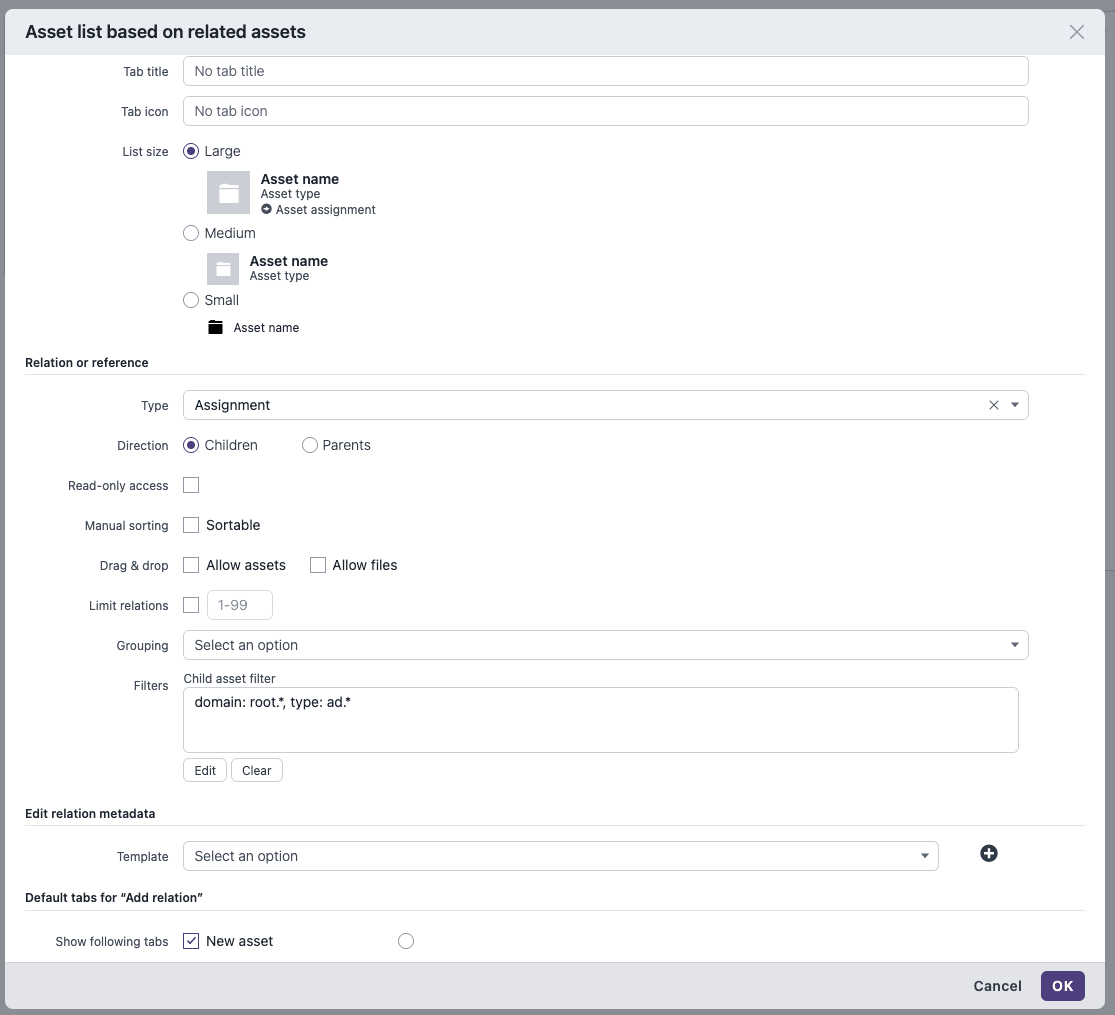
Click Apply to confirm your filter settings: You return to the Configure Widget dialog which now shows a summary of the active filter conditions in the Filters text area:
Step 5: Confirm the widget configuration
Click OK to save the widget configuration.
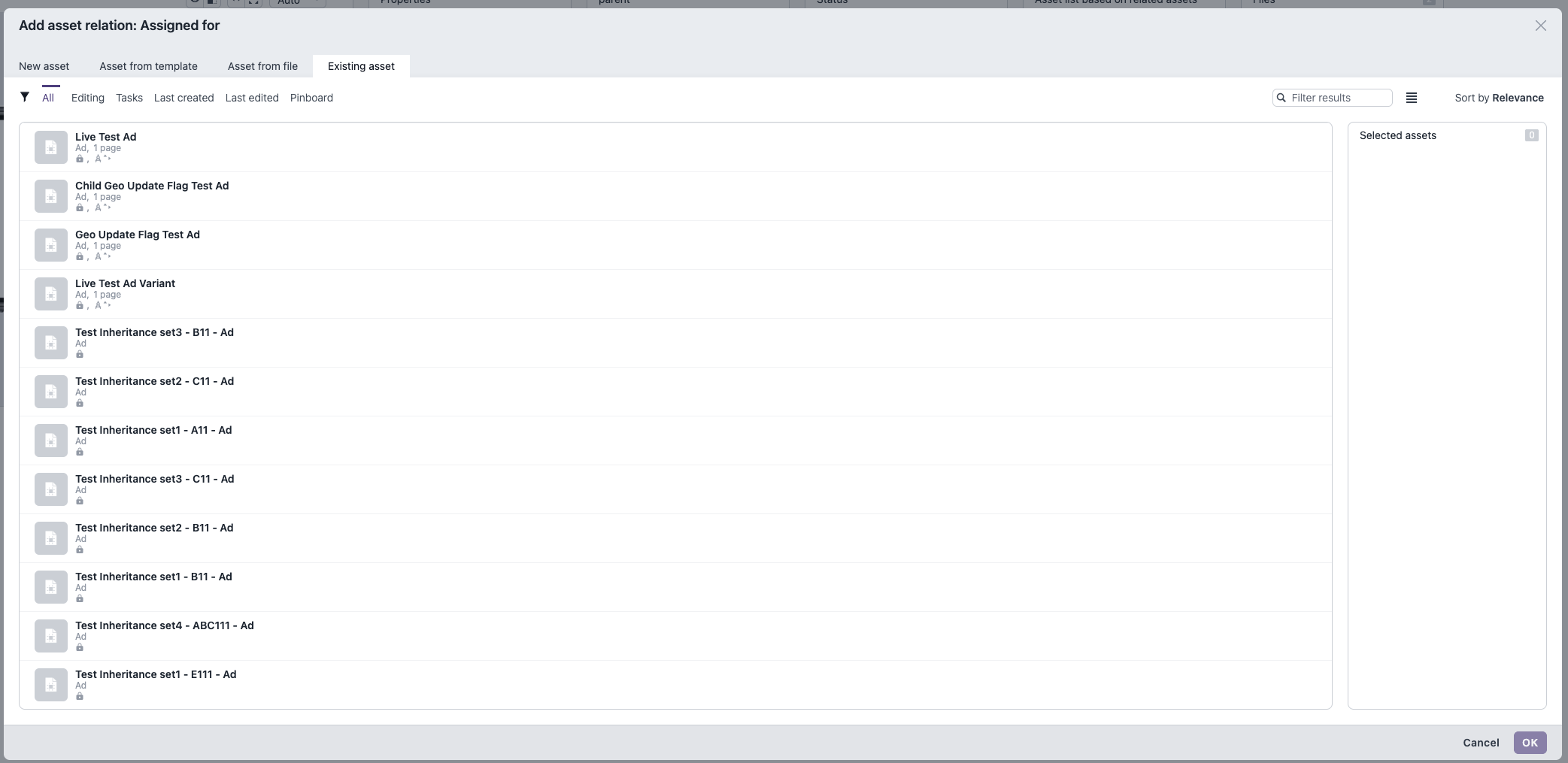
From now on, when you use the add relation action in those widgets, only assets matching the filter are shown. For example:
Editing or removing a filter
-
To edit an existing filter, open the configure widget dialog and click the Edit button in the Filters section.
-
To remove a filter, click the Clear button.
Important notes
-
Filters are specific to each widget instance: Configuring a filter on one widget does not affect other widgets on the same page or other asset pages.
-
In Asset list based on related assets filters apply to both the Add asset relation dialog and the asset picker, depending on which is configured for the widget.
-
Each direction (Children / Parents) has its own independent filter. Switching the direction shows the filter for that direction.
-
These widget-level filters are additive — they work on top of relation constraints defined in the Censhare Admin Client. This provides more control for a specific widget without changing the global configuration.