
This is an Censhare Cloud feature.
You only see this feature if your Censhare Cloud instance has been set up for this.
This requires a valid license for the feature.
Introduction
The Remove background function keeps the main subject of your image and removes the rest. The result usually has a transparent background so that the subject can be placed on another color or layout.
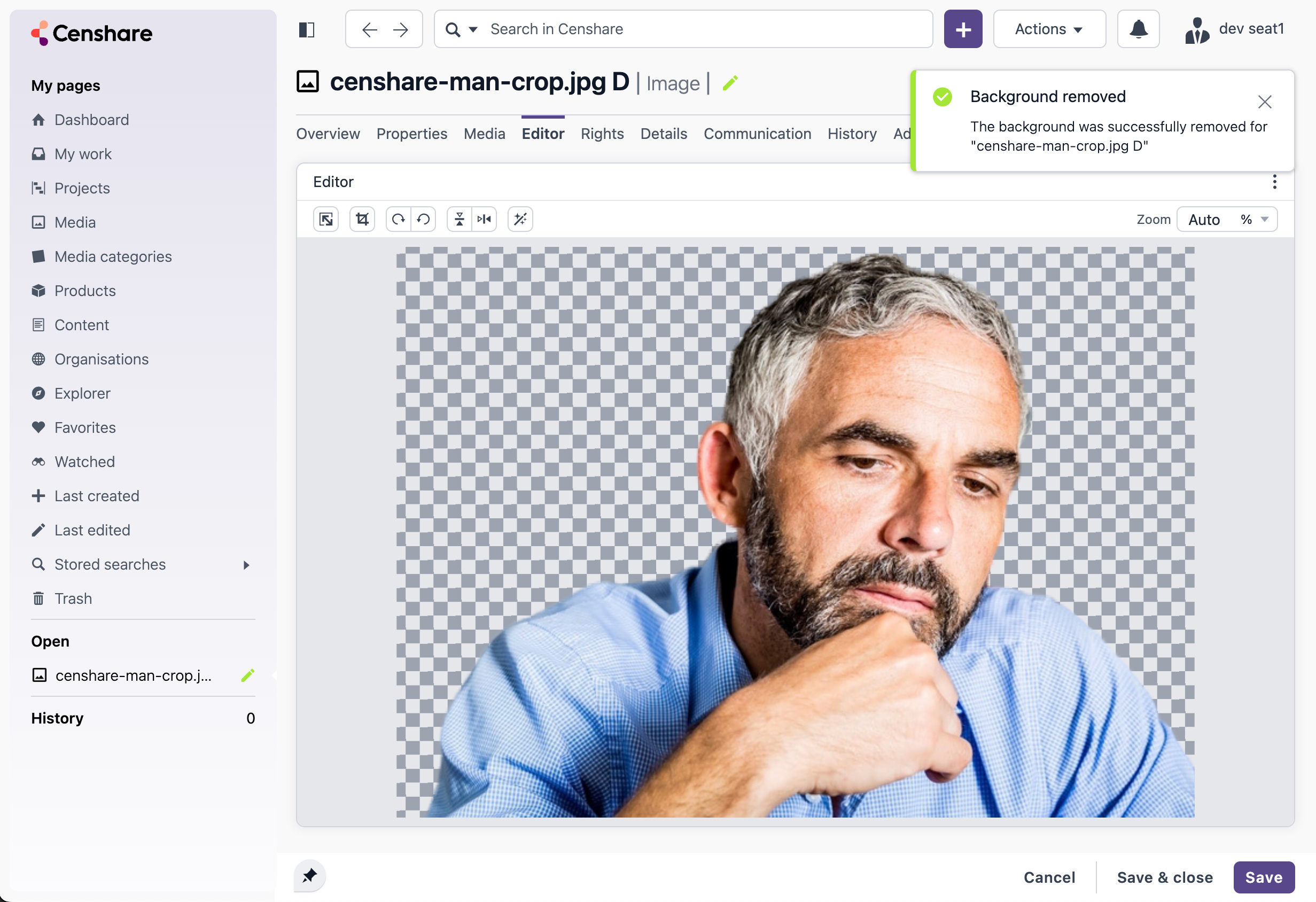
Remove background
Open the function
-
Open an image and switch to the Editor tab.
-
Look in the toolbar.
-
Select the Remove background button:

If you do not see the button, the feature is not enabled at your Censhare Cloud instance.
Define the Background removal parameters
-
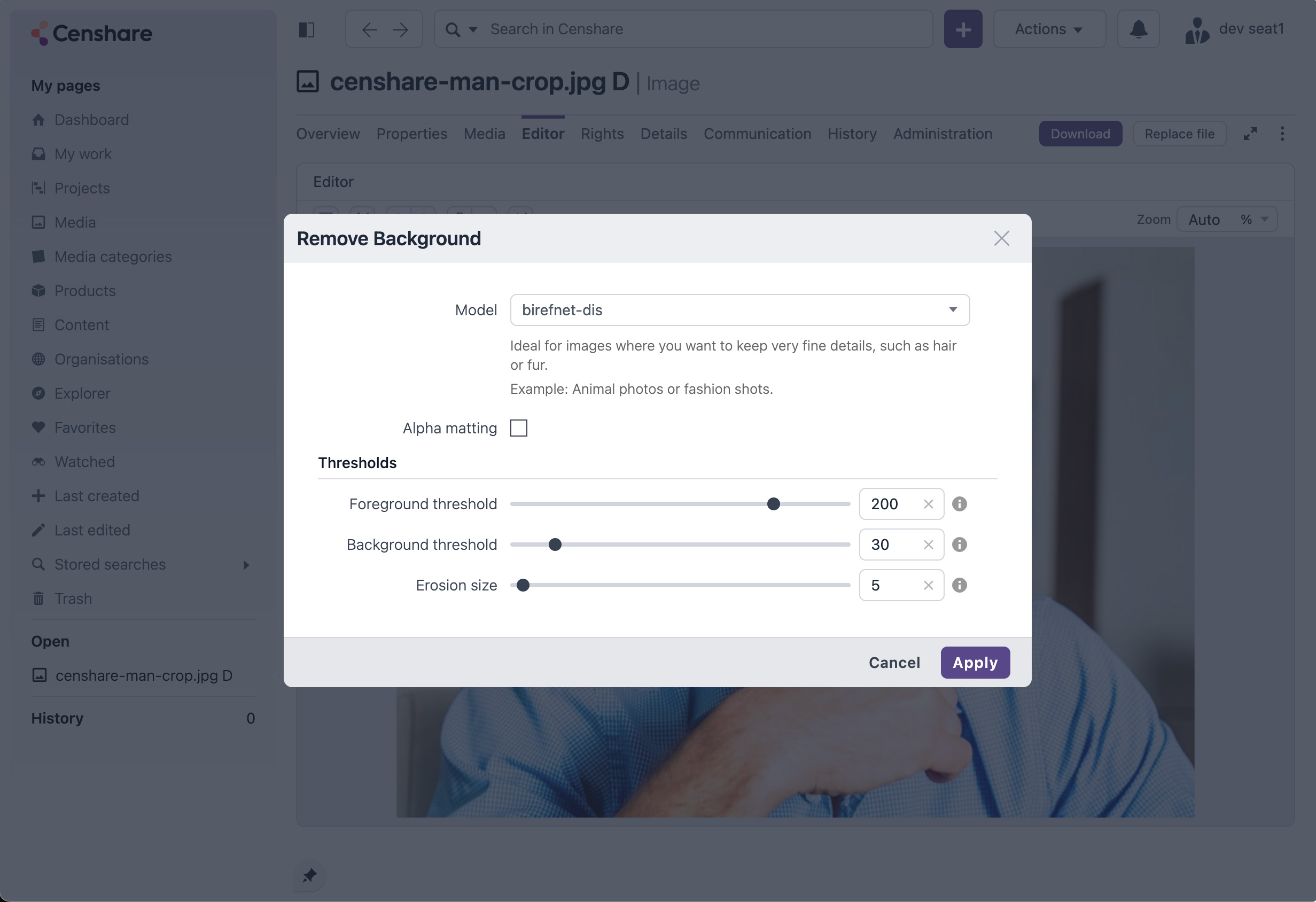
The Remove background dialog open:
-
Choose a Model which is used for removal. The selectoin box shows many different models which each of them is specific for special use-cases. For information on the models, see Appendix: Choose a model.
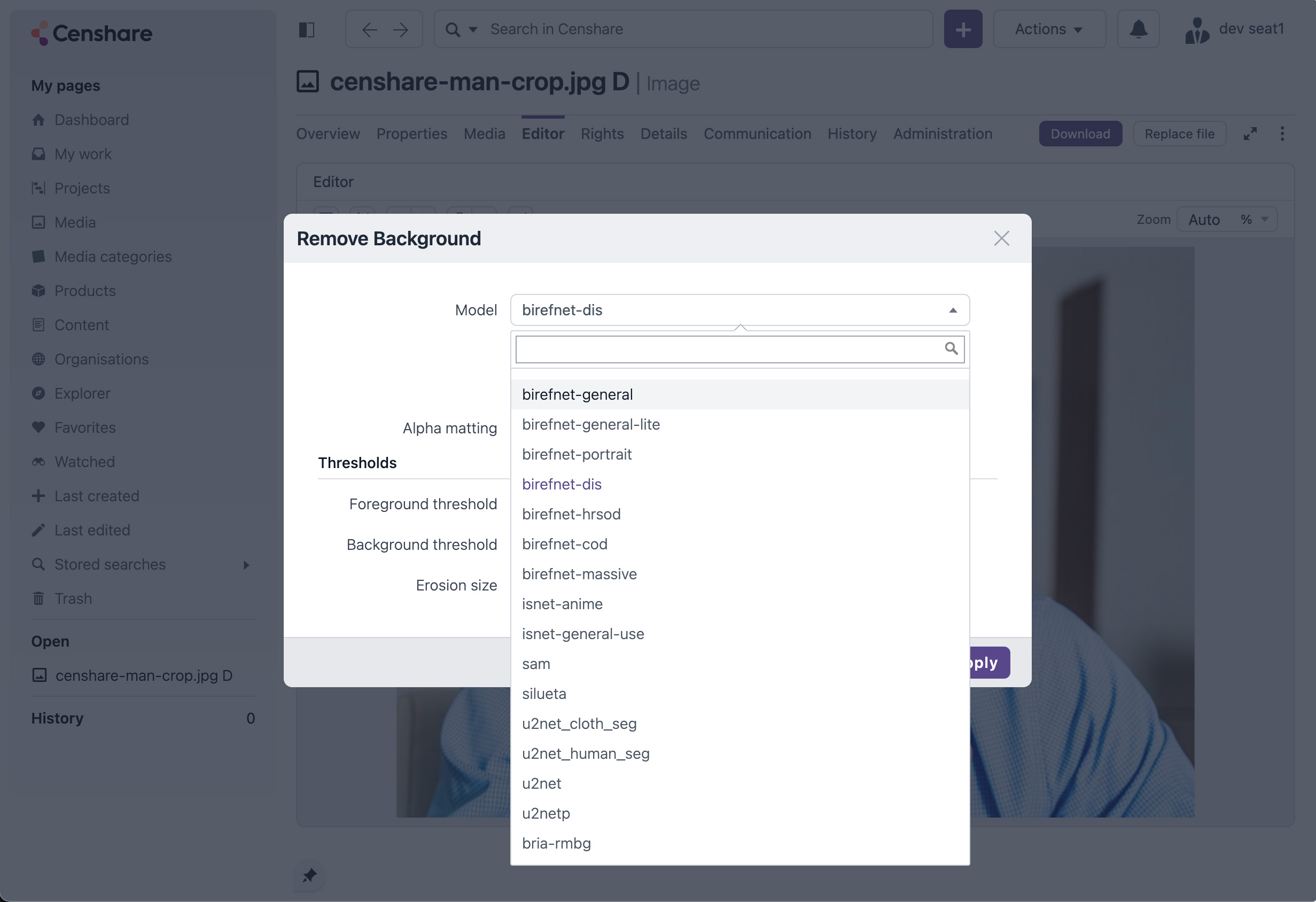
For more information, see Choose a model below.
-
Use for cleaner edges (optional):
-
Enable Alpha matting, for example if you have complex structures such as hair or a fleece.
-
Adjust the Foreground and Background thresholds.
-
-
Select Apply.
-
The removal process starts.
While the removal is running
While the background is being removed:
-
The editor may show a busy state.
-
Some tools may be temporarily disabled to avoid conflicting edits.
-
Saving may be blocked until the process finishes.
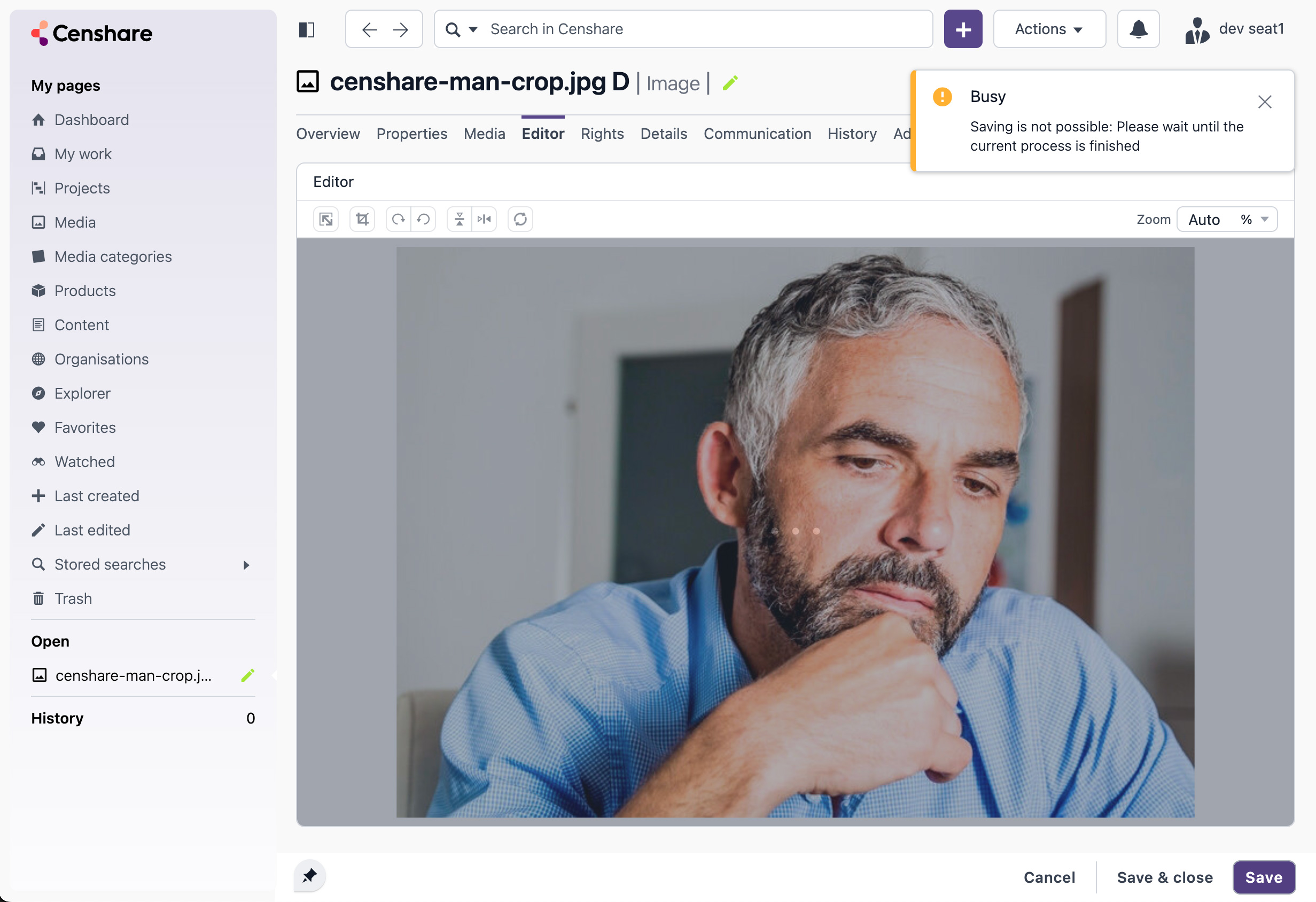
Messages you might see
When removal succeeds, you typically see a confirmation and an updated preview, for example:
|
Message |
What it means |
What you can do |
|---|---|---|
|
Background removed |
The new image is ready. |
Continue editing or save. |
|
Remove background failed |
The process could not be completed. |
Try again later. Contact your administrator if it keeps failing. |
|
Failed to load … models. Using default model. |
The model list could not be loaded |
You can still continue. The default model is then used. |
If you cancel removal process
If you cancel while the removal is still running, the editor may try to clean up the job status. The background removal can still finish in the background depending on how your system is configured.
Appendix: Choose a model
Depending on your system configuration, you can choose a model before applying background removal. If you’re not sure which one to pick, start with General. Then you can select to another based on what you see in the preview (hair edges, clothing details, etc.).
The model list in the dialog may look like this:
Quick selection guide
|
If your image is… |
Try this model first |
|---|---|
|
Most everyday photos |
birefnet-general |
|
A portrait or selfie |
birefnet-portrait |
|
Hair/fur has messy edges |
birefnet-dis |
|
A large studio/product photo |
birefnet-hrsod |
|
Cartoon / anime style |
isnet-anime |
|
A fashion shot (clothing segmentation) |
u2net_cloth_seg |
Model guide
|
Model |
Best for |
Notes |
|---|---|---|
|
|
General photos, mixed scenes |
Good default for most images. |
|
|
Faster processing |
Useful when you want speed over maximum edge detail. Provides less details. |
|
|
People |
Good for portraits and headshots. |
|
|
Fine edges |
Helps with hair, fur, lace, and detailed outlines. |
|
|
High-resolution subjects |
Good for large, clean product/studio images. |
|
|
Low contrast subjects |
For subjects that blend into the background. |
|
|
Very large images |
Heavy model Use when you need maximum detail. |
|
|
Illustrations |
For cartoons/anime/flat art styles. |
|
|
Centered objects in the foreground |
Works well when one main object is centered in the frame. |
|
|
Mixed content |
General purpose May need more tuning to look perfect. |
|
|
Simple scenes |
Lightweight option for quick, simple backgrounds. |
|
|
General fallback |
Solid general segmentation if other models don’t perform well. |
|
|
Small/fast |
Good for thumbnails and batch speed. |
|
|
People/groups |
Helpful for group photos. |
|
|
Clothing |
Designed for fashion/clothing-focused images. |
|
|
High accuracy (licensed) |
Use when your system provides it and you need maximum quality. |