
The Syndic8 integration is only available with:
-
Censhare Cloud 1.14 or higher and
-
Censhare Server 2025.2.2 or higher
You only see this feature if Syndic8 has been set up for your Censhare Cloud instance.
This requires a valid license for this feature.
Introduction
This article describes how to set up syndication in Censhare Admin Client and Cockpit.
-
The synchronisation mechanism with Syndic8 uses Kafka events to notify Syndic8 which data have changed. Creating events ensures that only changed data are synchronized. The different server actions in the Censhare Server create and send the events to Kafka. Product changes and deletions are taken into account for this.
-
In Cockpit, you can open the Syndic8 portal directly.
-
In Censhare Web, you can check which Syndic8 portal is connected to your system.
Open PIM Module
In the Censhare Admin Client:
-
In the left navigation pane, click Modules.
-
Select Syndicate.
-
Open the module:
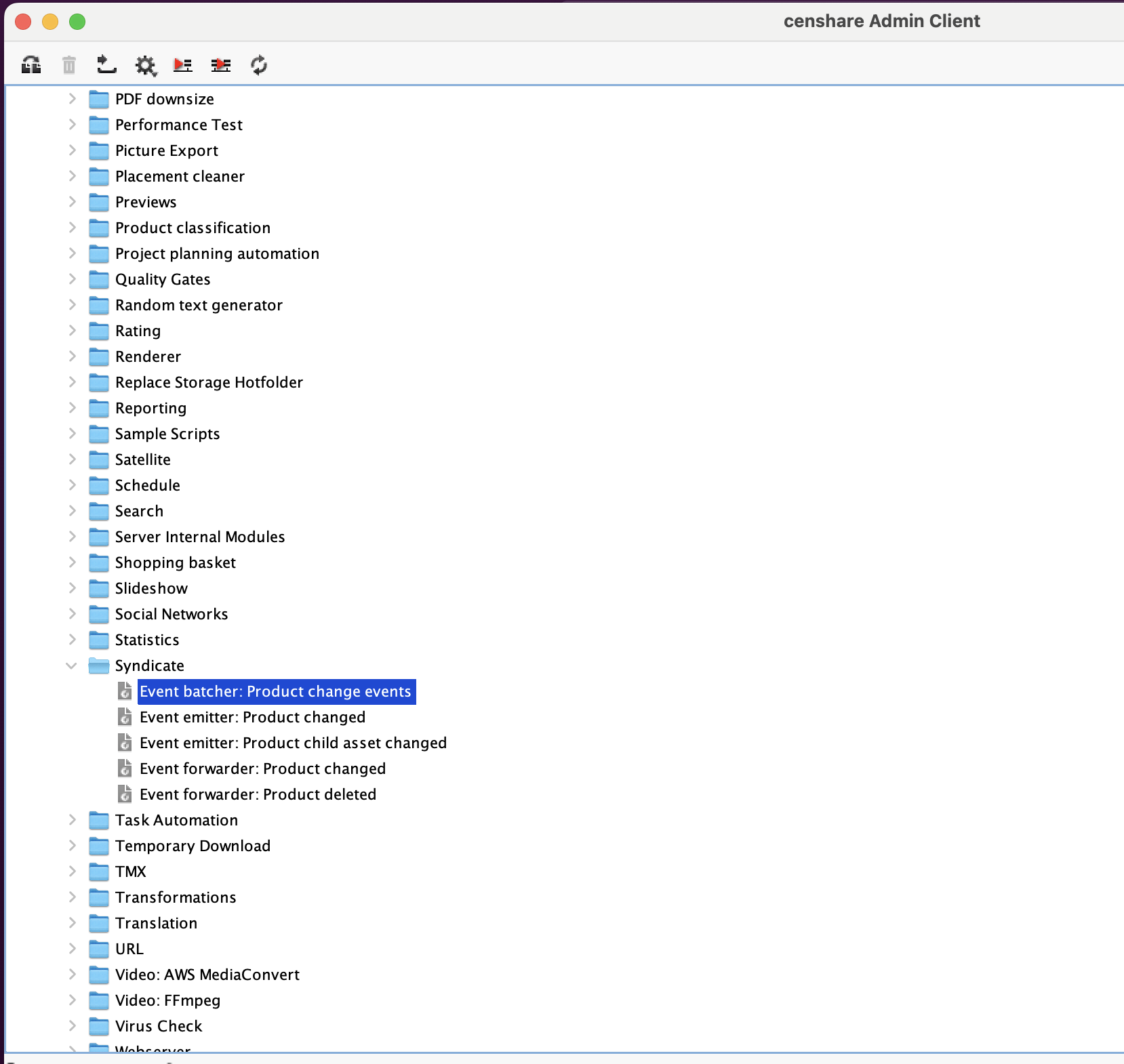
Configure Event batcher and emitters
Enable the following server actions in the Censhare Admin Client.
-
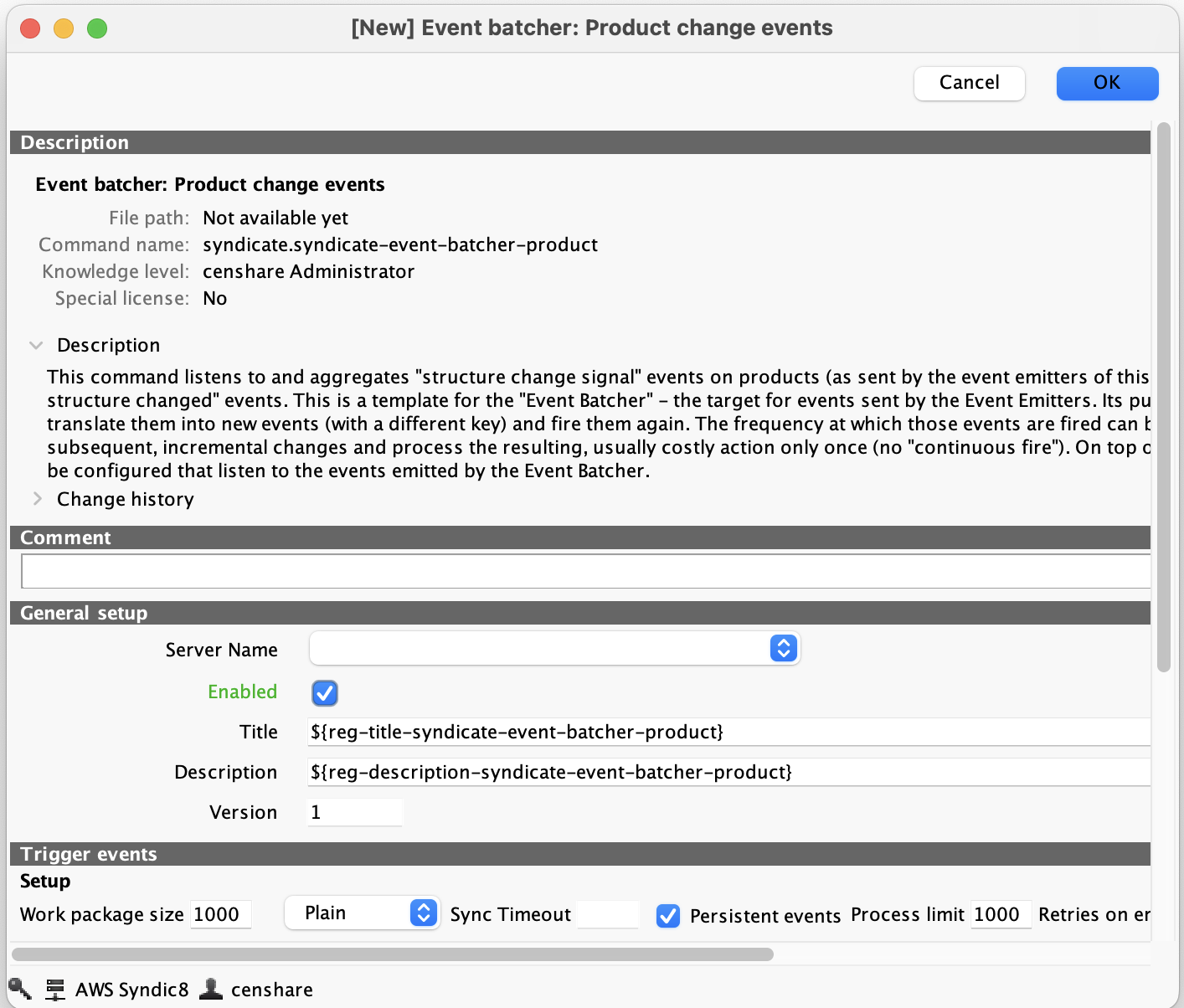
Double-click the Event batcher: Product Change Events, check Enable and click OK:
-
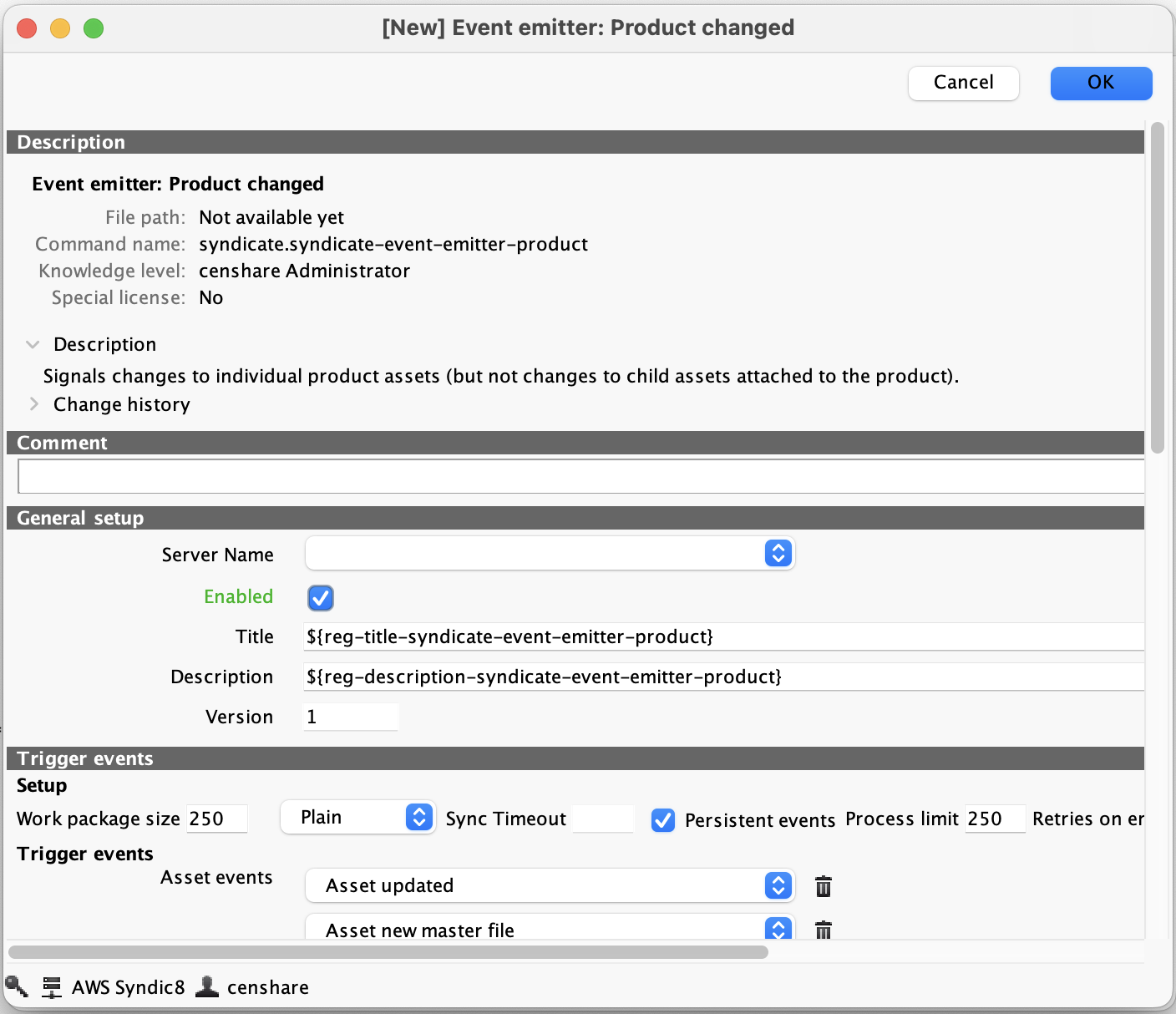
Double-click the Event Emitter: Product changed, check Enable and click OK:
-
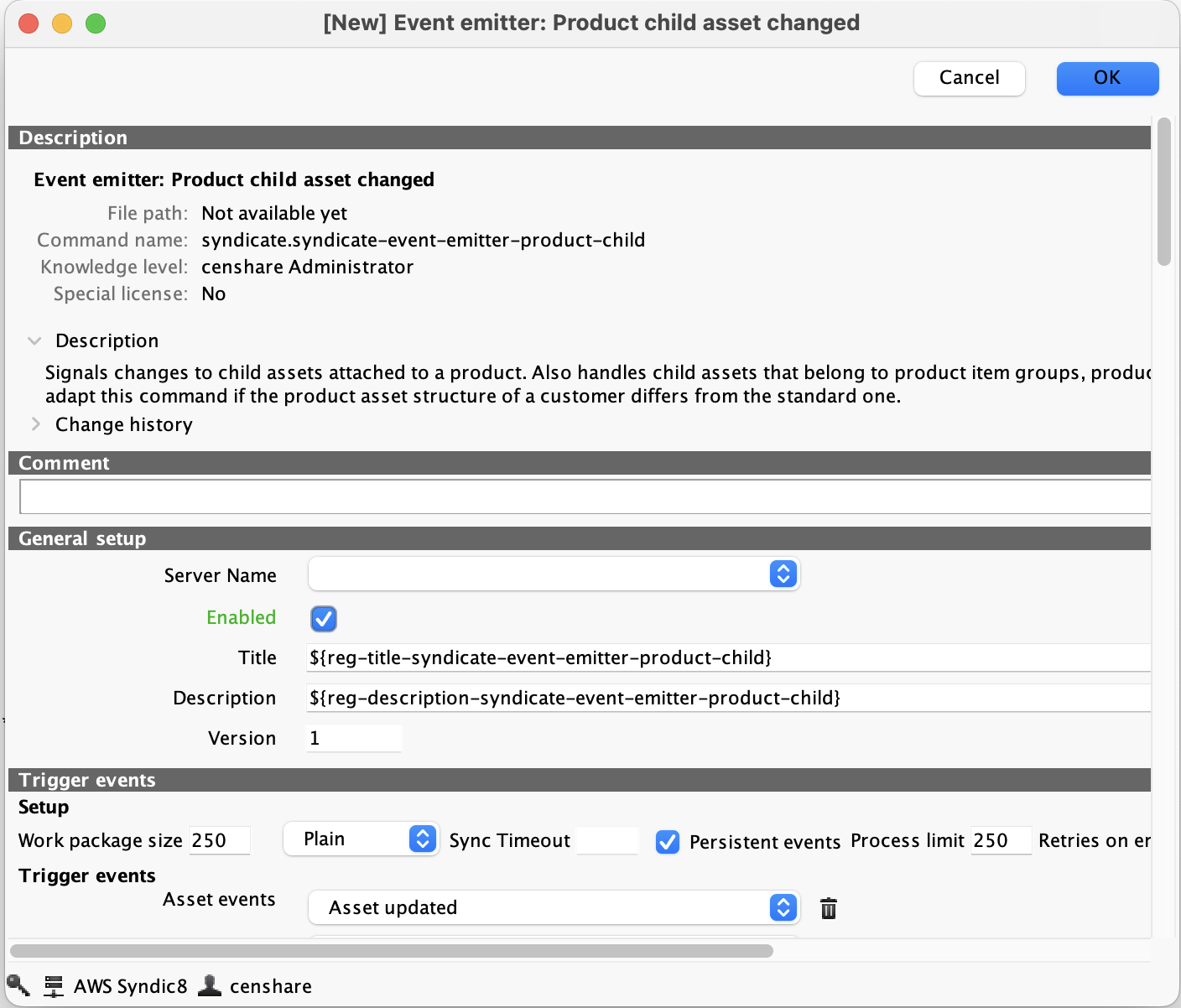
Double-click the Event Emitter: Product child asset changed, check Enable and click OK:
-
Double-click the Event Forwarder: Product changed, check Enable and click OK.
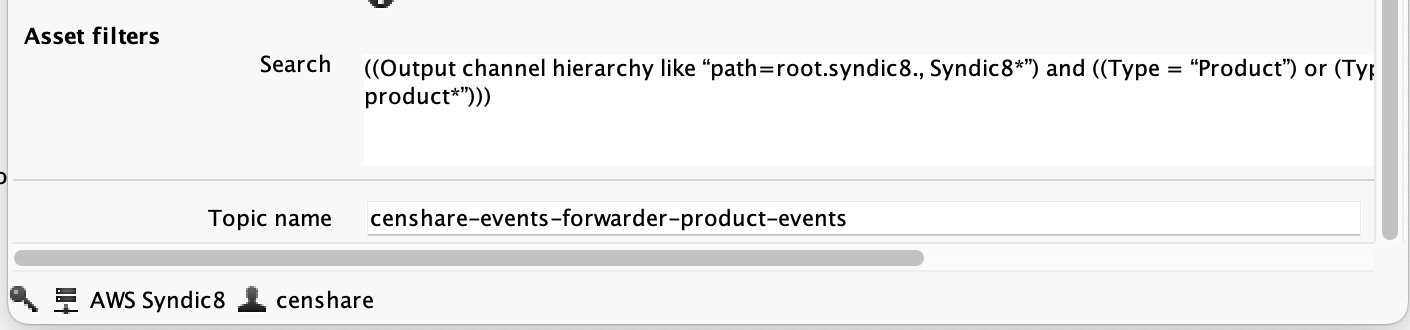
This forwarder is required for syndication: It is automatically configured to forward only products that are set up for syndication, for example outputchannelroot.syndic8..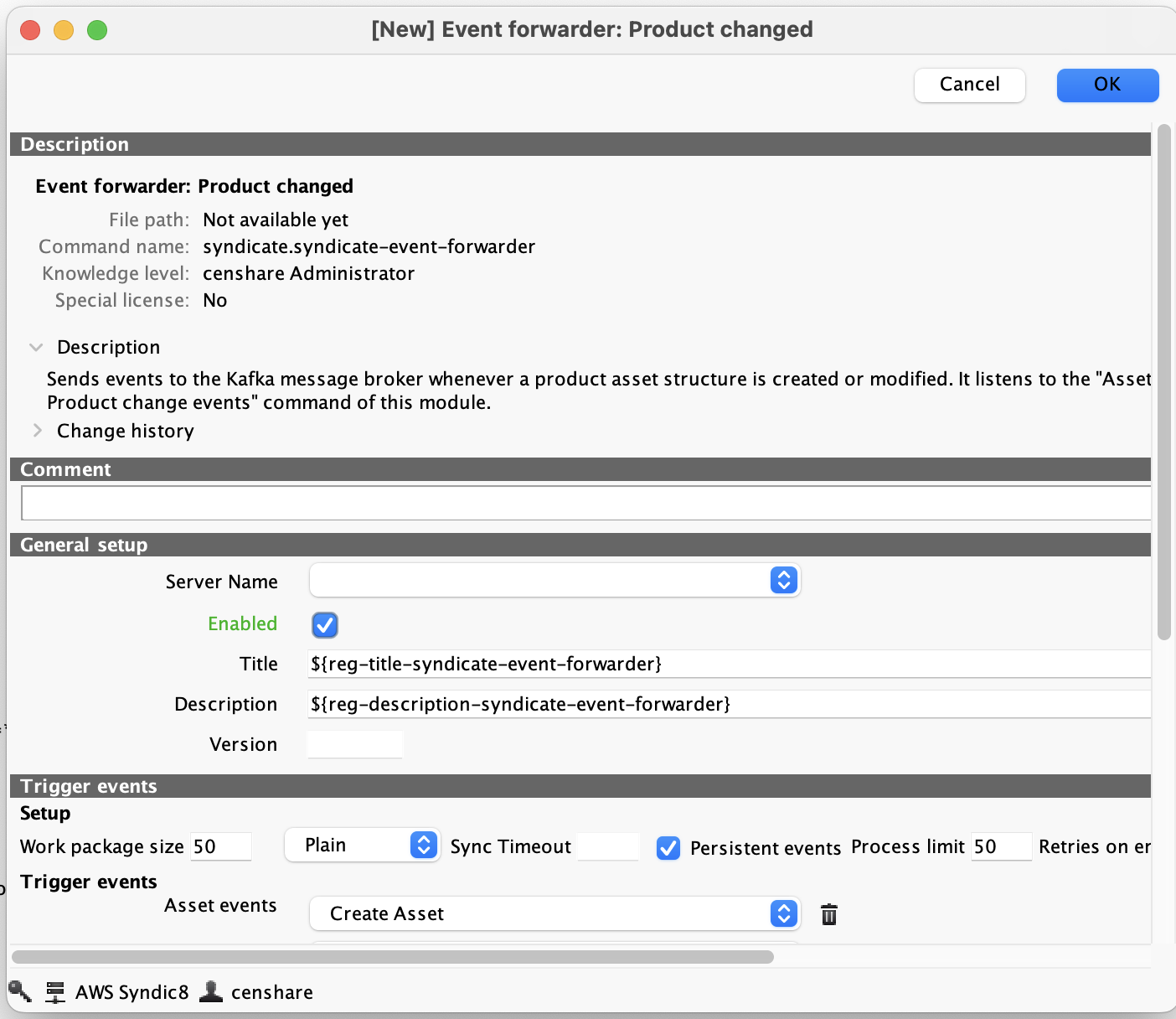
The filters are already set up so that only products and assets selected for Syndication are forwarded:
-
Double-click the Event Forwarder: Product Deleted, check Enable and click OK.
Products, that you no longer want to sell, are then no longer forwarded to Syndic8: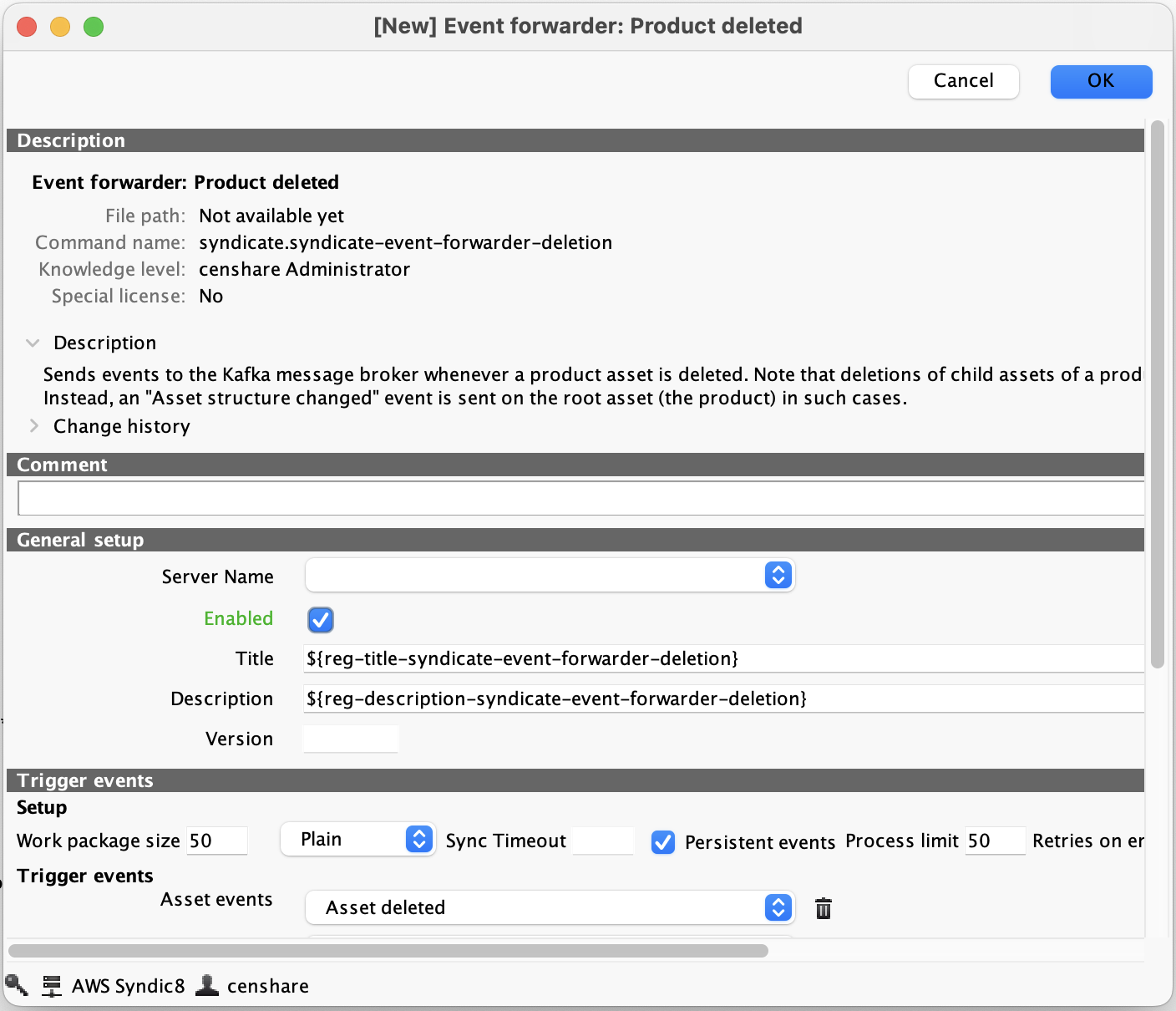
-
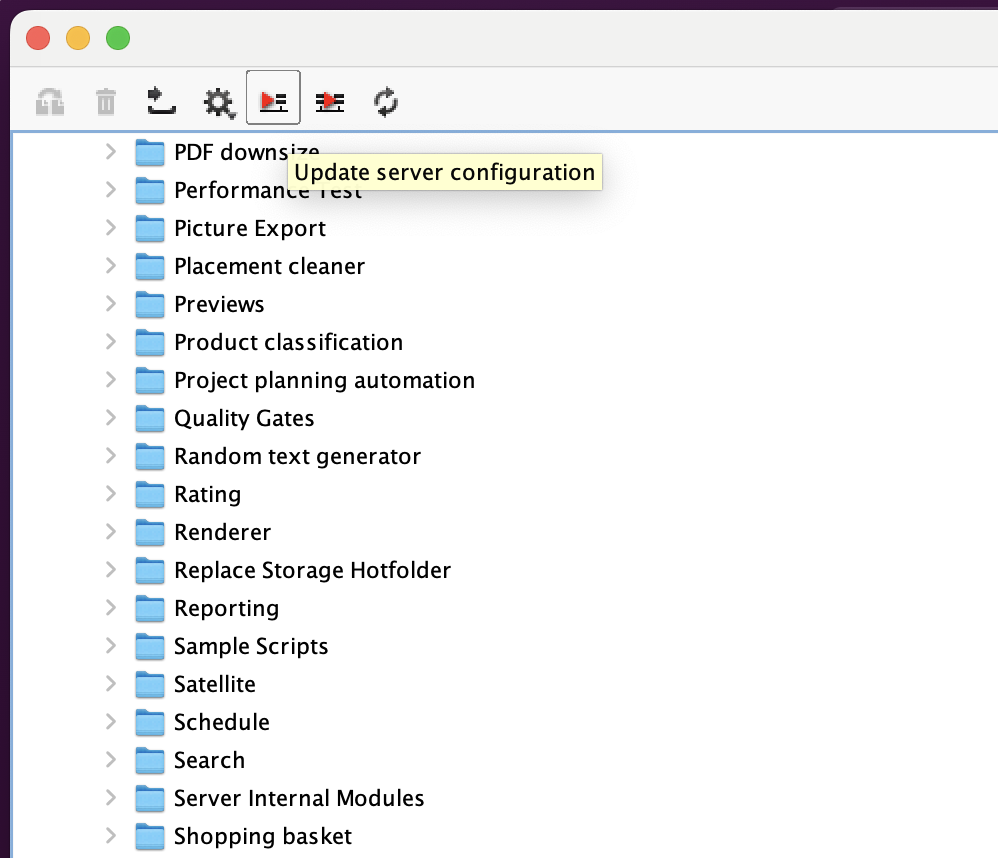
Click Update server configuration:
Product syndication tile in Cockpit
When Syndic8 is enabled, the Censhare Cloud Cockpit shows a Product syndication tile for admin users:
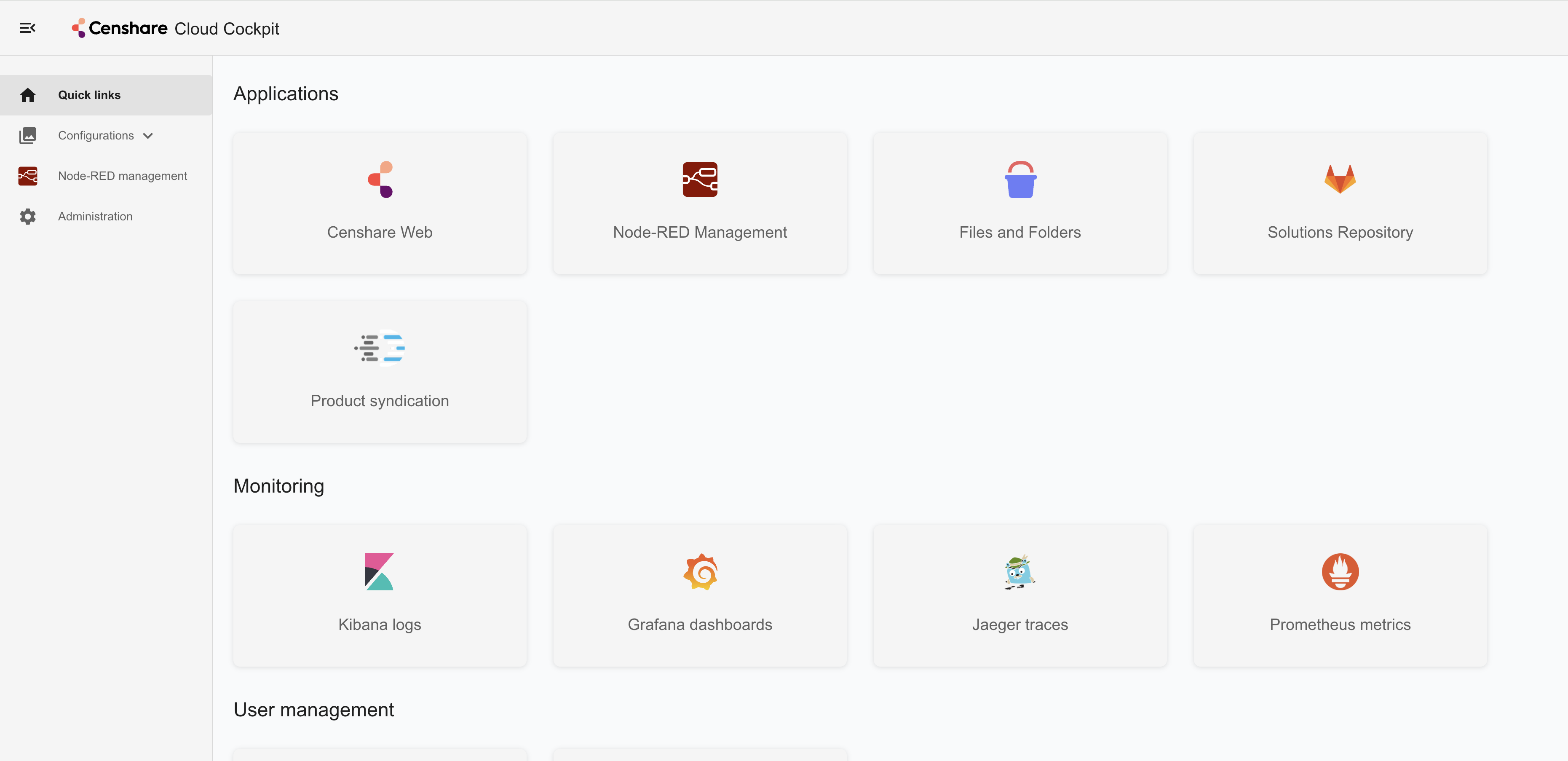
Click the tile to open the Syndic8 portal. No additional login is required as SSO is used.
Check the defined Syndic8 portal
In the System asset in Censhare Web, it is defined which Syndic8 portal the Censhare system is connected to. You can check if the required parameters are set:
-
Syndic8 Connector: enabled
-
Syndic8 URL is entered.
Do not edit these values because it might break the system.
For more information on the system asset, see Configure the system asset - Censhare Web.