
The Syndic8 integration is only available with:
-
Censhare Cloud 1.14 or higher and
-
Censhare Server 2025.2.2 or higher
You only see this feature if Syndic8 has been set up for your Censhare Cloud instance.
This requires a valid license for this feature.
Introduction
Syndication allow users to have consistent product information at different places where you want to provide PIM information. For this purpose, Censhare integrates with the syndication hub Syndic8. This allows you to add product information to this hub which then can be distributed to a lot of other integrated channels and partners.
In Censhare, you can do the following to work with this integration:
-
Watch a list products added for syndication.
-
Open the Syndic8 portal from the Censhare Web via SSO to work within the platform.
-
Mark products for syndication with Syndic8 in the Censhare Client.
See a list of synced products in Censhare Web
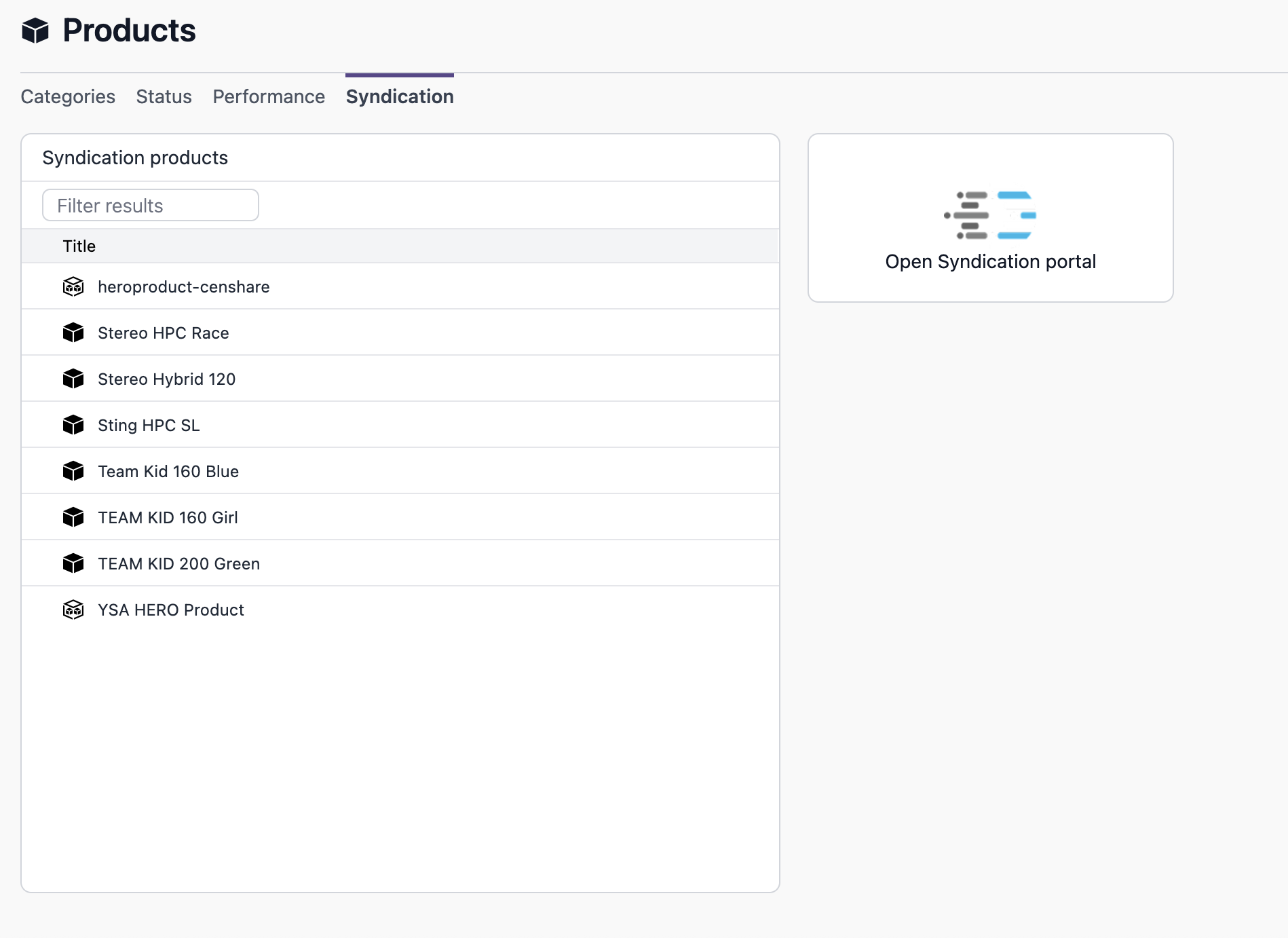
The Products page shows a list of products that are synched with Syndic8:
-
In the main left navigation, go to Products.
-
Open the Syndication tab.
-
The Syndication products widgets shows the list of assigned products:
Access Syndication portal within Censhare Web
In Censhare Web, you can open the Syndication platform at two different places:
-
From product pages (asset pages having Product asset type)
-
From the Products overview page
You only see the Syndication tab on a product page if the product has been set up for syndication with Syndic8: The output channel has been set to .root.syndic8 .
Censhare Web uses SSO to open the Syndic8 portal. You do not need to have an additional account at Syndic8.
Open Syndication portal from a product page
-
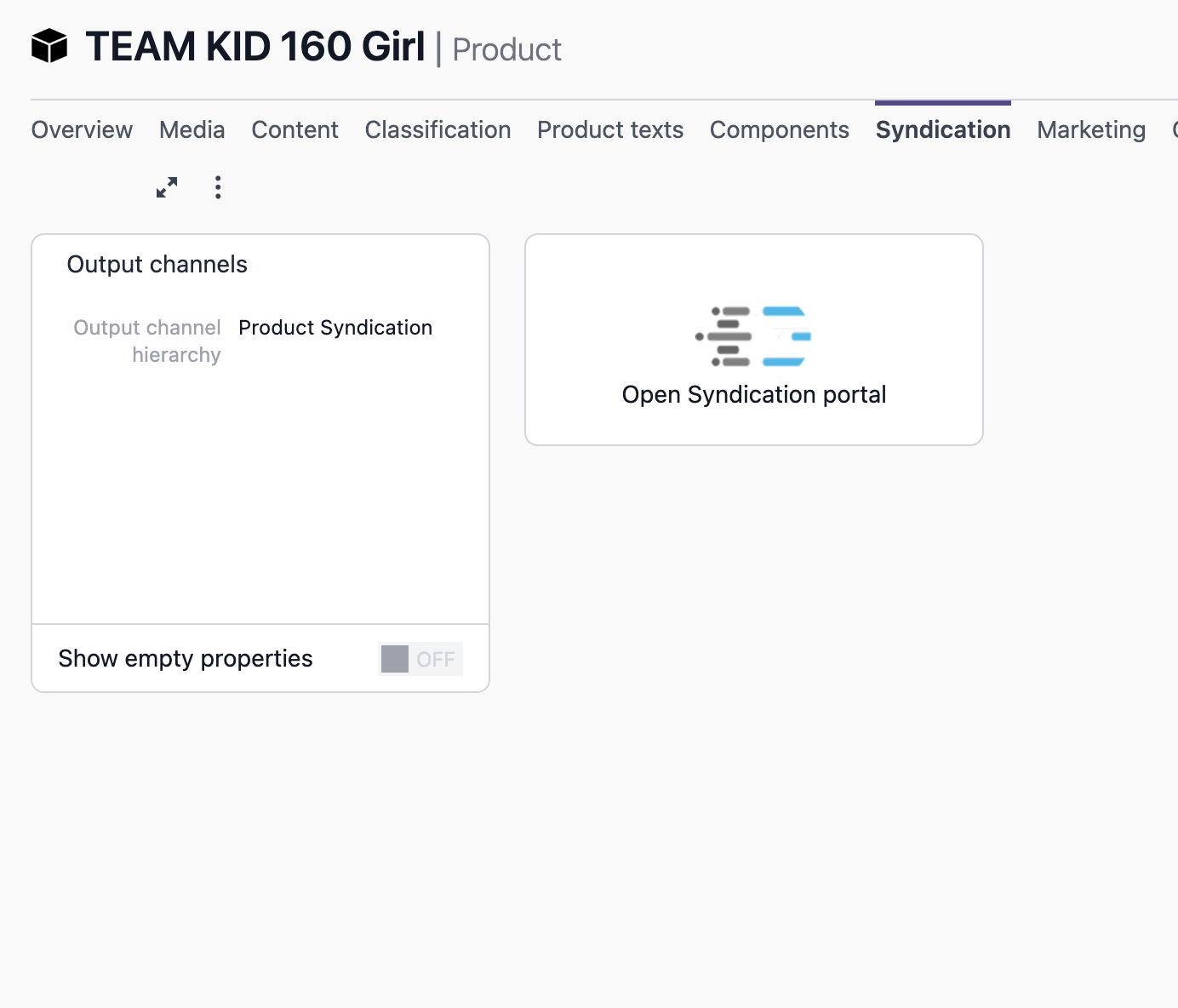
Go to a product page which product is marked for syndication, for example open TEAM KID 200 Green.
-
Open the Syndication tab.
-
Click Open Syndication portal.
-
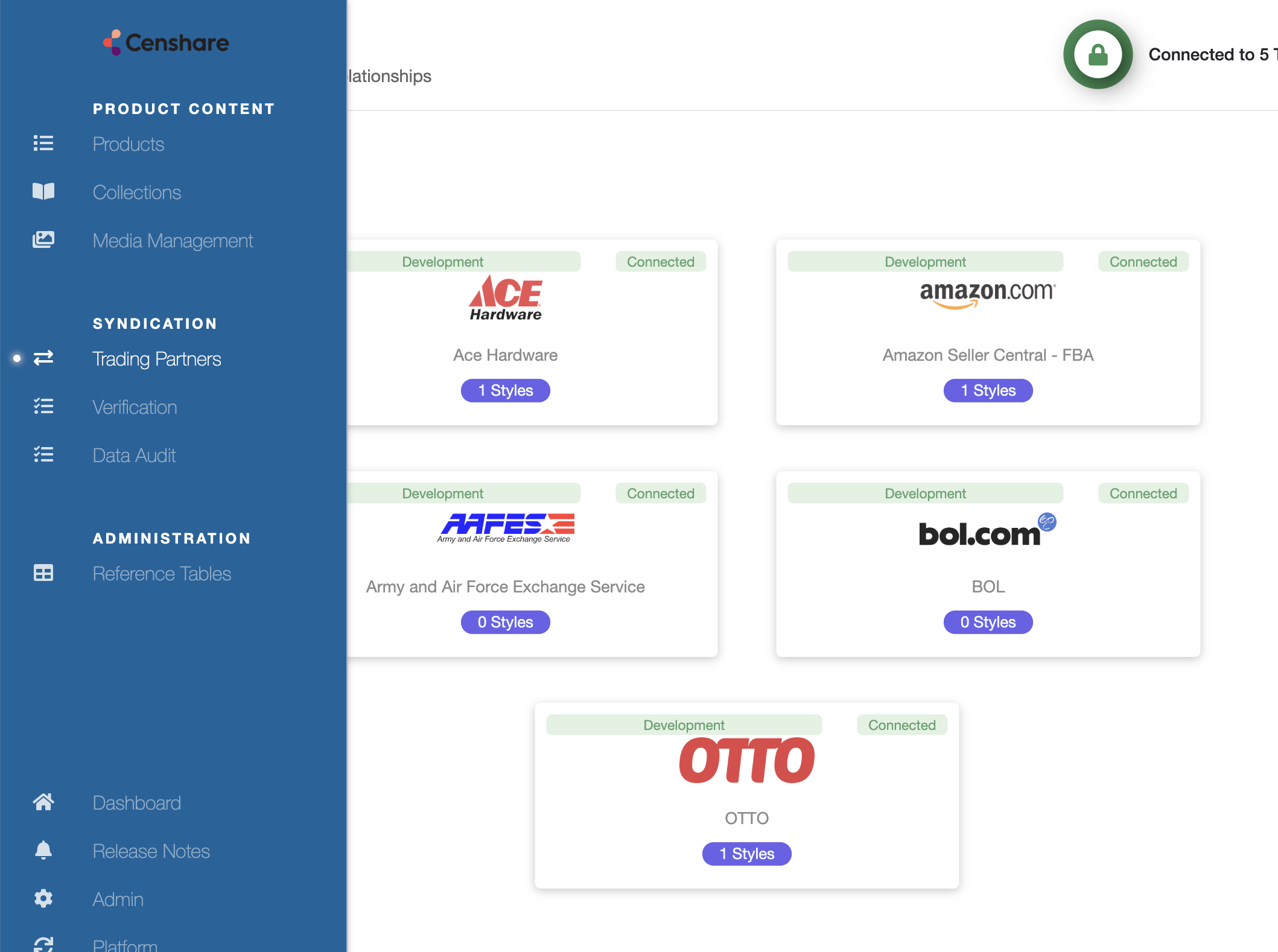
Auto-sign-in starts.
-
You are then signed in to the Syndication portal:
From the Products page
The Syndication portal can also be reached from the Products page:
-
In the main left navigation, go to Products.
-
Open the Syndication tab.
-
Click the Open Syndication portal widget.
Censhare Client: Mark for syndication
A product (and its images) are only synched with the syndication portal Syndic8 when the output channel is set to Syndic8. This is done in the Censhare Client.
The steps:
-
Open the Censhare Client.
-
Search for the product that you want to synchronize.
-
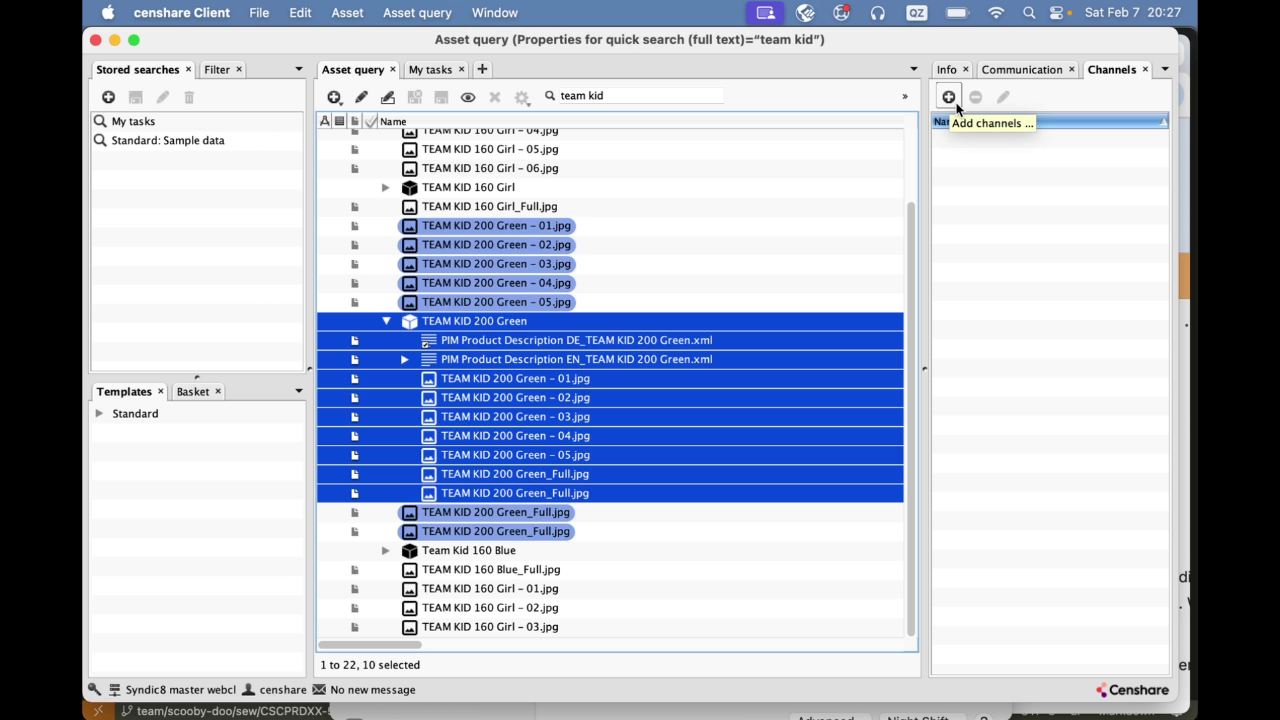
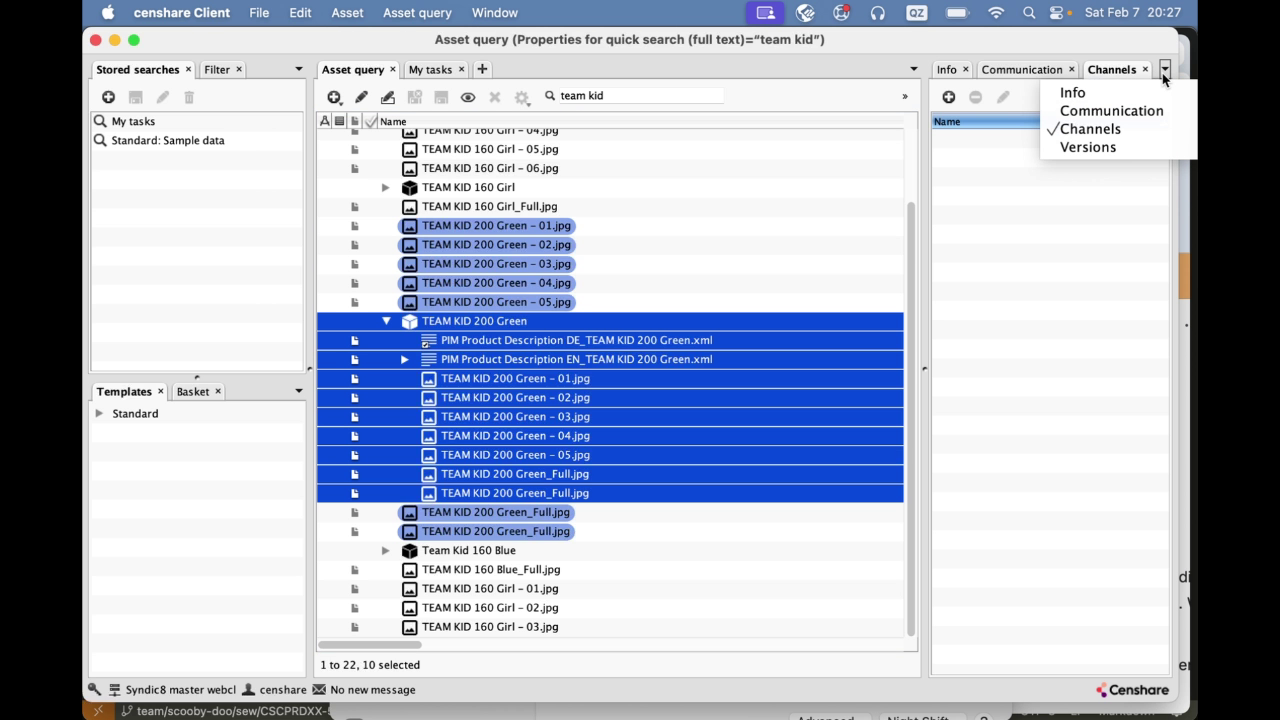
Mark the product asset, its images, and all related assets that you want to include:
-
In the right panel, open the Channels tab (you may need to use the arrow at the side to reveal it). This panel lists the distribution channels the product can be assigned to:
-
To add a new channel: Click the + Add Channels button to choose an output channel for syndication:
-
Syndic8 channel: From the dropdown, select Syndic8 or the syndication channel configured for your instance, for example
root.syndic8.: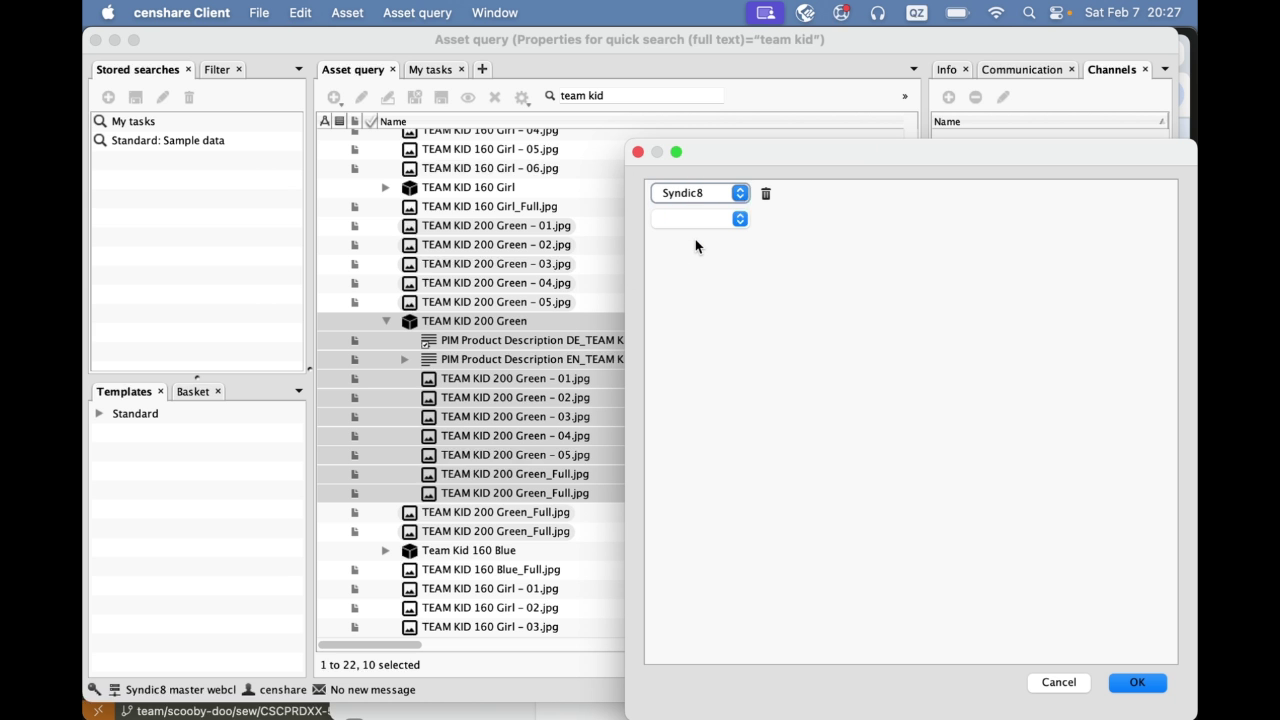
-
Confirm the assignment: Click OK to finalize the channel assignment.
-
The product is now configured for syndication and is forwarded through the syndication output channel to Syndic8.