
This article only applies for Censhare systems which use Amazon S3 Glacier for archiving. If you are not sure about this, contact your system administrator.
If the Censhare deep-archiving module uses AWS S3 Glacier, it cannot be combined with Amazon S3 Intelligent-Tiering.
Intelligent-Tiering is currently not supported for deep-archiving buckets.
About archiving and dearchiving assets
Archiving lets you move assets you don't use often to a cheaper storage location. This helps your organization save on storage costs. You can still search for archived assets and restore them whenever you need them again.
When your system is configured to use Amazon S3 Glacier Deep Archive, archived files are moved to cold storage. This is a very affordable storage option, but it takes time to restore files from it.
How archiving works in your system, depends on how your administrator has set things up. This includes which files are archived, whether previews stay available, and how long restoring takes.
If you are unsure about your setup, contact your administrator.
For the configuration of arching assets, see Configure asset archiving (Amazon S3 Glacier).
Why archive assets?
Over time, your asset library grows. Not every asset is needed every day. Archiving helps you:
-
Save storage costs by moving files of rarely used assets to cheaper storage.
-
Keep your assets organized without permanently deleting assets.
-
Restore assets when needed: Archived assets can be brought back at any time.
Supported clients
You can archive and dearchive assets manually in:
-
Censhare Web — using the asset actions menu
-
Censhare Client — using the user menu or server actions
Before you start
Before you archive an asset, keep the following in mind:
-
The Archive and Dearchive options may be disabled in your system. If you do not see these options, contact your administrator.
-
When you archive an asset that is part of a group of related assets, the system checks whether all related assets are ready to be archived. This may delay the process. See Archiving and asset relations for details.
-
If your system uses Glacier Deep Archive, restoring an archived asset can take 12 to 48 hours. Plan ahead if you know you will need an asset.
What happens when you archive an asset
When you start archiving, the asset moves through the following stages:
-
Proposed for archiving: You have requested archiving. The system has registered your request.
-
Archiving in progress: The system is moving the files to archive storage.
-
Archived: the asset is in archive state.
You can see the status of an asset in the UI.
After archiving, the asset:
-
Remains searchable in the UI.
-
May still show a preview or thumbnail, depending on your system configuration.
-
Has its master file moved to archive storage and marked as offline.
The system checks which assets are ready to be archived on a regular schedule. There may be a short delay between when you propose an asset for archiving and when it actually moves to the next stage.
Archive assets
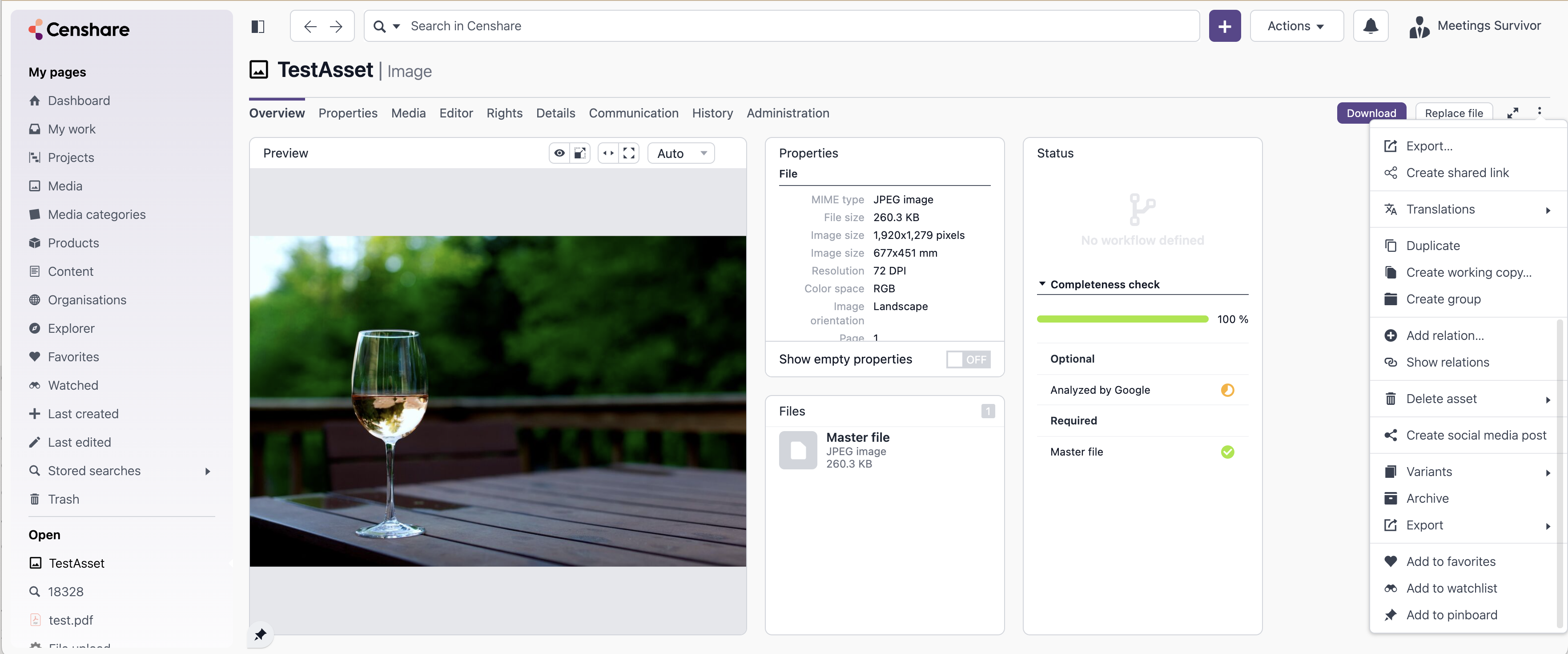
Censhare Web:
-
Select the asset.
-
Open the Asset actions menu:
-
Select Archive.
-
Confirm your selection.
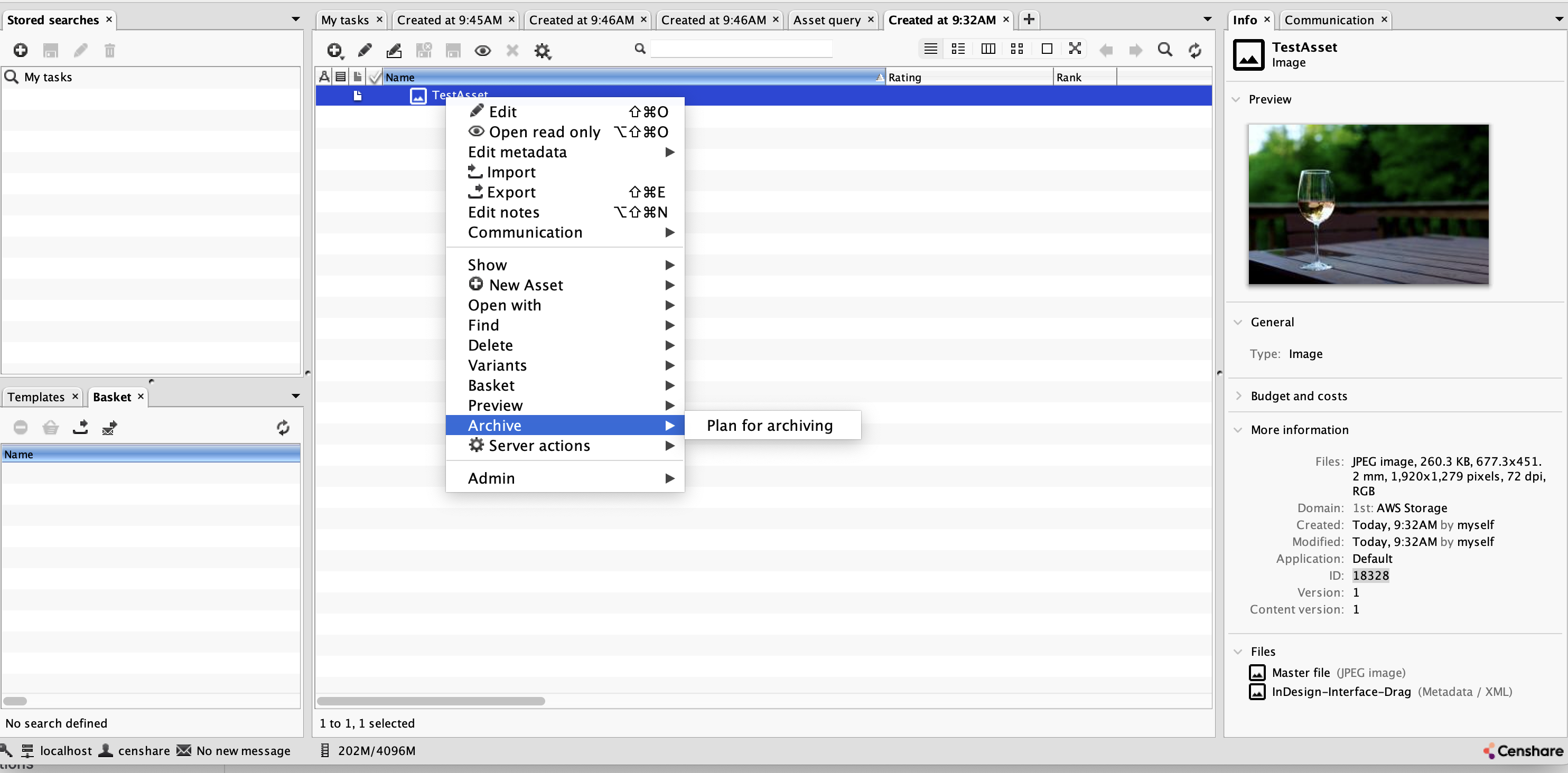
Censhare Client:
-
Select one or more assets.
-
Open the asset menu via right-mouse click.
-
In the menu, select Archive:
Dearchive assets
Dearchiving restores an archived asset so you can work with it again. When you start dearchiving, the asset moves through the following stages:
-
Proposed for dearchiving — you have requested the restore; the system has registered your request.
-
Dearchiving in progress — the system is restoring the files.
-
Available (online) — the asset is fully restored and ready to use.
Important: If your system uses AWS Glacier Deep Archive, restoring a file typically takes 12 to 48 hours. You cannot speed this up. The system works in the background and makes the asset available once the restore is complete.
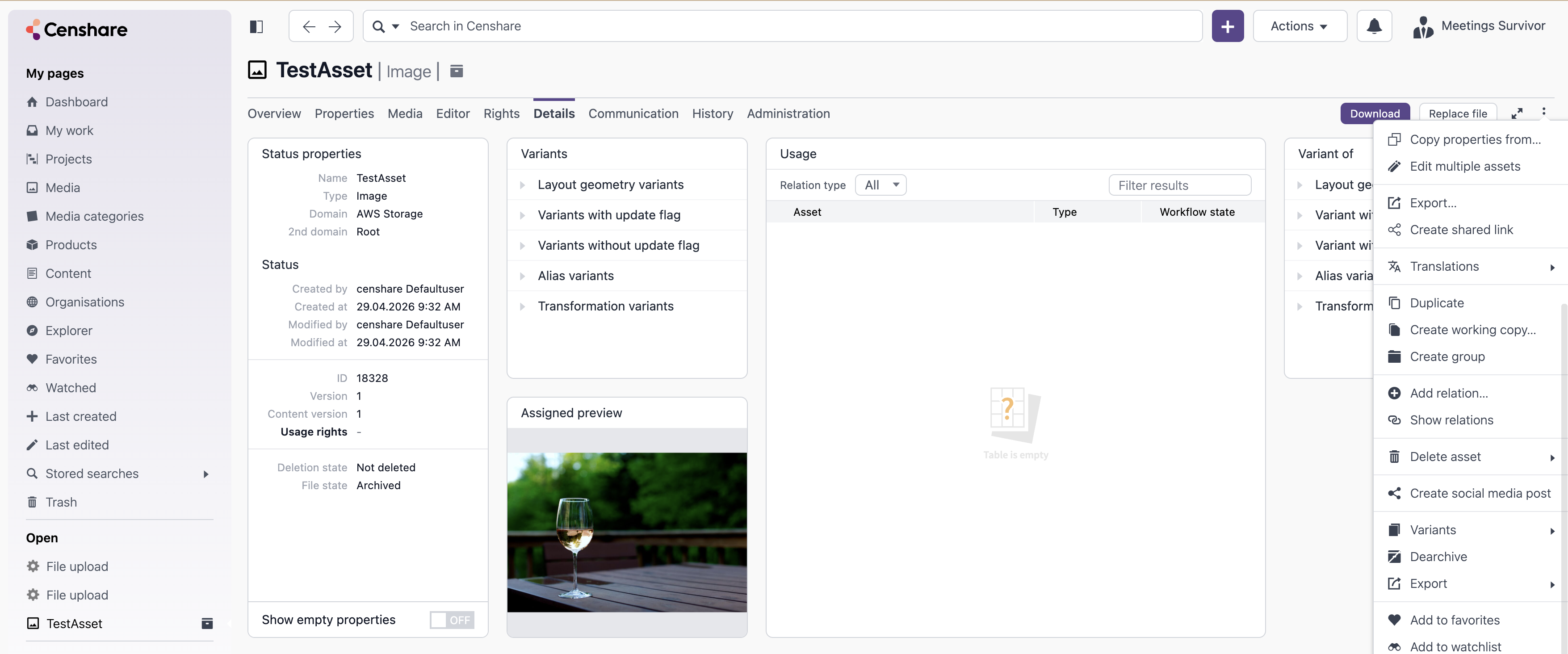
Censhare Web:
-
Select one or more Archived assets.
-
Open the asset actions menu:
-
Select Dearchive.
-
Confirm your selection.
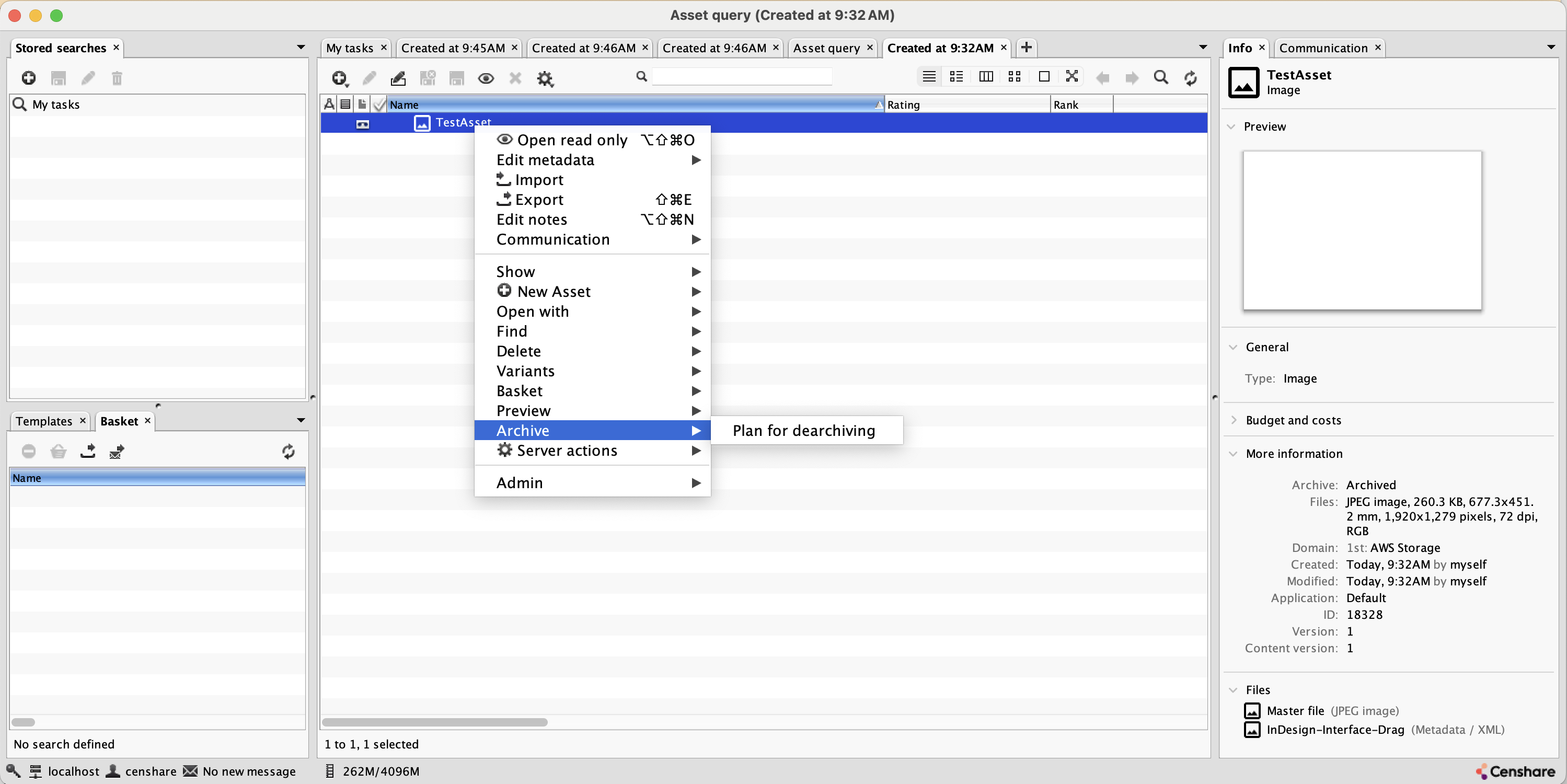
Censhare Client:
-
Select one or more Archived assets:
-
In the menu, select Dearchive.
What you can and cannot do with an archived asset
While an asset is archived and its master file is in archive storage, some actions are not available. You need to dearchive the asset first.
Actions available for archived assets:
|
Action |
Available while archived? |
Comment |
|---|---|---|
|
Search for the asset |
Yes |
|
|
View preview or thumbnail |
Yes |
Depends on configuration |
|
Edit metadata |
Yes |
((CHECK)) |
|
Edit content |
No |
You must dearchive first. |
|
Download the master file |
No |
You must dearchive first. |
|
Export (if the original file is needed) |
No |
You must dearchive first. |
|
Delete the asset |
Yes |
|
In some cases, you may still be able to download a file shortly after archiving. This is because the file may still be stored in a temporary local cache of your Censhare Server. This does not last indefinitely. How long it remains available depends on your system's cache settings.
Archiving and asset relations
Censhare lets you link assets to each other. For example, a layout asset may be linked to the text and images it uses. When you archive an asset that is linked to other assets, the system applies rules to make sure everything stays consistent.
Understanding these rules helps you avoid unexpected results.
Variant relations
Some assets exist in multiple versions, called variants (variant.*). All assets in a variant chain must be proposed for archiving before any of them can move forward.
-
If one variant is still available (online), the other variants in the chain stay in Proposed for archiving and do not progress.
-
Once all variants in the chain are proposed for archiving, they all move forward together.
Tip: If an asset seems stuck in Proposed for archiving, check whether another variant chain has a child which has not been proposed yet.
Planning relations
Assets can be linked in a planning relations (target.*), where one asset is the parent and another is a planned child.
-
A parent asset can be archived even if its child (placement relatoinis still online. The planned child does not block the parent.
-
If you propose a planned child for archiving without proposing the parent, the child may stay in Proposed for archiving until the parent is also proposed.
Placement relations
Assets can also be linked in a placement relations (actual.*), for example when an image is placed on a layout.
-
A parent asset can be archived even if its placed child is still online. The placed child does not block the parent.
-
In some workflows (project-specific), proposing a placed child without the parent may cause the child to wait until the parent is also proposed. The child stays in proposed for archiving.
Layout assets
A layout asset will only be archived if all assets placed within it are also marked for archiving. This ensures that the layout and its content stay consistent.
Assets with a cross-reference
If two assets reference each other through a feature reference, both assets can be archived independently. Neither blocks the other.
Two assets sharing the same file
If two assets share the same underlying file (storage item):
-
The asset you proposed stays in Proposed for archiving and does not progress until the other asset is also proposed.
-
When both assets are proposed, archiving can proceed.
What happens when you dearchive a related asset
Depending on your system configuration, dearchiving one asset may also restore related archived assets automatically. For example, dearchiving a parent asset may automatically dearchive its archived variant children.
Asset stuck in "Proposed for archiving"
If an asset stays in Proposed for archiving and does not move forward, for example because a related asset is blocking it, you can still dearchive it. This returns the asset to its normal state without waiting for the archive process to complete.
Deleting archived assets
You can delete an archived asset. After deletion:
-
The asset is no longer searchable in the UI.
-
Any cleanup of files in archive storage follows your system's configured schedule. For more information (admins), see Asset Storage Deletion.
If the archived asset is linked to other assets, the system follows your configured policy. This refers to variant, planning, and placement relations.
It will either:
-
Block deletion and show a clear message about the dependency, or
-
Allow deletion and preserve/clean relations correctly (no corrupted relations, no hanging states).
For more information, see Delete assets.
Bulk archive and dearchive
You can archive or dearchive multiple assets at once. This works the same way as archiving a single asset, but for a larger selection.
When running a bulk operation:
-
Each selected asset is processed exactly once.
-
Assets outside your selection are not affected.
-
Any failures are reported in the logs.
Bulk operations on large sets of assets may take longer to complete. Check the logs after the job finishes to confirm all assets were processed correctly.
Known limitations
-
Restoring files from Glacier Deep Archive takes 12 to 48 hours. You cannot speed this up.
-
If the local cache of your Censhare Server is full, you may not be able to download an archived asset even if it was recently cached.
-
The Archive and Dearchive options in the menu can be disabled by your administrator. If you do not see these options, contact your administrator.
-
Archiving is only supported for assets stored on AWS S3 file systems. It is not supported for S3-compatible storage providers such as Nutanix Objects.
-
While an asset is being restored (dearchiving in progress), it is temporarily in a re-archiving state. The system checks the restore progress in the background and makes the asset available once it is fully restored.