
AWS S3 Glacier cannot be combined with Amazon S3 Intelligent-Tiering.
Intelligent-Tiering is currently not supported for deep-archiving buckets.
Use this article to configure asset archiving with Amazon S3 Glacier Deep Archive in Censhare. This functionality has been introduced with version 2026.1. It uses the AWS S3 Archiving mode of Censhare.
This article describes the configuration of archiving and dearchiving for the AWS S3 archive mode only! That mode requires that:
-
an Amazon S3 file system is used for storing asset file data. No S3-compatible file system can be used!
-
AWS S3 Glacier is used for Archiving.
If one or both conditions are not fulfilled, the normal archiving functionality is used!
This means that for archiving asset files are moved to the archive file system that is defined in Filesystem service for the respective Censhare Server. Depending on the setup of asset filesystem and archive filesystem, moving files might cause additional costs.
Note that by default, every Censhare Server has an archive file system that is mapped to a local file directory of the Censhare Server. If you have not defined any other archive filesystem, the default one is used for archiving if the AWS S3 archive mode does not apply.
For background information about Amazon S3 in Censhare, see Amazon S3. For storage concepts, see File system.
About configuring asset archiving
Censhare can archive asset files that stored at Amazon S3 at Amazon S3 Glacier Deep Archive. This moves file content to a lower-cost storage class for long-term retention. Assets remain searchable and governed in Censhare.
The configuration is done in the Censhare Admin Client and in Amazon Web Services (AWS).
The configuration involves these main steps:
-
Creating a dedicated AWS domain in the Censhare Admin Client.
-
Creating a file system definition in the Master data.
-
Defining an S3 file system in the Filesystem service.
-
Defining a cache file system in the Filesystem service.
-
Enabling and configuring the archive modules.
-
Making archive and dearchive actions available to users.
For information on how end users archive and dearchive assets, see Archive and dearchive assets (Amazon S3 Glacier) .
Audience
This article is intended for:
-
System administrators
-
Solution administrators
Prerequisites
Before you start, make sure you have the following:
-
Administrator access to the Censhare Admin Client.
-
An active AWS account.
-
An S3 bucket created in your AWS account.
-
Your AWS access key and secret key to access the S3 bucket.
-
A decision on which storage items to exclude from archiving (for example, preview and thumbnail files).
-
The Domain concept for the target assets is planned.
-
Users who execute archive or dearchive actions have the required Role and permission schemas.
Storage design overview
To archive assets to Amazon S3 Glacier, you need the following components:
-
A dedicated domain for assets that use S3 storage.
-
An S3 asset file system defined in the master data and configured in Filesystem service.
-
A cache file system for that S3 file system in the master data and configured in Filesystem service.
-
The archive module configuration that enables archiving to AWS Deep Archive.
The domain separates assets between storage types. For example, assets in the AWS domain are stored in the S3 bucket. Assets in other domains use your physical storage. For more information, see Domain concept.
The cache reduces latency and improves repeated access to cloud-backed files. It also determines how long you can still download an asset after archiving. For background information, see Amazon S3 - Configuration and File system.
Create an AWS domain
Domains separate assets between different storage locations. You need a dedicated domain for assets that you want to store in AWS S3.
-
Open the Censhare Admin Client.
-
Navigate to Master data.
-
Click the 1st Domains entry in the list.
-
Click the + button or the Create button.
-
Select a parent domain if not yet been chosen.
-
Enter a Value for the domain, for example aws.
-
Enter a Name [en] for the domain, for example AWS Storage.
-
Click Save.
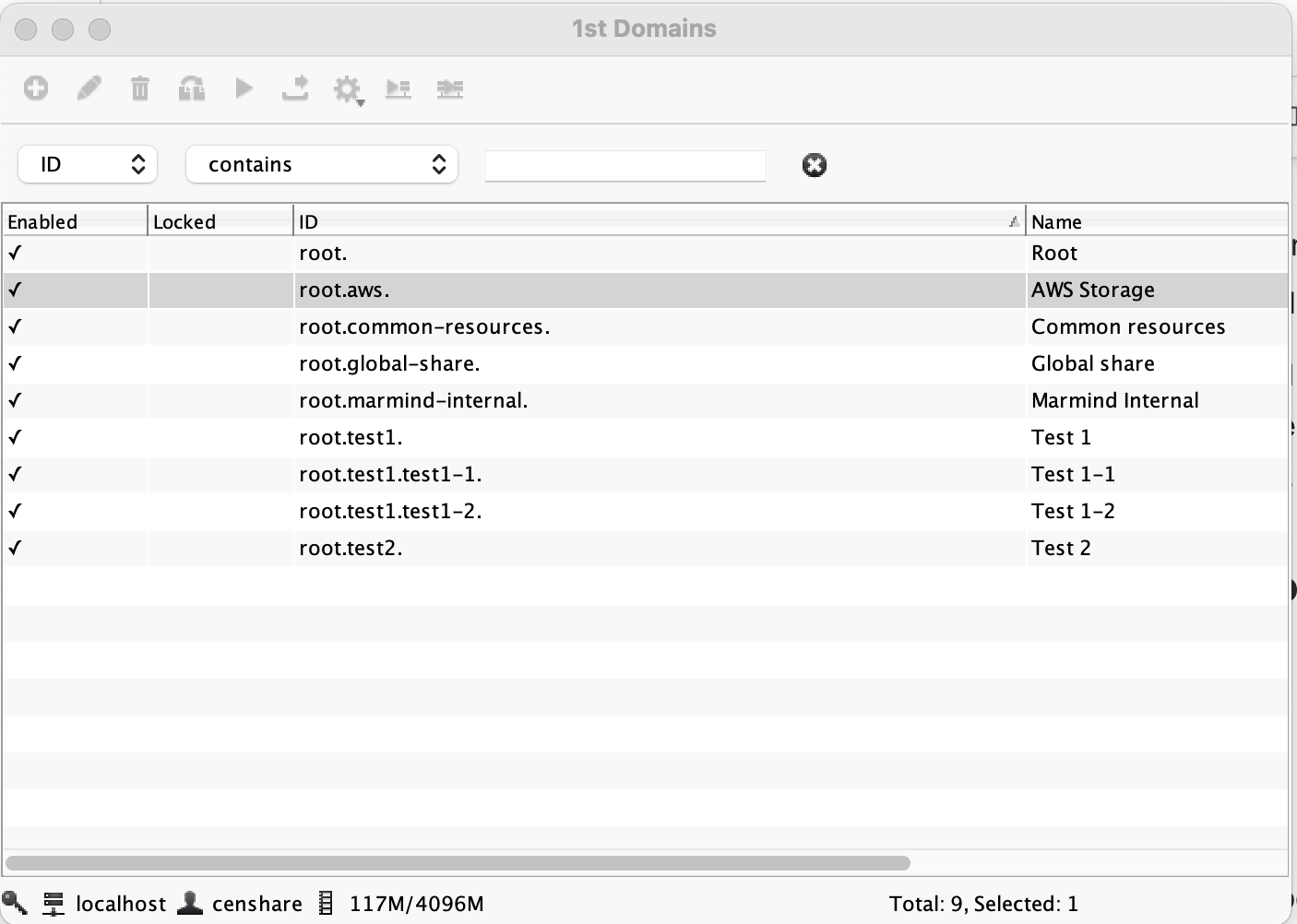
Example: 1st Domains list with the AWS Storage domain selected
When a user creates an asset and selects this domain, the asset is stored in the AWS S3 bucket that you configure in the next steps.
Add a file system definition for S3 bucket
Add a new file system entry in the master data for the S3 file system. This entry represents your AWS S3 storage in the Censhare system.
-
Open the Censhare Admin Client.
-
Navigate to Master data in the main menu.
-
Select File systems from the list and open it.
-
Click the + button: A new entry opens.
-
Enter an ID for the file system, for example awsstorage.
-
Select Assets for the Type.
-
Enter a text for the Description fields.
-
For Domain, select the domain that you have created for AWS, for example AWS Storage:
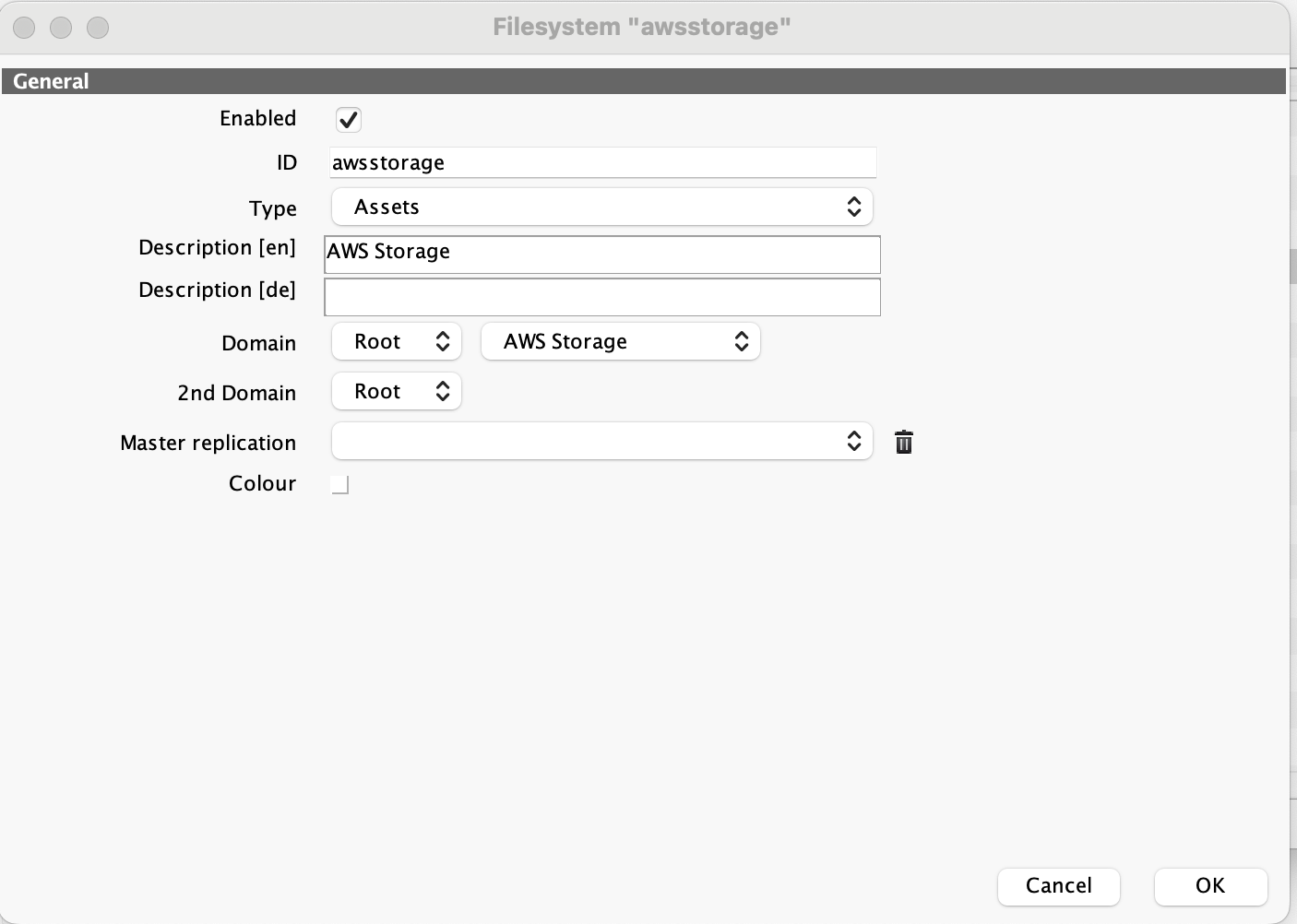
Example: File system definition "awsstorage" with Type set to Assets and Domain set to AWS Storage
Create a file system definition for S3 asset cache in the Master data
Add a new file system entry in the master data for the S3 file system.. This entry represents your AWS S3 storage in the Censhare system.
-
Open the Censhare Admin Client.
-
Navigate to Master data in the main menu.
-
Select File systems from the list and open it.
-
Click the + button: A new entry opens.
-
Enter an ID for the file system, for example assets-cache.
-
Select Others for the Type.
-
Enter a text for the Description fields, for example:
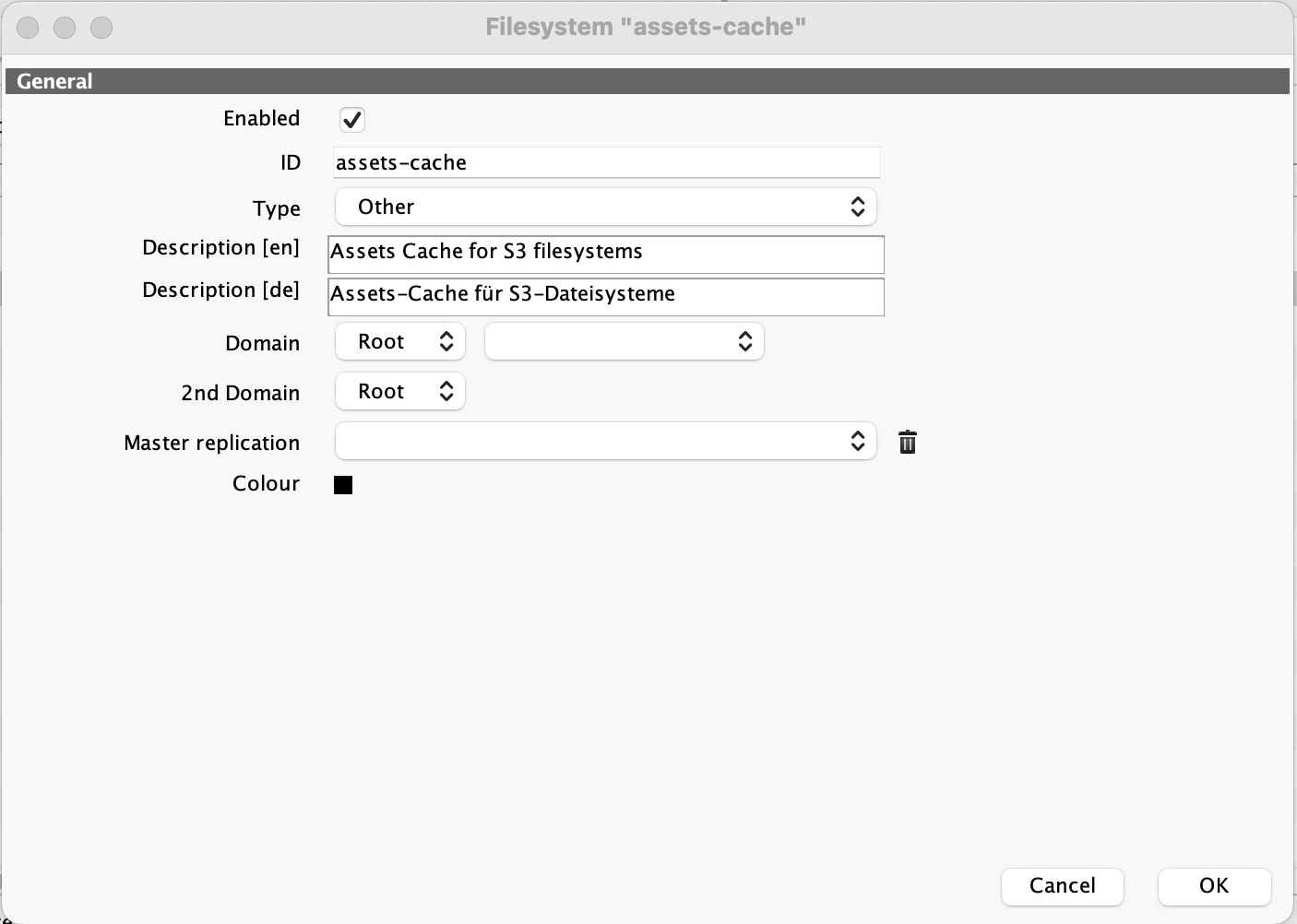
Example: Cache file system definition "assets-cache" with Type set to Other
Define an S3 entry for the Filesystem service
After you have add the file system definitions, configure the S3 connection in Filesystem service. For more information, see Amazon S3 - Configuration.
-
Open the Censhare Admin Client.
-
Go to Configurations > Services > Filesystem, for example:
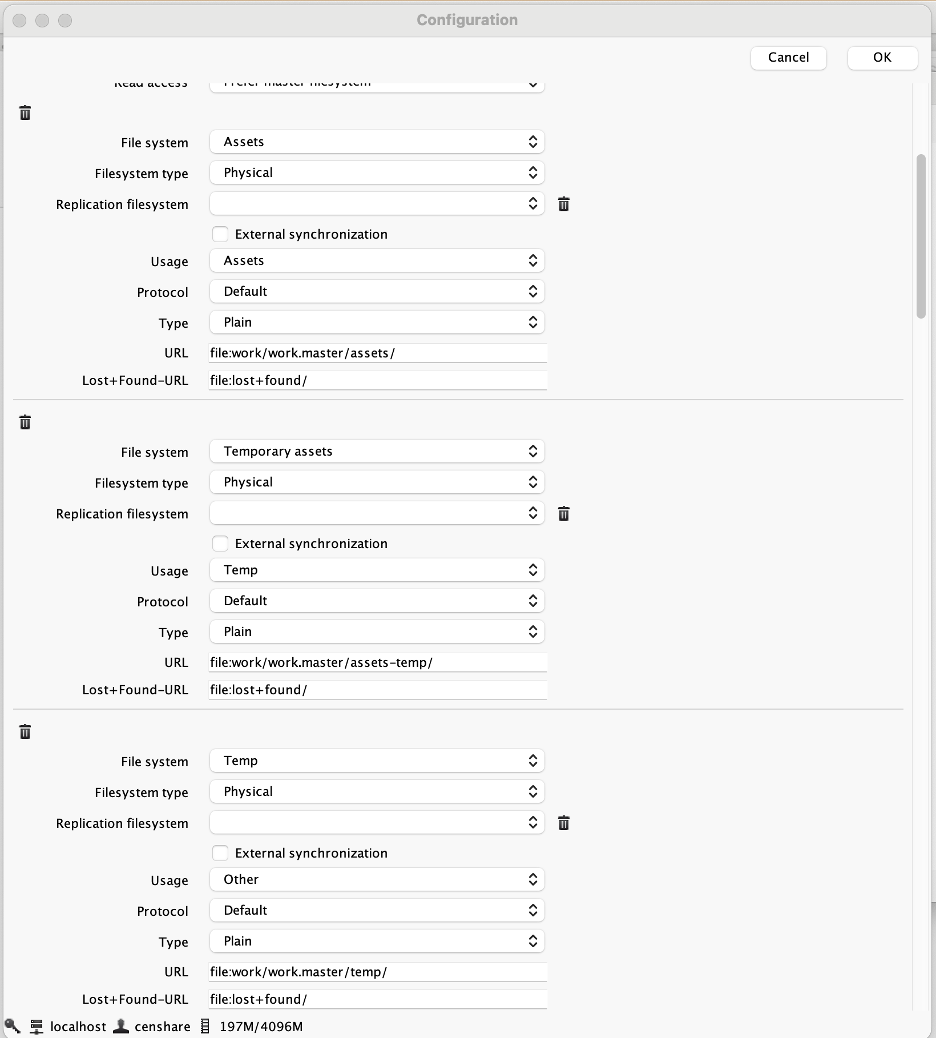
Example: Existing file system entries in the Filesystem service configuration
-
Do not change any already configured filesystems entries. Add a new one.
-
Go to the bottom of the page and click the + button.
-
Select your new AWS storage file system entry for File system.
-
Select Cloud for Filesystem type.
-
Select Amazon Simple Storage Service (S3) as Protocol.
-
Configure the following connection parameters to your S3 bucket:
-
Region: Enter the AWS region of your bucket.
-
Bucket name: Enter the name of your target S3 bucket.
-
Access key: Enter the AWS IAM access key (only if Censhare runs outside AWS).
-
Secret key: Enter the corresponding secret key (only if Censhare runs outside AWS).
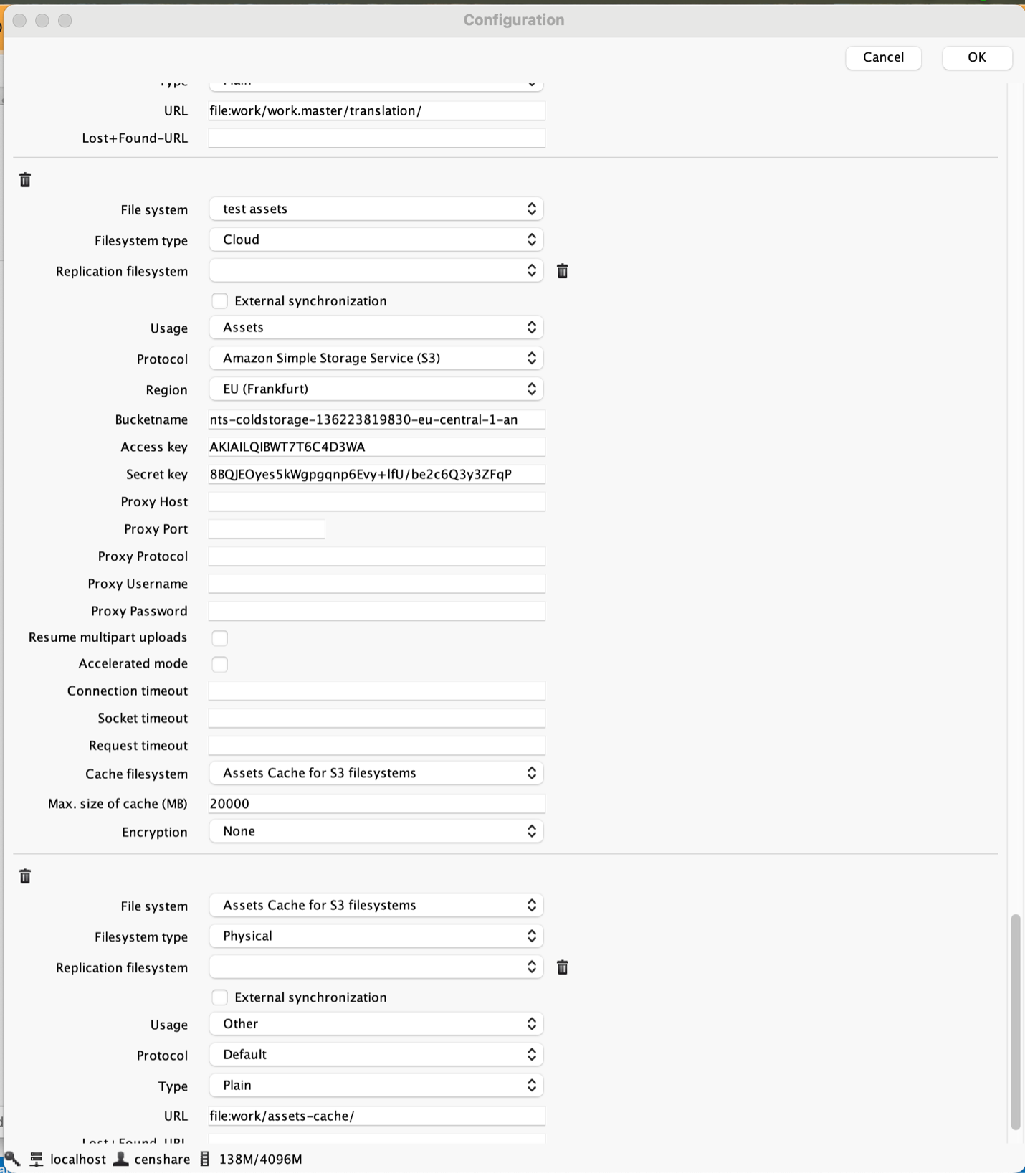
Example: S3 file system with AWS connection parameters and cache file system configured in Filesystem service
-
-
Click OK.
Define a cache for S3 in Filesystem service
The cache file system stores recently used assets locally. This keeps assets accessible even when they are in cold storage. For more information on the setup, see Amazon S3 - Configuration.
-
Open the Censhare Admin Client.
-
Go to Configurations > Services > Filesystem.
-
Add a new cache file system entry: Go to the bottom of the page and click the + button.
-
n the File system field, select the desired cache file system, for example Assets Cache for S3 filesystems.
-
In the Filesystem type field, select Physical.
-
In the Usage field, select Other.
-
In the Protocol field, select Default.
-
In the Type field, select Plain. This configuration allows you to store asset files >4GB.
-
In the URL field, enter the URL beginning with the path prefix file: and followed by the relative path starting from the installation directory of the server. For example file:work/asset-s3-cache/.
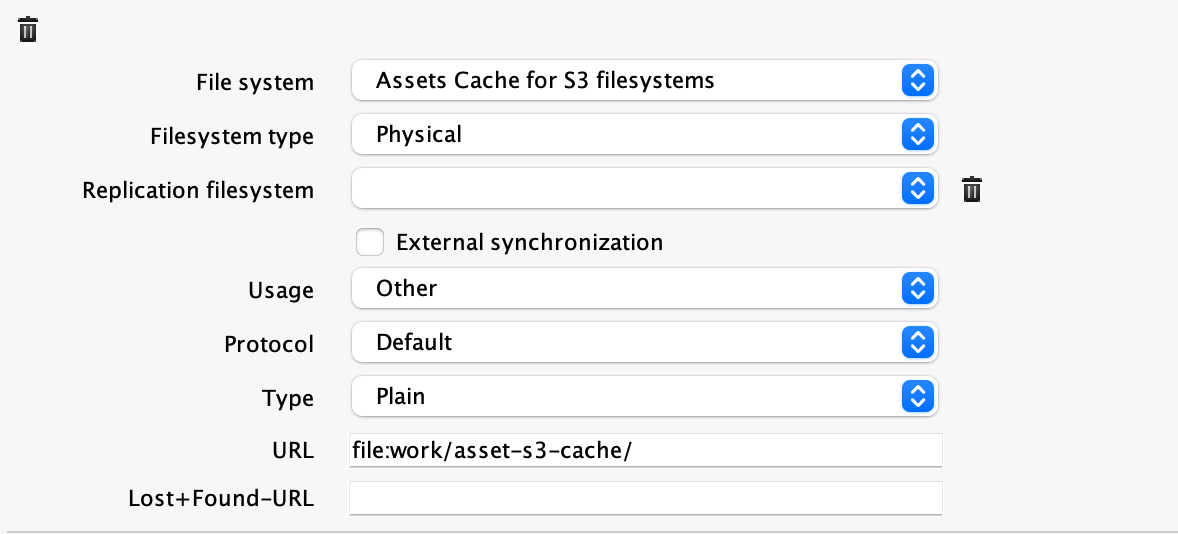
-
Click OK to save your configuration and close the dialog.
-
To enable the S3 and the cache file system, update the Server Configuration.
If the cache of your Censhare Server is full, users may not be able to download an archived asset until it is restored from Glacier. Plan your cache size carefully based on expected usage.
Configure Archive module
In the Censhare Admin Client, go to Configuration > Modules > Archive. This is where you enable and configure archiving.
Server actions to configure
You typically work with the following server actions in the Archive module:
|
Module name |
Purpose |
|---|---|
|
Archive or Dearchive Assets (automatic) |
Main server actions for executing archive and dearchive operations automatically |
|
Check Assets for Archiving |
Checks which proposed assets are ready to be archived |
|
Check Assets for Dearchiving |
Checks which proposed assets are ready to be dearchived |
|
Transfer Files for Asset Archiving |
Moves files to archive storage; contains the AWS S3 mode switch |
Table: Server actions in the Archive module and their purposes
The Archive module controls overall archiving behavior, including activation status, asset check frequency, and file transfer methods to Glacier.
|
Option |
Description |
Recommended use |
|---|---|---|
|
Time event |
Checks at a fixed interval, for example every 30 seconds |
Testing only |
|
Cron event |
Checks at a scheduled time, for example every night at 11 PM |
Production |
|
Asset event |
Triggers action based on a specific asset event |
Special workflows |
Table: How to trigger automatic server actions
Configure to marks assets for archiving or dearchiving
The Archive or Dearchive Assets (automatic) server action marks assets for archiving respective dearchiving. The direction depends on the configuration in the server action. Configure this server action if you want certain assets to be marked for archiving respective dearchiving automatically.
-
Check Enabled to activate the server action. For more information, see Configure server actions - generic parameters.
-
Define the Trigger events. For more information, see Configure automatic server actions .
-
Set the Asset filters.
-
In Special setup, select for Action if the server action is for Archive or Dearchive.
-
Click OK to save your changes.
-
Update your server configuration.
Basic configuration example:
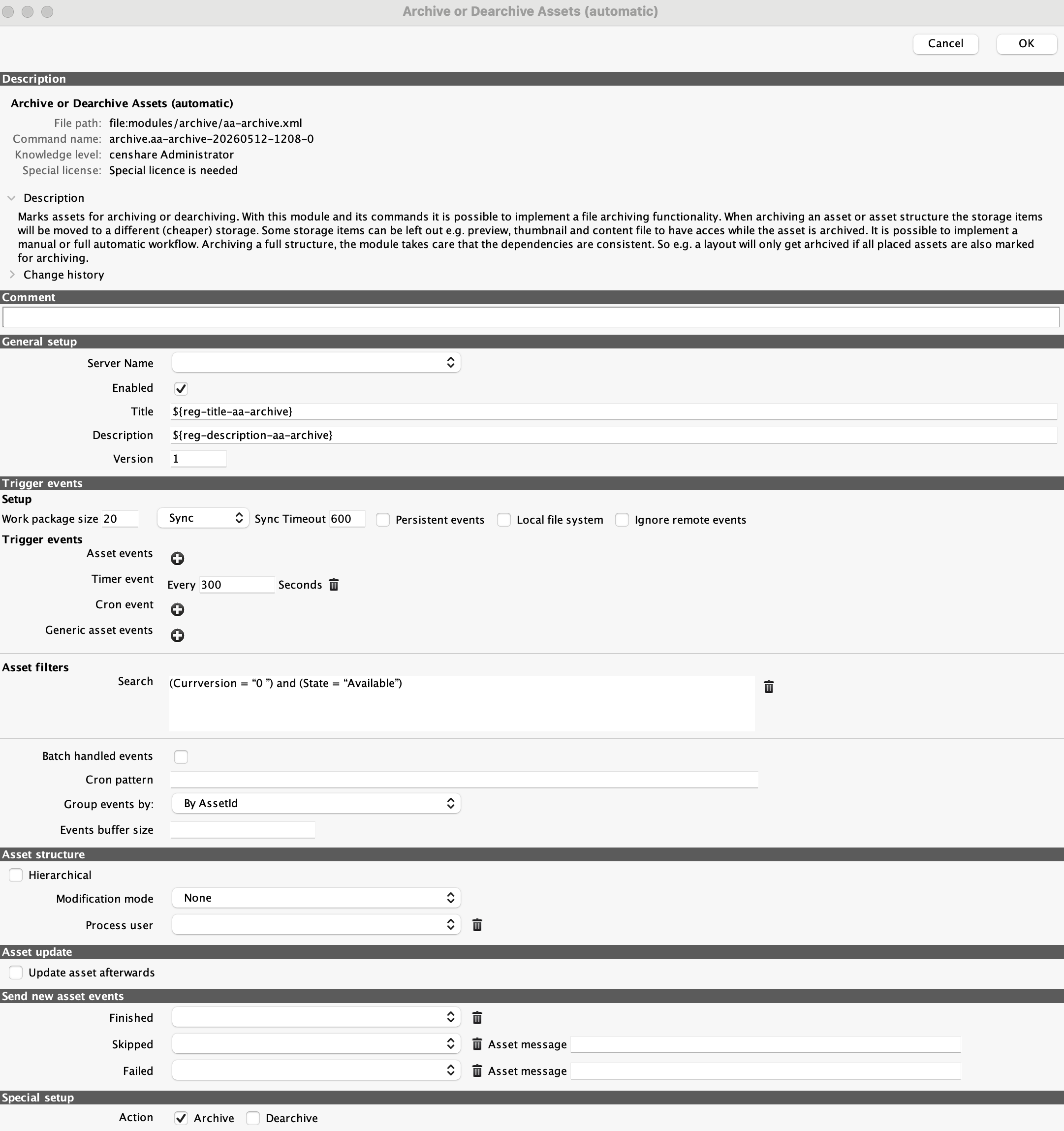
Configure to check assets for archiving/dearchiving
The Check Assets for Archiving (automatic) and Check Assets for Dearchiving (automatic) server action checks if there are assets that are marked for archiving respective dearchiving. For example, a user proposes an asset for archiving. If so, the archiving/dearachiving is triggered.
-
Check Enabled to activate the server action. For more information, see Configure server actions - generic parameters.
-
Define the Trigger events. For more information, see Configure automatic server actions.
Configuration example for archiving: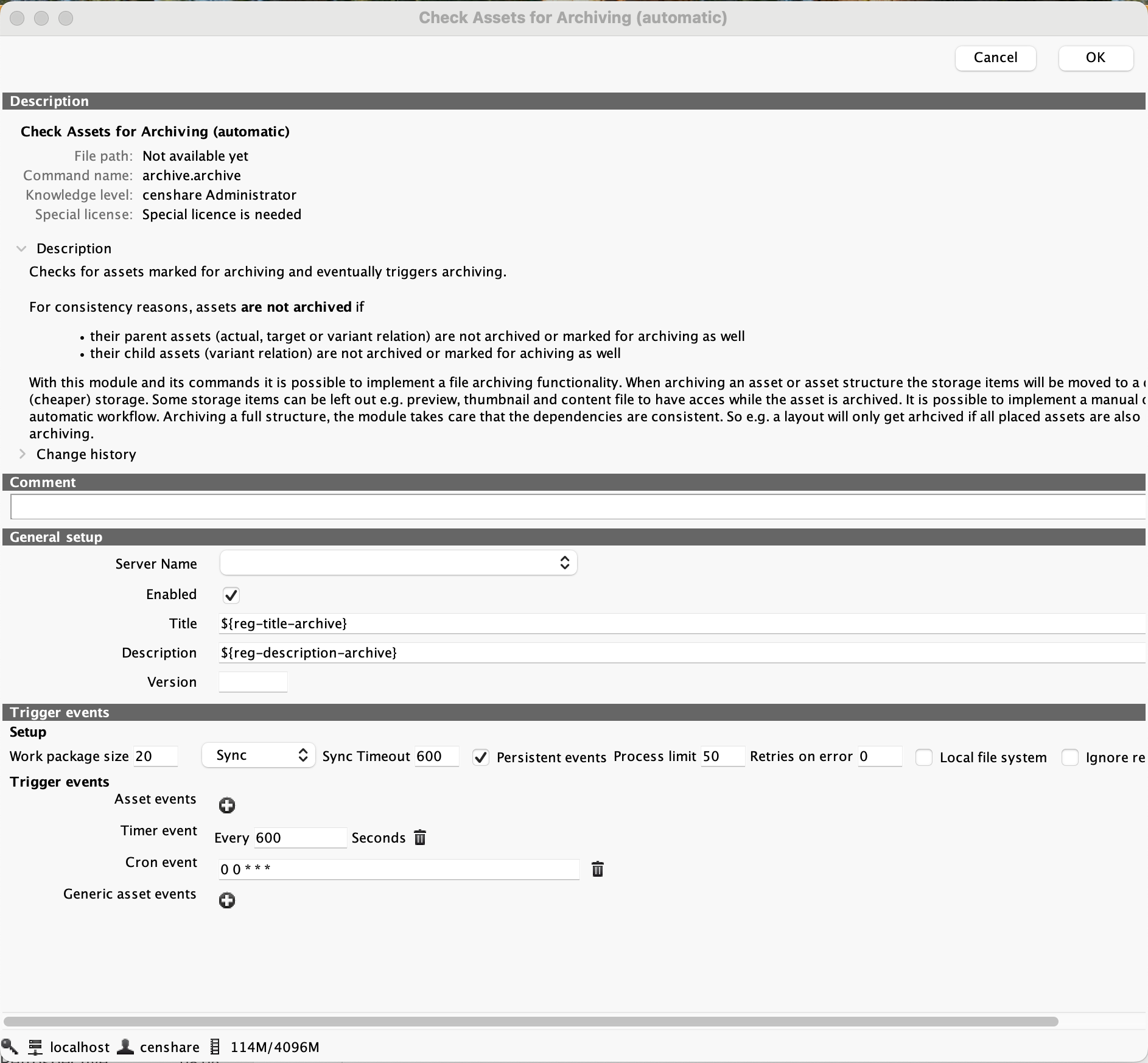
Configuration example for dearchiving: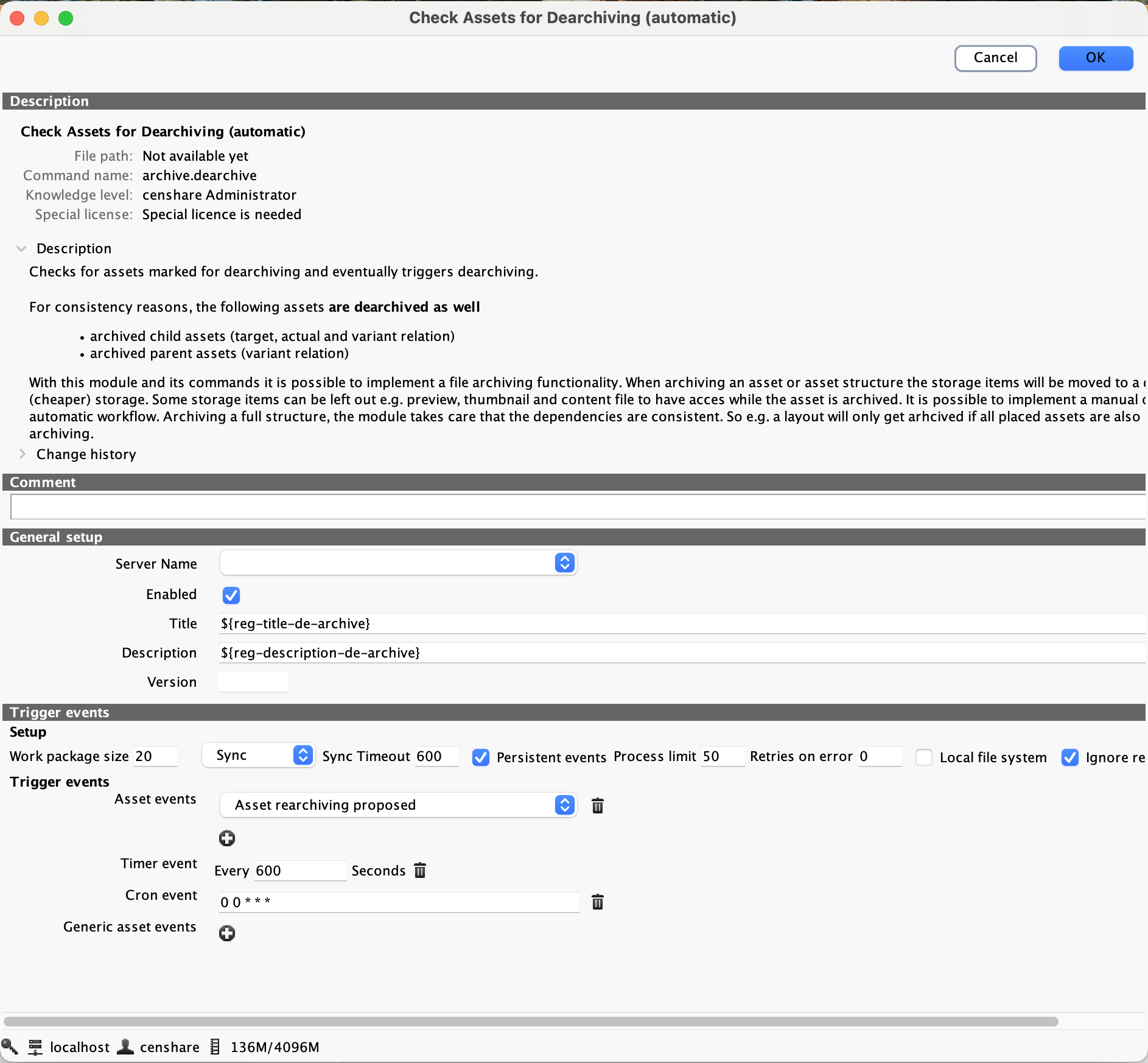
-
Click OK to save your changes.
-
Update your server configuration.
Configure file transfer for asset archiving
The Transfer Files for Asset Archiving (automatic) server action enables the actual transfer of files to AWS S3 Glacier Deep Archive.
-
Check Enabled to activate the server action. For more information, see Configure server actions - generic parameters.
-
Enable the AWS S3 archive mode checkbox.
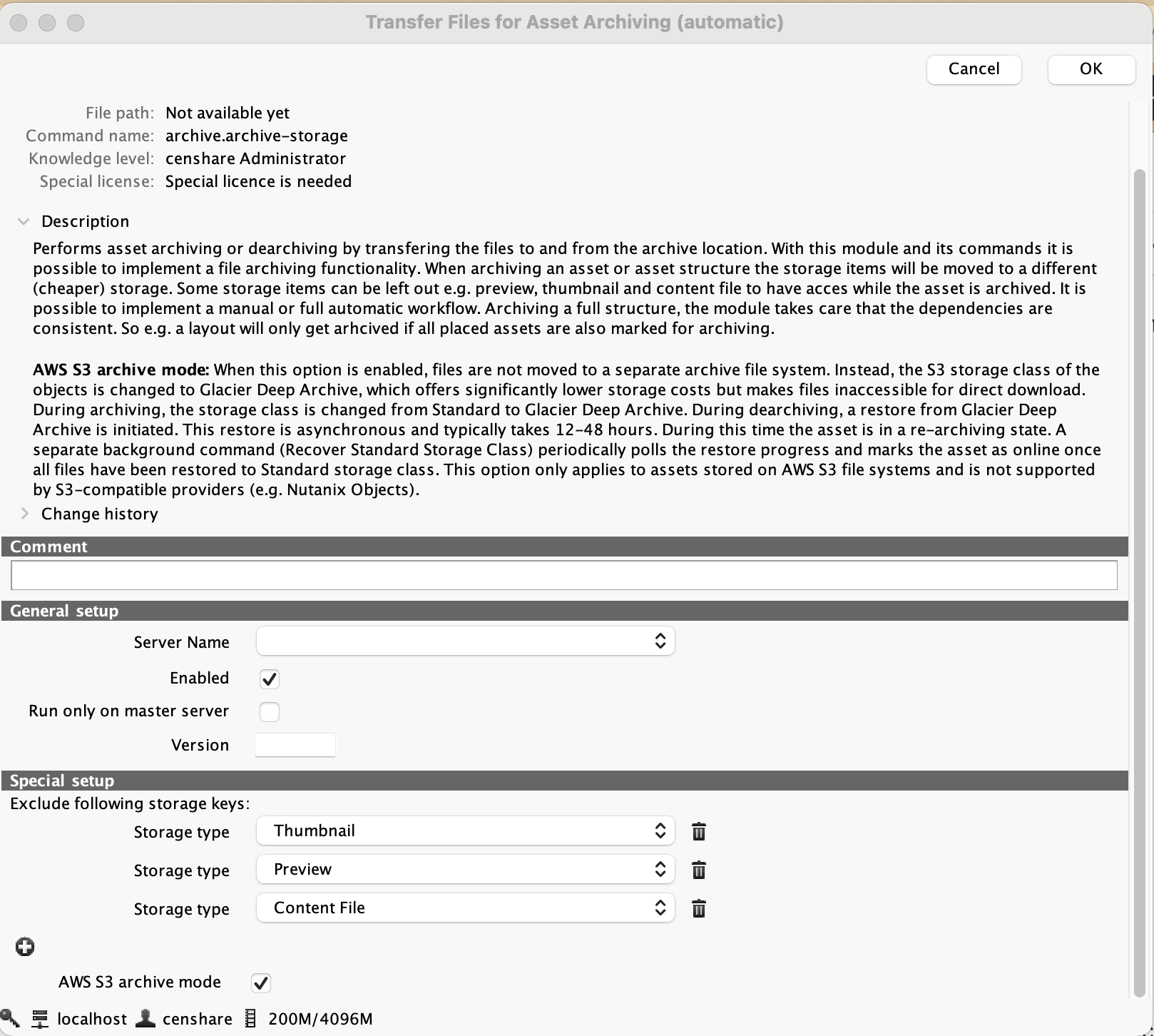
Example: Transfer Files for Asset Archiving module with AWS S3 archive mode enabled and storage item exclusions configured
-
Optionally, configure which storage items to exclude from archiving. Add Preview and Thumbnail to the exclusion list in the Special Setup section if you want them to remain accessible in the UI after archiving.
Excluding preview and thumbnail items is recommended for Glacier Deep Archive. Users can still see a preview of the asset in the UI while the master file is in cold storage.
Assets may appear without visual representation in the UI if these items are not excluded. Document this decision for each project.
When AWS S3 archive mode is enabled, files are not moved to a separate archive file system. Instead, the S3 storage class of the objects changes from Standard to Glacier Deep Archive. This offers significantly lower storage costs but makes files inaccessible for direct download until they are restored.
Configure permissions
Make sure users who should be able to archive and/or dearchive assets have the correct permission keys assigned. The following permision keys are required:
-
Archive assets
-
Rearchive assets
For example:
-
Create an archive permission set in Permission sets in Master data.
-
In Roles in Master data, assign the Archive permission set to all roles that require this functionality.
For more details on roles and permission sets, see Role and permission schemas.
User experience
If archiving functionality is enabled, users cannot see which archiving solution has been implemented for which assets:
-
Using Amazon S3 Glacier: Asset files can be still available if in Cache. Otherwise, it can take 12 -48 hours until the file can accessed or downloaded.
-
Using normal archiving: asset files are immediately available.
-
Combination of both
If users have problems or report errors on changing content files, check if the asset(s) in question have been archived using Amazon S3 Glacier.
How archiving works
When a user selects the Archive option for an asset, the system processes the asset through the following states:
Asset storage states
|
State value |
Meaning |
|---|---|
|
0 |
Available or online |
|
1 |
Offline or archived |
|
2 |
Proposed for archiving |
|
3 |
Marked for archiving (after check job runs) |
|
4 |
Archiving in progress |
|
5 |
Proposed for dearchiving |
|
6 / 60 |
Marked for rearchiving or transient rearchive state |
|
7 |
Dearchiving in progress |
|
30 |
Classic transient mark state (may appear during processing) |
The state transition during archiving follows this sequence: 0 → 2 → 3 → 4 → 1.
The system checks assets in state 2 during the configured check interval. It then moves qualifying assets to state 3 and starts the file transfer. When the transfer is complete, the asset reaches state 1 and the S3 storage class changes to Glacier Deep Archive.
The state transition during archiving follows this sequence: 1 → 5 → 6/60 → 7 → 0.
SQL verification
You can also check the storage state directly in the database if you have access to it:
SELECT a.storage_state FROM asset a WHERE a.id = <asset_id>;
Verify archiving in AWS
You can verify that archiving worked correctly:
-
Open the AWS Management Console.
-
Navigate to your S3 bucket.
-
Find the archived file.
-
Check that the storage class is Glacier Deep Archive
Asset relations and archiving rules
Censhare applies rules to maintain consistency when archiving related assets. Understanding these rules helps you configure and troubleshoot the system.
The archive module checks asset dependencies before archiving. The following rules apply:
-
A parent asset is not archived if any child asset with a variant or target relation is still online and not proposed for archiving.
-
A child asset with an actual relation does not block the parent from being archived.
-
A layout asset is only archived if all assets placed within it are also marked for archiving.
-
When dearchiving, the system also dearchives archived child assets with target, actual, and variant relations. It also dearchives archived parent assets with variant relations.
|
Relation type |
Blocking behavior |
|---|---|
|
Variant (variant.*) |
Child blocks parent. All variants must be proposed before any can advance. |
|
Target (target.*) |
Child blocks parent. Parent cannot advance if target child is still online. |
|
Actual (actual.*) |
Child does NOT block parent. Parent can advance independently. |
|
Shared storage item |
Both assets must be proposed before either can advance. |
Table: Relation types and blocking behavior during archiving
For the full user perspective on relation behavior, see Archive and dearchive assets (Amazon S3 Glacier).
Testing the configuration
After configuration, test archiving with representative assets before going to production.
Recommended test scenarios
-
Archive one simple file-backed asset and verify the state transition (0→2→3→4→1).
-
Archive one asset with preview and thumbnail items. Verify exclusion behavior.
-
Archive one asset with relations. Verify blocking rules.
-
Archive one metadata-only asset. Verify logical archiving without file errors.
-
Dearchive one asset and verify the restore timing and state transition.
-
Delete one archived asset and verify cleanup behavior.
Verification steps
After each test, verify:
-
The asset storage state in the database matches the expected value.
-
The file storage class in the S3 bucket is Glacier Deep Archive.
-
Preview and thumbnail behavior matches your configured exclusion policy.
-
Related assets did not change state unexpectedly.
-
The asset is still searchable in the UI.
Configuration checklist
After full configuration, verify the following:
-
Assets created in the target domain are stored in the S3 file system.
-
The local cache is configured and writable.
-
Archive modules are enabled.
-
AWS S3 Archiving mode is enabled in Transfer Files for Asset Archiving.
-
Manual and/or automatic archive actions are enabled.
-
User permissions are correct for archive and dearchive.
-
Archive state transitions work as expected (0→2→3→4→1).
-
Archived master files use Glacier Deep Archive storage class.
-
Preview and thumbnail behavior matches your project policy.
-
Dearchive returns assets to online state after 12–48 hours.
-
Deletion of archived assets works without errors.
-
Logs and monitoring are sufficient for support.
AWS cost warning
Using Amazon S3 and Glacier Deep Archive creates additional AWS costs. These costs can include:
-
Storage costs
-
Request costs
-
Retrieval costs
-
Data transfer costs
-
Early deletion or minimum retention charges
Censhare does not control or calculate these costs. They are billed directly by AWS. Before proceeding, check and approve the pricing on the official Amazon S3 pricing page.
Known limitations
-
Restoring assets from Glacier Deep Archive takes 12 to 48 hours.
-
If the asset cache is full, users cannot download an archived asset until it is restored.
-
AWS S3 Glacier Deep Archive is only supported for assets stored on AWS S3 file systems. S3-compatible providers such as Nutanix Objects cannot be used with the AWS S3 Archiving mode.
-
If you use an S3-compatible file system, normal archiving is used: Asset files are moved to the archive file system. By default, there is one archive file system defined at the Censhare Server. It does not matter if you have enabled the AWS S3 Archiving mode.
-
Bulk archiving of large numbers of assets (for example, 500 or more) has not been fully tested at scale. Validate performance before using bulk archiving in production.
Troubleshooting
|
Symptom |
Possible cause |
Resolution |
|---|---|---|
|
Asset stuck in Proposed for archiving (state 2) |
A related variant or target child is not proposed |
|
|
Archive action not visible in menu |
Server action not enabled or wrong permissions |
|
|
File not showing Glacier Deep Archive class |
AWS S3 Archiving mode not enabled |
|
|
Download fails for archived asset |
Cache expired and file is in Glacier |
|
|
S3 connection error in file system config |
Incorrect URL, key, or bucket name |
|
Table: Common archiving issues and resolutions
Summary
To configure asset archiving with AWS S3 Glacier Deep Archive in Censhare, complete the following steps:
-
Create an AWS domain in Master Data.
-
Add an AWS file system definition in Master Data > File systems.
-
Define the S3 file system in Configurations > Services > Filesystem.
-
Define the cache file system in Configurations > Services > Filesystem.
-
Enable and configure the archive modules in Configurations > Modules > Archive.
-
Enable AWS S3 archive mode in Transfer Files for Asset Archiving (automatic).
-
Configure user permissions and enable server actions for archiving.
After configuration, users can archive and dearchive assets from the Censhare Client or Censhare Web.