
Asset deletion 3 executes clean-up actions in asset versions that are no longer needed. It defines policies and constraints. The policies are set in the Censhare Admin Client based on asset type and domains.
Overlap between automation and manual action
Be aware that in case of asset version deletion, automation and manual user actions overlap:
If a user marked assets for deletion as described here, automation will delete them. Moreover, although AD3 is meant for asset versions, assets that have been marked for deletion manually in the Web Client, will be wiped out from the system completely. This also happens if the user marked the entire asset for deletion or all asset versions for deletion in the desktop Client.
Concept & structure
Asset Deletion 3 is located in censhare Admin Client > Modules and has the following three configurations:
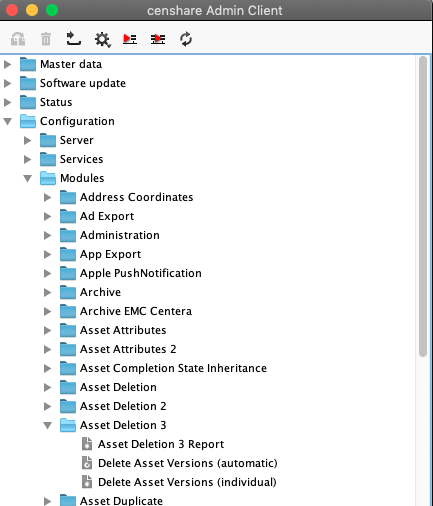
Delete Asset Versions (automatic)
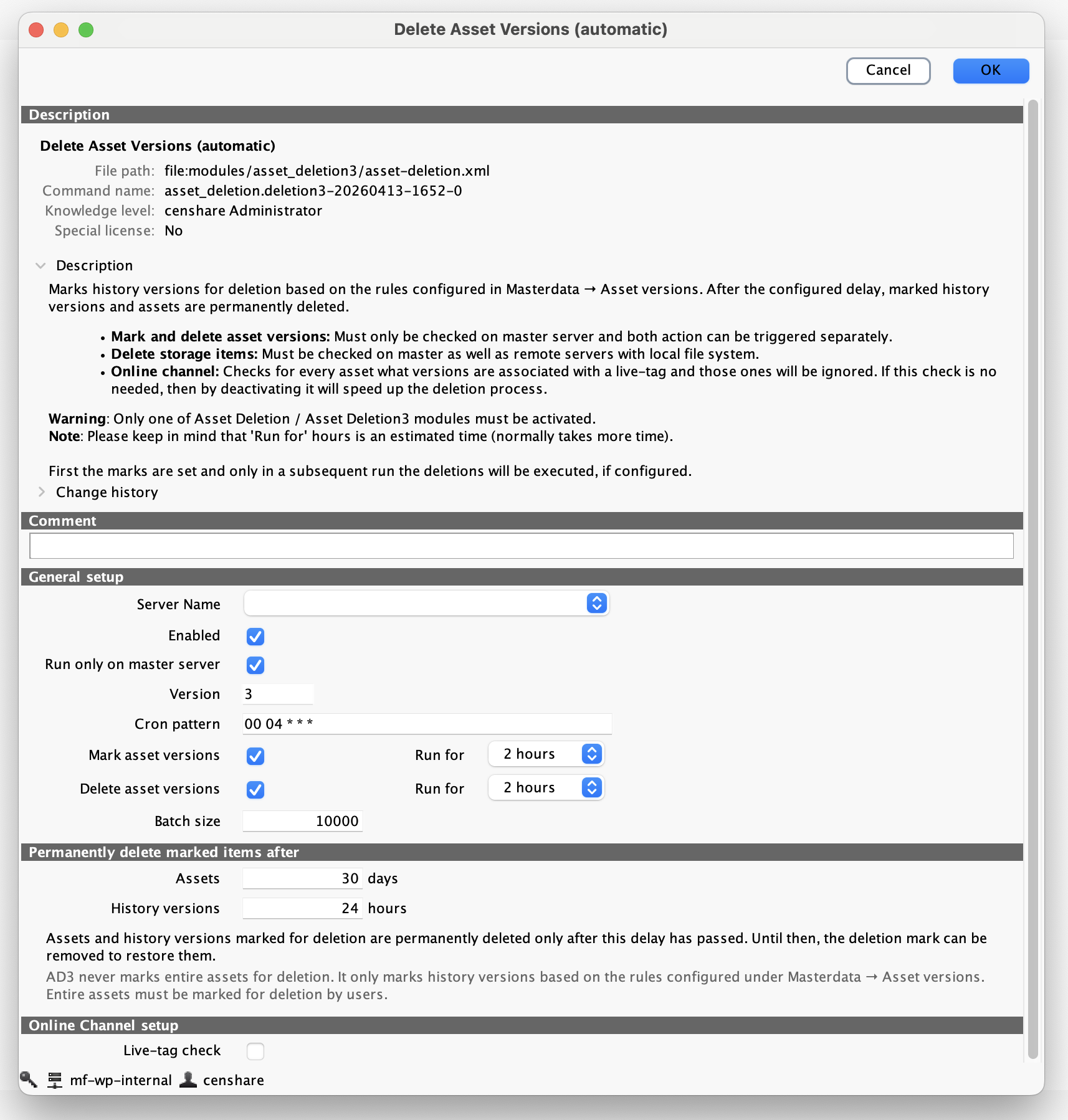
As per configuration, this automatic action runs by setting a cron pattern that is normally set to run nightly (For more, see Configure execution time). A resource asset with the key censhare:query-deletion-ids gathers the "last marked" and "last deleted" asset IDs. The IDs are stored in the database (table: feature) under the following two features: (1) censhare:deletion.last-id.marked, (2) censhare:deletion.last-id.deleted. This allows the module to remember the last marked and deleted assets and continue from where it left off. Eventually, when there are no more asset versions to analyze from the "last-*" IDs, the features are set to 0 before the command starts to scan the database from the beginning.
Notes:
-
Depending on the type of action being executed, the last-* features can be set both or separately to
0. -
The two features are included in the
insert-data.xml. The features will be added to the database when the update database script is triggered.
-
Mark asset versions: This action works in the following three steps:
-
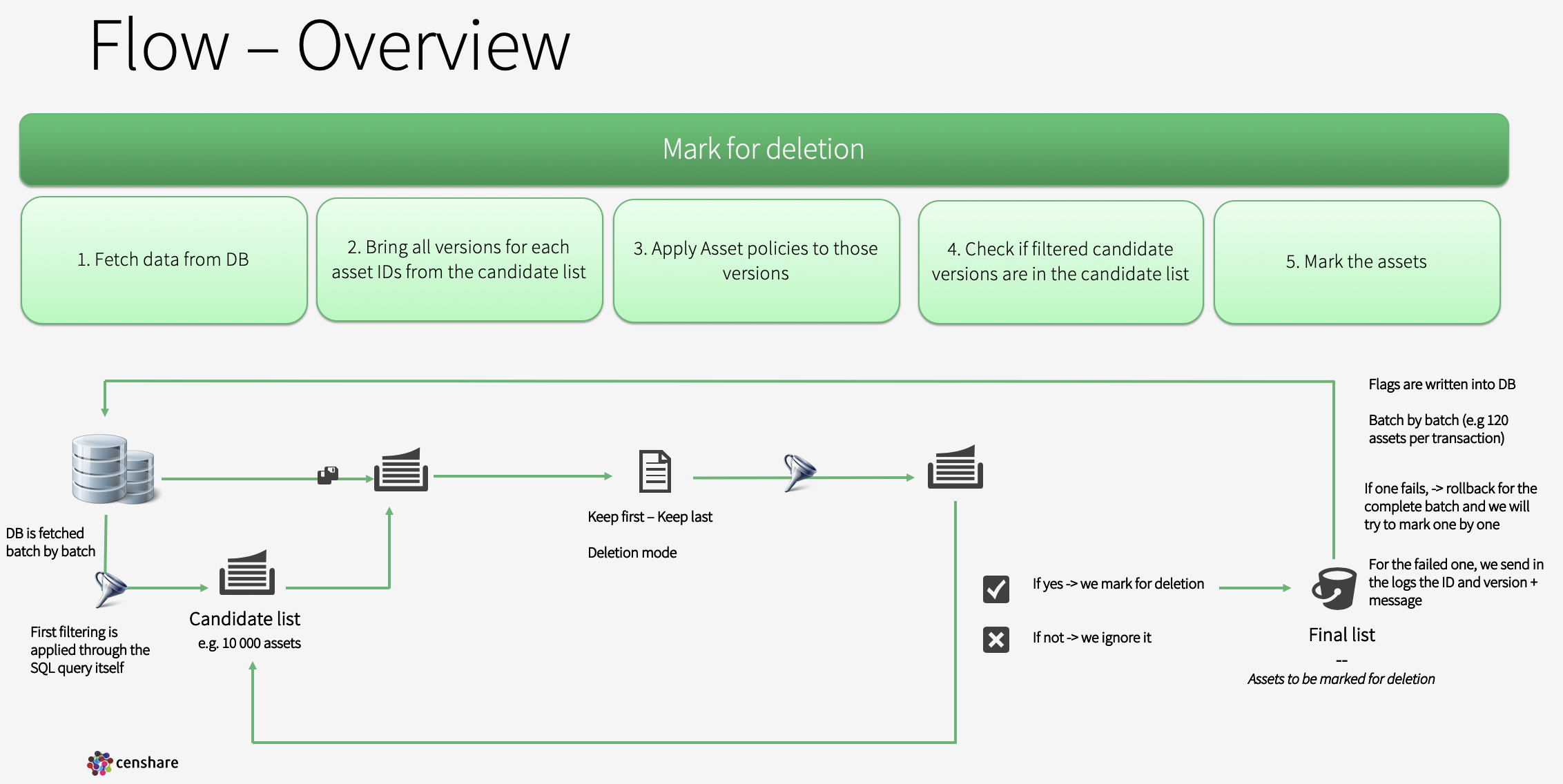
It queries and gathers possible candidates to be marked by applying the policies described in Asset Version Policies.
-
It gathers all asset versions of each asset that is added to the candidate list and filters them out of the candidate list by applying a different asset type policy (for example:
keep first/last versions). -
Finally, it proceeds to mark the asset versions by updating the
deletioncolumn of the asset table to the value1(marked).
-
-
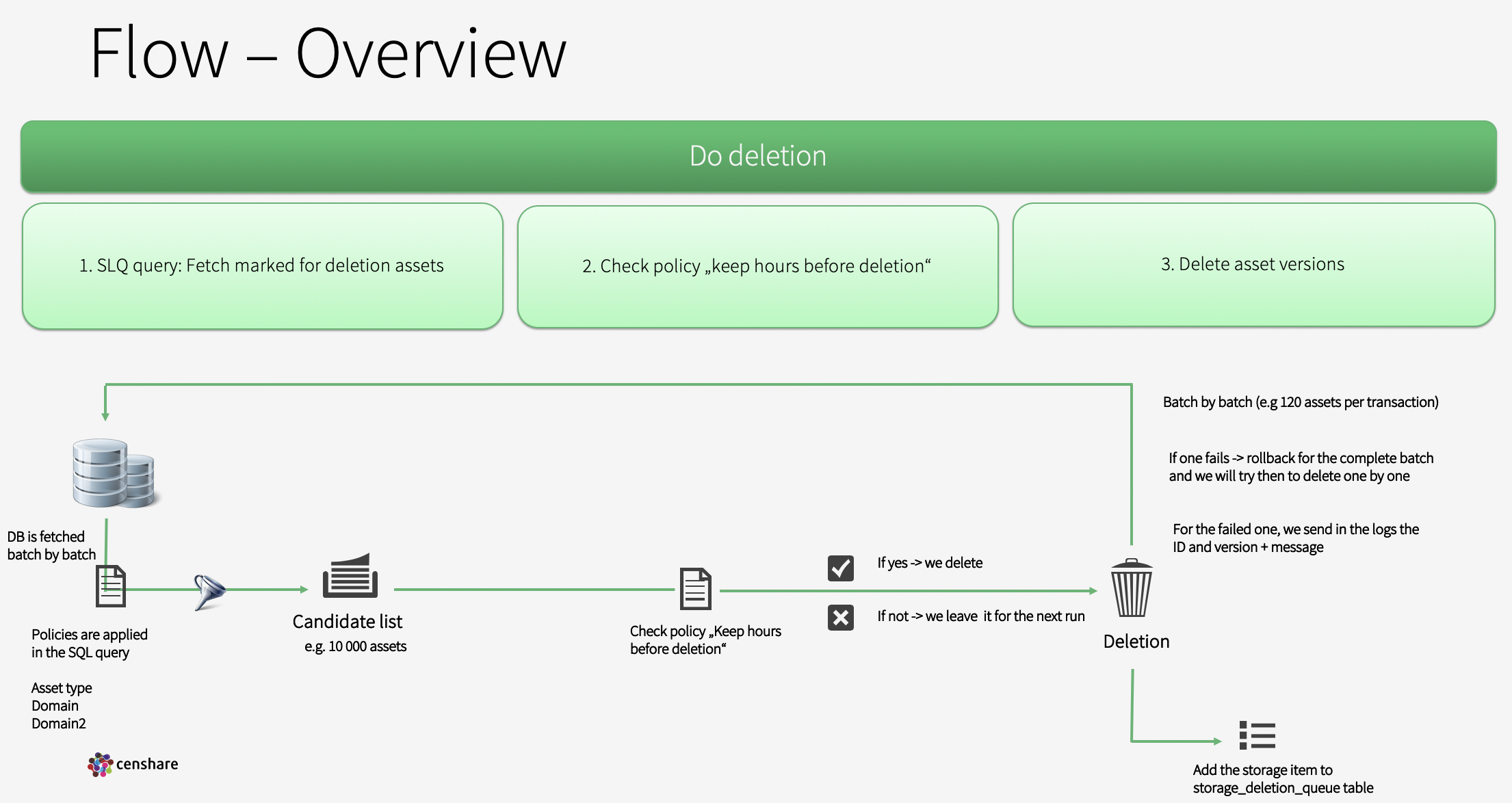
Delete asset versions: It queries assets from the database that are marked for deletion. It checks if there is any asset version policy that applies up to the asset type. It then applies the
keepHoursBeforeDeletionpolicy to their asset versions. As soon as this duration is completed, it physically deletes the asset versions from the database. -
Delete Storage Items: It is handled by the separate Asset Storage Deletion command since v2026.1.0 — see https://censhareinfohub.atlassian.net/wiki/x/AQCINQ. Checks the
storage_deletion_queuetable and deletes unreferenced files.
Important Notes
-
Each of the mentioned actions runs for the duration that is set on the config dialog ('Run for'). Please mind that the duration is an estimated time. Therefore, when the required action runs longer to analyze all pending assets, it completes its execution as soon as all assets are processed.
-
The mark and delete phases can be triggered separately if needed.
-
Only asset history versions are automatically marked. The current version is never marked by Asset Deletion 3. However, if an asset is marked for deletion by a user, it will be processed by AD3 and permanently deleted after the configured grace period.
-
Storage file cleanup (v2026.1.0 or higher): Storage file cleanup is no longer configured or run as part of AD3. It is now handled by the separate Asset Storage Deletion command, which runs automatically every 4 hours on all servers (master and remotes) and requires no configuration. See https://censhareinfohub.atlassian.net/wiki/x/AQCINQ.
-
Global grace periods (v2026.1.0 or higher): A global grace period for deletion-marked assets can be defined in the configuration dialog of Asset Deletion 3. It allows to define different grace periods for complete assets and asset versions. See https://censhareinfohub.atlassian.net/wiki/x/AQCINQ.
2. Asset Deletion 3 Report
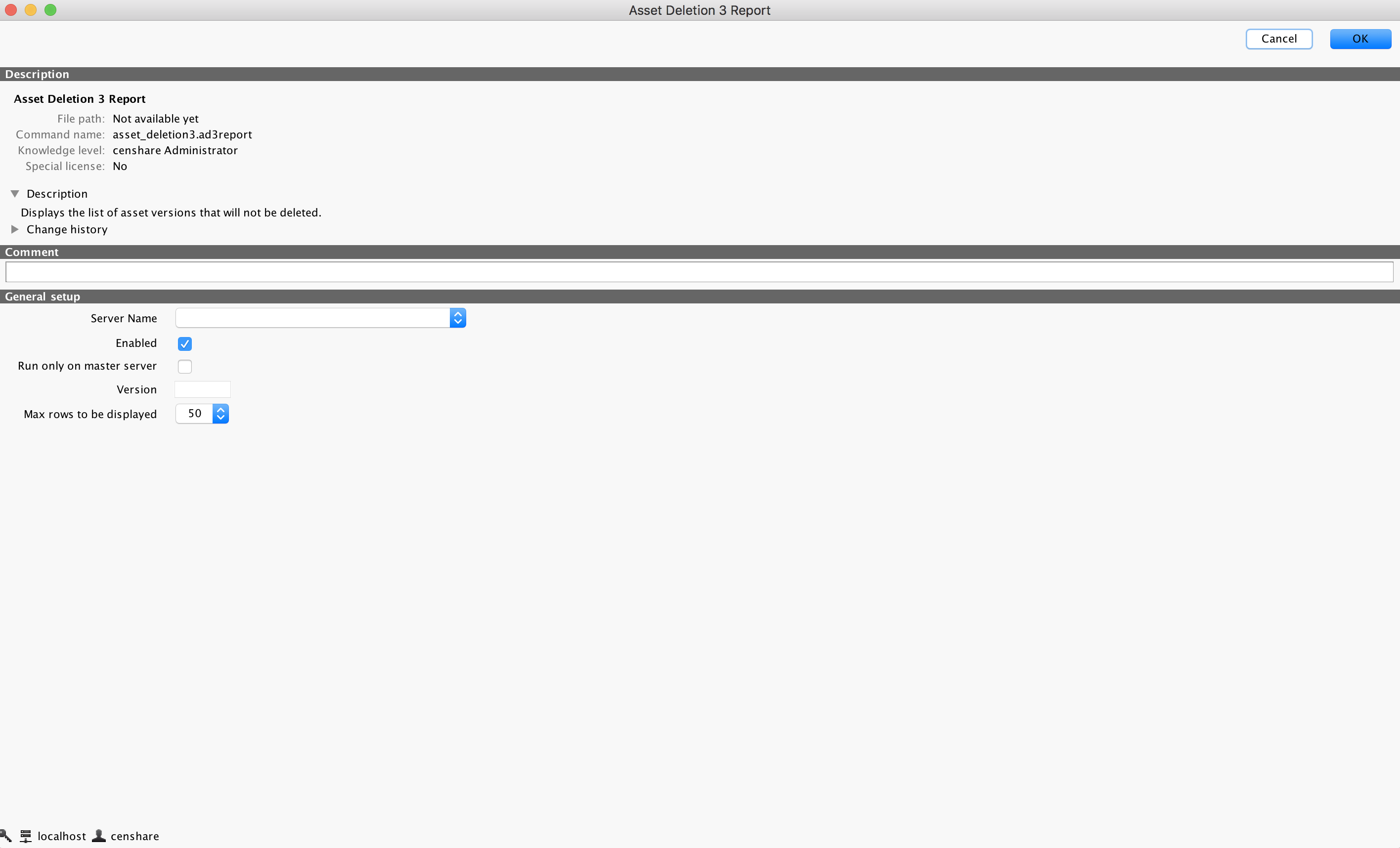
The Asset Deletion 3 Report receives a maximum amount of rows to be displayed in the Censhare Admin Client (50, 100, 500, or 1000). The action analyzes up to that amount of asset versions, regardless of whether the asset has more versions.
-
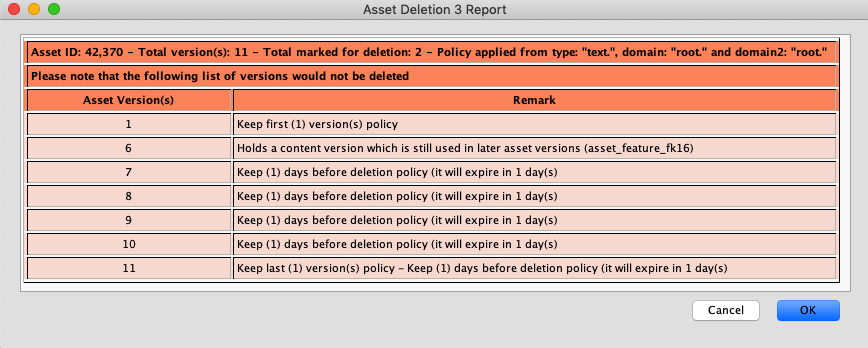
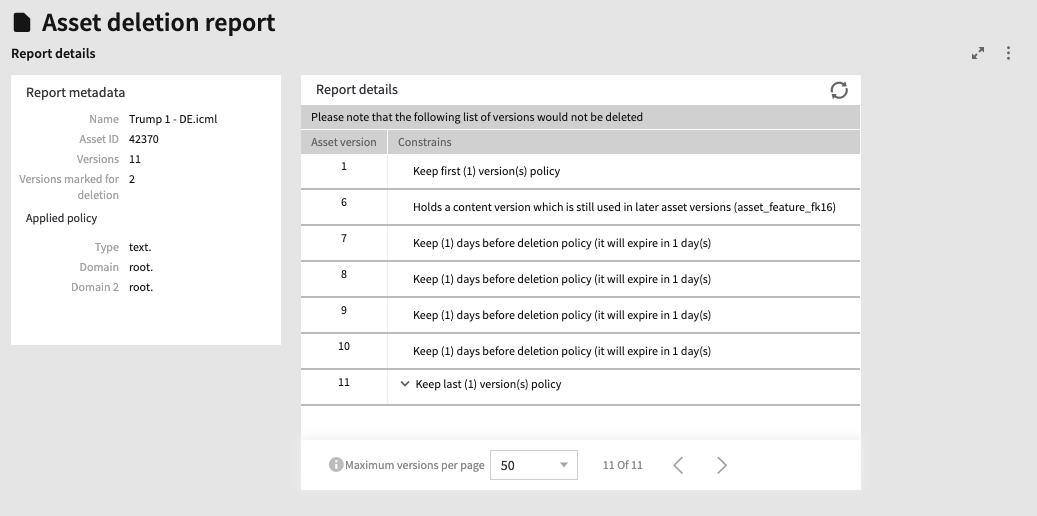
Deletion Report: It shows for which asset type, domain, and 2nd domain the policy was applied. It also shows restrictions/constraints and policies of all asset versions of an asset, which could not be deleted. The report is visible both on the Censhare Admin Client and Censhare Web.
censhare Admin Client:
censhare Web:
The report in Censhare Web works with pagination, where a range of records is set at the bottom of the page as 'Maximum versions per page'. The arrows next to it allow the end-user to move within the pages.
Note: The report action displays only the asset versions that contain at least one constraint. For example, from a list of 15 assets, that are queried and analyzed, only 10 of them have asset versions with some kind of constraints or policies. It is therefore expected that only these 10 of the 15 rows will be displayed.
Delete Asset Versions (individual)
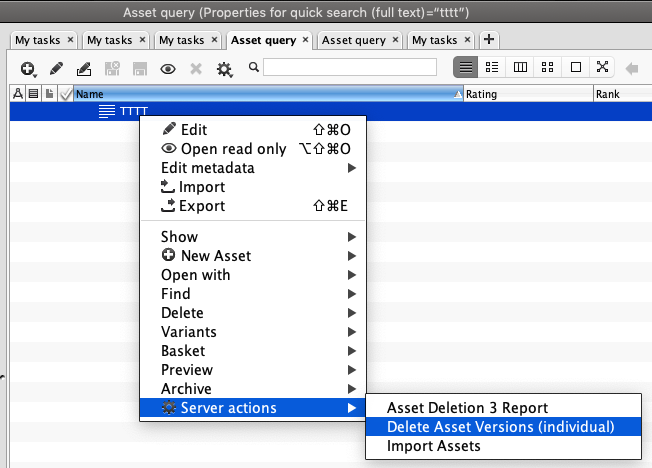
The action allows running the complete asset deletion process (mark and delete). It functions similar to the automatic asset deletion but runs for a single asset. Storage file cleanup runs independently and cannot be triggered manually; see https://censhareinfohub.atlassian.net/wiki/x/AQCINQ. Currently, the action is only available on the Censhare Client and it can be executed by right-clicking on an asset Server Actions > Delete Asset Versions (individual).
The mark and delete actions can be triggered separately. Storage item deletion is no longer a manually triggered action in AD3; see https://censhareinfohub.atlassian.net/wiki/x/AQCINQ. For more information, see Configure server actions.
Constraints
There are basically two groups of restrictions that we can see on the Asset Deletion 3 Report, which prevent asset versions from being deleted:
-
Asset Type Polices: Find more information, see Configure asset version policies.
-
Constraints:
-
asset_rel_fk8: This asset version has an associated variant.
-
asset_fk16: This asset version holds a content version that is still used in a later asset version.
-
asset_rel_fk3: This asset version is used in an actual placement.
-
asset_feature_fk7: This asset version is referenced by an asset feature.
-
Live tags are used within the Online Channel. They indicate that a certain asset version is published on the website. If you do not use the Online Channel, you can deactivate the Live-tag check in the server actions for Asset Deletion 3.
-
Snapshot: This asset version has an associated snapshot. Snapshots are used in the Online Channel. Use this if you want to ensure that certain versions are kept even if an asset version policy applies.
-
Implementation
Code
Every action related to the asset deletion is implemented 'in batches' of 10000 assets, by following the process below:
-
Pull a batch from the database and work with it until it is fully processed
-
Clean all temporarily used objects to free the allocated memory
-
Pull the next batch
Committing to the database is performed in batches of 120 assets at a time. If one or more assets fail, a rollback exception is triggered. During the rollback exception we commit the mentioned batch of 120 assets but this time one by one. This allows us to commit the assets that have no exceptions and log those that could not be deleted.
Mark for deletion flow
The first query brings the best candidates that can be found in the database, to mark them for deletion. It excludes the following cases:
-
Current version: It excludes the current version (
0) or checked out (-2). -
Snapshot: Asset versions with snapshots are ignored for deletion (
snapshot_name != null). -
Deletion Status: Statuses with 'marked for deletion' (
deletion = 0), 'cannot delete' (deletion = 2) and 'proposed for deletion' (deletion = 4) are ignored. -
Polices: If the asset type has no policy, it is completely ignored. Otherwise, it checks if the policy is enabled and if a deletion mode is set to it.
-
Variants: Any asset version with an associated variant is ignored.
-
Actual placement: Versions that are used in actual placements are ignored.
-
Content Version: If a version holds a content version that is still used in later asset versions, the content version is ignored.
-
Feature Reference: If an asset version is referenced by an asset feature, it is ignored.
After getting the first batch of 10k assets of candidates, if that many exist, it queries all versions for each asset from the candidate bucket and filters them out again by applying the first asset type policies: 'keep first/last versions'. The remaining assets are compared with the first candidate list. If they are in the list, they are marked for deletion by updating the deletion column in the asset table to 1 (committing takes place for every 120 assets at a time. If any exceptions occur we re-commit one by one).
Deletion flow
At this stage, the module queries the batch of 10k assets that are marked for deletion and it is checking again if those assets continue to have at least one policy set. The next step applies the asset type policy to 'Keep hours before deletion'. The remaining asset versions are physically deleted. The Commit is executed for every 120 assets at a time. If there are any exceptions, we re-commit one by one.
Storage item deletion
For the storage item deletion, the module checks all entries in the storage_deletion_queue table and deletes all unreferenced files. It runs for the duration that is set in the command configuration in the Censhare Admin Client.
Handlers
Server action
-
Location:
censhare-Server/app/modules/asset_deletion3/AssetDeletion3Handler.java
CommandHandler
-
Location:
censhare-Server/web-commands/com/censhare/api/admin/deletion/AssetDeletionReportHandler.java