
Learn about video management and editing in Censhare.
To configure video editor, please refer to this article.
Useful features
The following features are available on the video asset, on the Preview widget in the Overview tab, in the Editor, and on the Annotations widget in the Communication tab.
Adjusting playback speed
You can select a playback speed that is convenient for you.
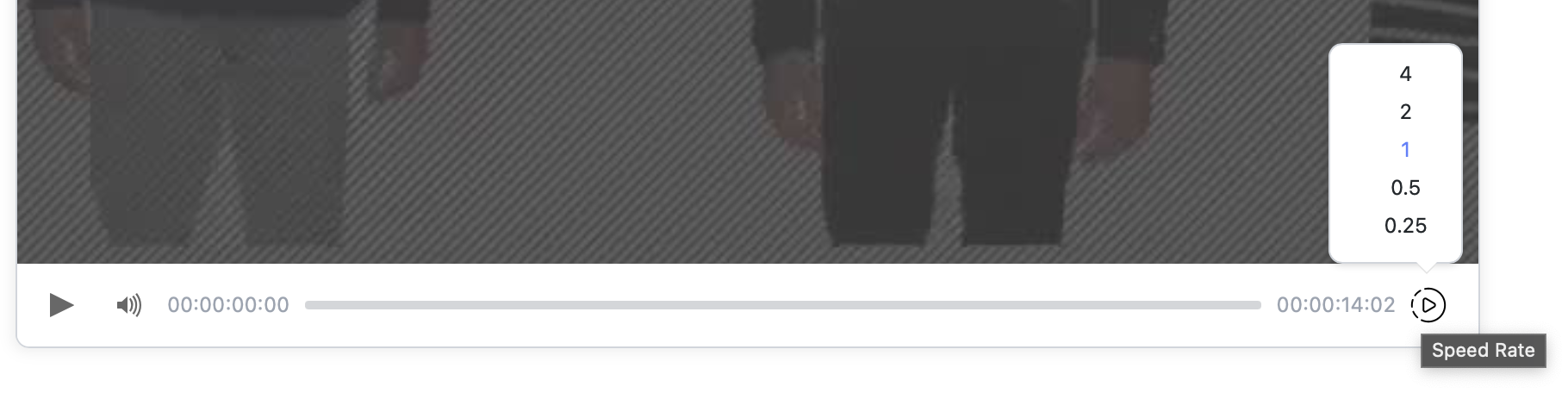
For this, use the speed rate button on the bottom right of the Preview/Editor/Annotations widget.
The feature can be used for creating markers. In this case, the video snippet in the marker will be automatically played with the speed rate specified during its creation.
Timecode format
The format for the start and end time is hh:mm:ss:ff: the last two positions of the timecode show the video frame.
If you see a semicolon (;) instead of a colon (:) before the video frame, then the frame is a floating number, e.g. 0.002 and not the full number. It is also known as a drop frame and is widely used in TV broadcasting. The purpose is to sync with real time. Consequently, some frame numbers (but not frames) are “dropped”.
How to use Video Editor to trim a video
The trimmed video will replace the original master file!
-
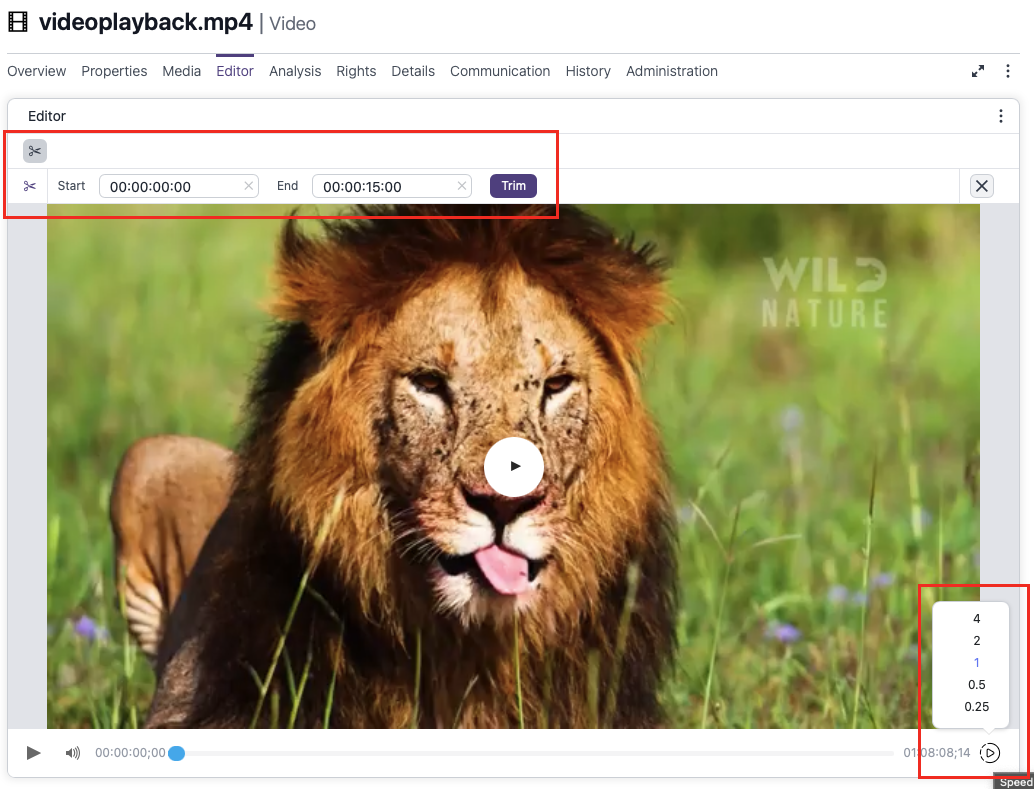
Go to the Editor tab of the video asset.
-
Optionally, change the playback speed if this is more convenient for you.
-
Move the slider or enter the start and end time manually.
-
Click TRIM.
-
Click SAVE (as for the asset).
-
The processing may take some time. When it is finished, a notification will appear in the upper right corner.
Please wait for this success notification before reporting any issues.
The trimmed video will replace the original one (i.e., the master file will be replaced). The default playback speed of the new video will be 1.
Discrepancy between video length in different widgets for existing video assets
Timecode support introduced with the release 2025.1 used to have a small bug.
Previously,the displayed number of frames has been rounded down for the master file used in the Editor. Consequently, in the Editor, the existing video assets may appear as one frame shorter than in the Preview and Annotation widgets (Overview and Communication tabs respectively).
To fix this, please run the Create Previews server action. Any new assets are not affected by the problem and does not require a fix.