
This is an Censhare Cloud feature.
You only see this feature if your Censhare Cloud instance has been set up for this.
This requires a valid license for this feature.
What is AI Video Search?
AI Video Search lets you find specific scenes inside videos using natural language. Instead of browsing entire assets, you describe what you are looking for. For example: "person opening a product box" or "city skyline at night". The system then returns matching scene segments with start/end time code and a relevance score.
Typical use cases:
-
Quickly locate a specific moment across a large video library.
-
Compare relevant scenes from different assets side by side.
-
Jump straight into a scene-level preview without opening the full asset.
Opening AI Video Search
-
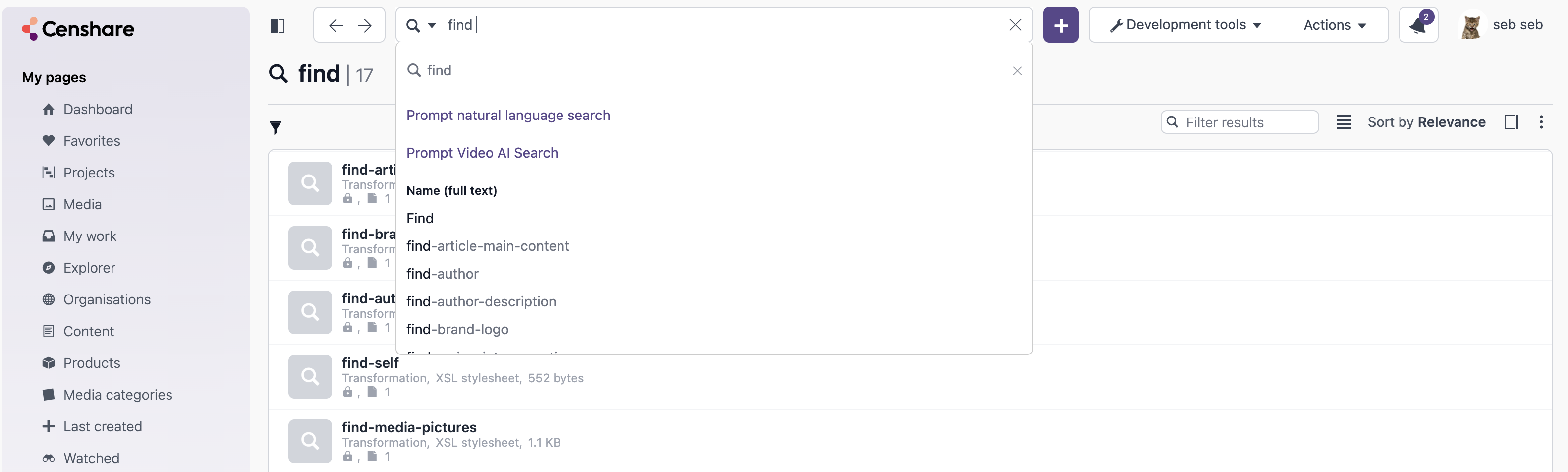
Open the quick search input (top search bar/autosuggest) and enter some text:
-
Select Prompt AI Video Search from suggestions.
-
The page opens on URL path: /video-search.
If AI Video Search is disabled in system settings, clicking on the entry redirects to the home page.
Searching
If you want to get a more specific scene, after your first query, or want to send a new prompt:
-
At the bottom of the page, you find a text prompt.
-
Type what you are looking for, for example: “person walking on a beach”.
-
Send your prompt: The system sends your query to the AI backend.
-
While the system is working, you see a loading spinner.
-
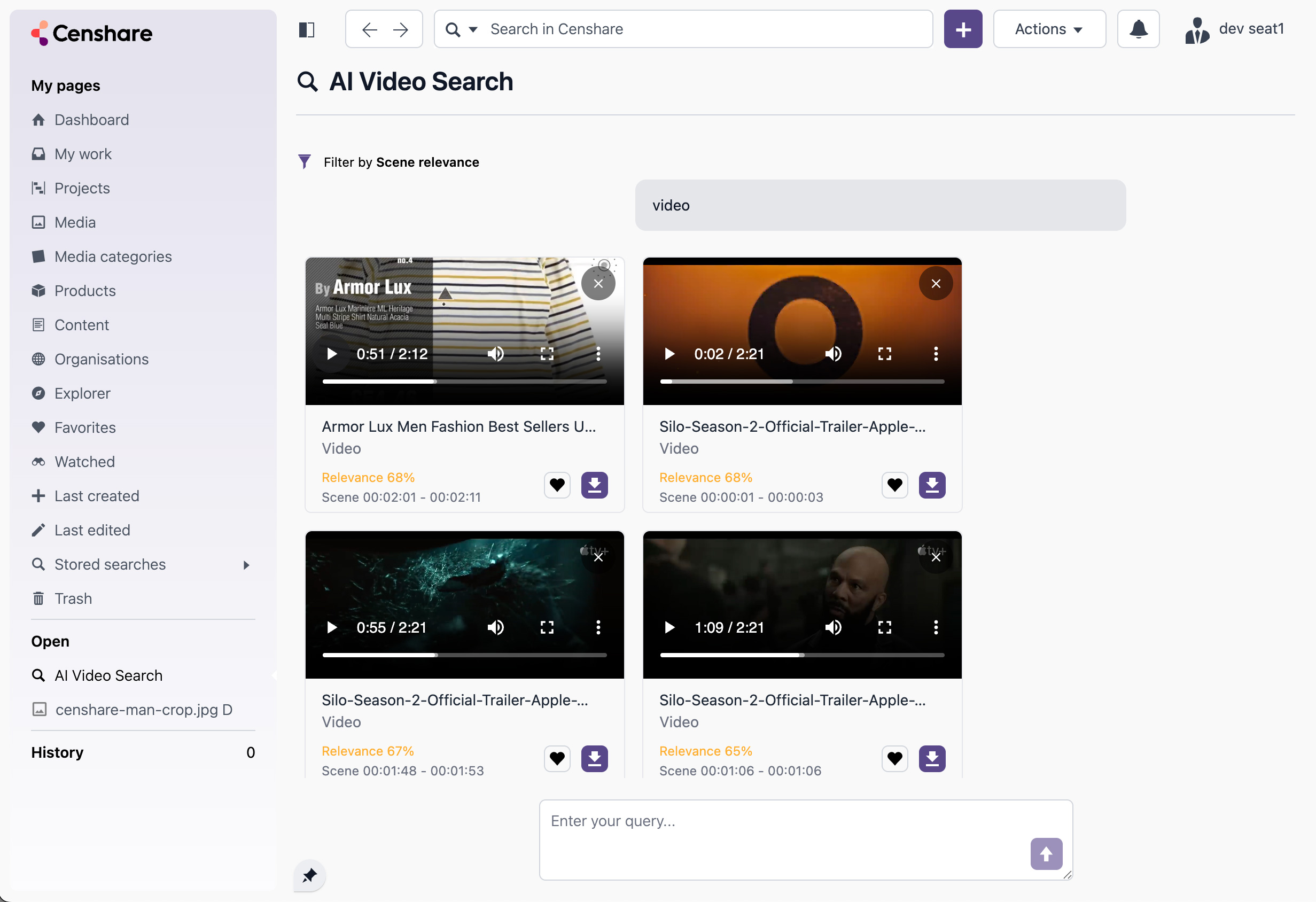
Review the results:
-
Each card shows a scene time range.
-
The relevance score helps you decide what to open first.
-
-
You can send follow-up queries on the same page: Every query and its results are kept as a scrollable conversation.
You only see videos for which you have permission to access.
Understanding result cards
Each result is rendered as a card with the following elements:
|
Element |
Description |
|---|---|
|
Video preview |
Thumbnail area with a play overlay:
|
|
Title |
Asset title |
|
Description |
Additional snippet text is shown below the title when available. |
|
Relevance score |
Displayed as "Relevance NN%" with color coding (see below). |
|
Timecode range |
Displayed as "Scene HH:MM:SS – HH:MM:SS" indicating the matched segment. |
|
Favorite |
Heart icon: Add or remove the asset from your favorites. |
|
Download |
Disk icon: Download the asset file. |
|
Behavior actions |
|
Relevance color coding
Results are sorted by highest relevance first. The score label is color-coded:
-
Green (high) | 100%
-
Orange (medium) | 50 – 99%
-
Red (low) | Below 50%
Scene preview playback
Auto-preview (hover)
-
Hovering over a result card starts a muted auto-preview after a short delay (~200 ms).
-
Playback begins at the scene start time code.
-
When the scene end time code is reached, auto-preview pauses and the player transitions to manual mode (unmuted, with full controls).
-
Moving the mouse away from the preview stops it.
Manual playback (click)
-
Clicking the play overlay (or interacting with native controls during auto-preview), switches to manual mode immediately.
-
In manual mode, the video is unmuted and you have full native video controls (play, pause, seek, volume, fullscreen).
-
Only one video can play manually at a time. Starting another pause the previous one.
Entering full-screen during auto-preview also switches to manual mode, so you get full controls.
Relevance filter: Make results more precise
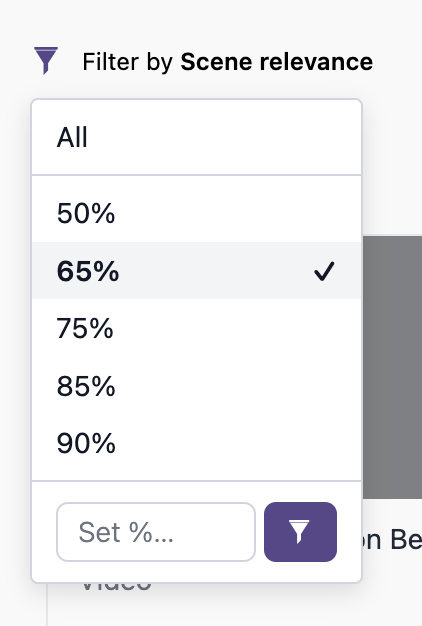
Above the conversation area, there is a filter icon with the label "Filter by Scene relevance". Use this to set a minimum relevance threshold so that only scenes meeting or exceeding it are shown.
How to use the filter
-
Click the filter icon to open the dropdown:
-
Choose one of the preset thresholds: 50%, 65%, 75%, 85%, 90%, or select All to remove the filter.
-
Alternatively, type a custom percentage (0–100) in the input field at the bottom of the menu and click the filter button to apply.
-
The filter applies retroactively to all results already shown in the conversation, not just future queries.
When the active filter excludes all results for a given response, you will see the message: "No clips match the selected relevancy score. Try lowering the score or clearing filters."
The default threshold is 65% and can be changed in User Preferences.
Hover over the filter icon to see the tooltip: "Relevance filter: Lower threshold shows more results, higher threshold gives higher precision”.
Working with multiple searches (tabs)
Each AI Video Search page carries a unique session identifier in the URL. This means:
-
You can open multiple AI Video Search pages at the same time, for example via separate navigation actions from autosuggest.
-
Each page keeps its own conversation, results, and filter state independently.
Your conversation and results can be session-based. Reloading a page can help to clear what you see.
Known limitations
-
Refreshing the browser tab clears the current conversation and results. Data is kept in memory only. Avoid refreshing while reviewing results. Open a new search tab instead.