
In a normal case, when users work in Censhare Web and remain inactive for longer than a default maximum session timeout, they will see a Connection interrupted screen.
If the session handling configuration is incorrect and/or missing, then users may see some broken UI (generic icons instead of specific ones, etc.) or a login screen will be shown in the workspace, fitted between widgets, like this:
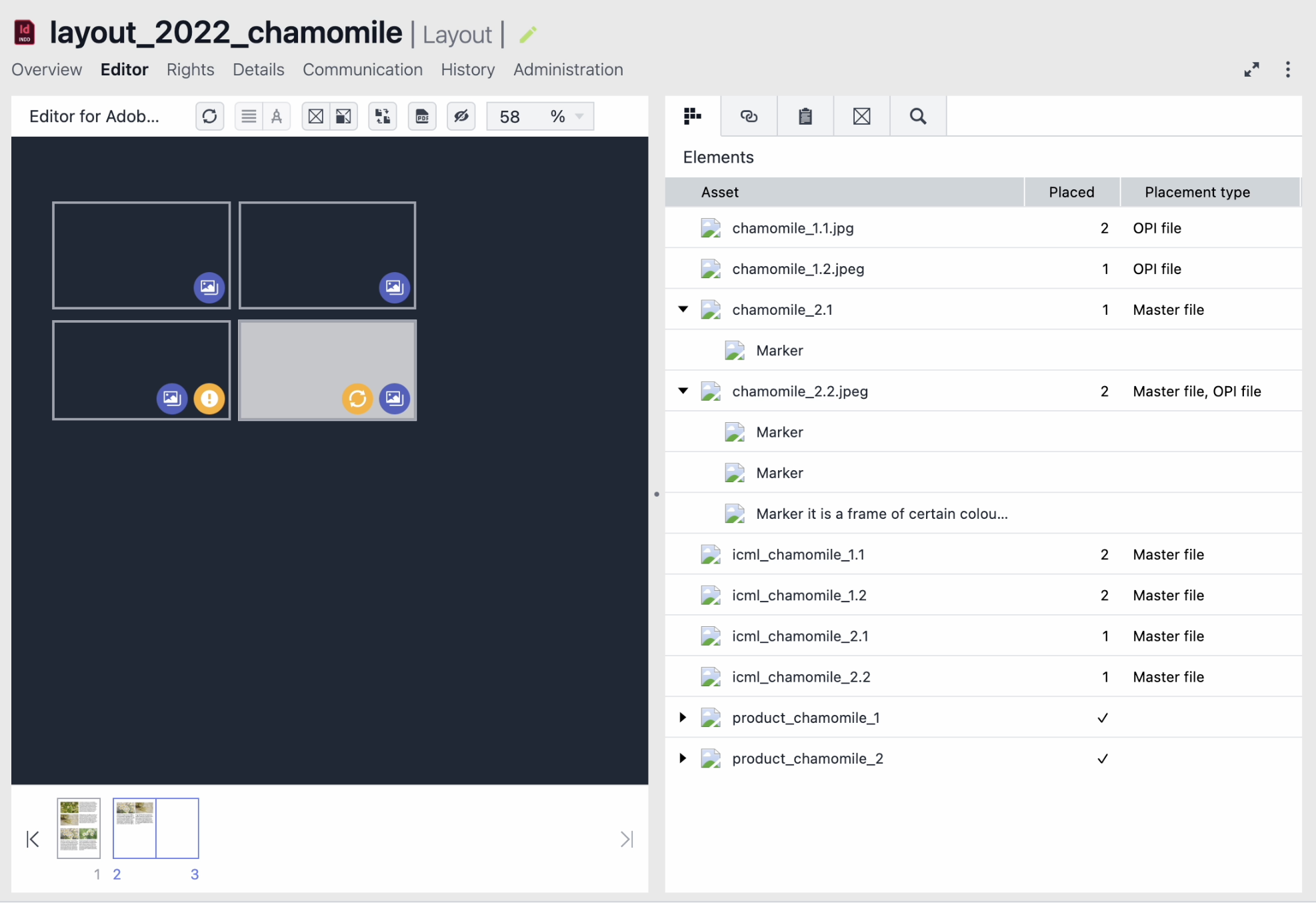
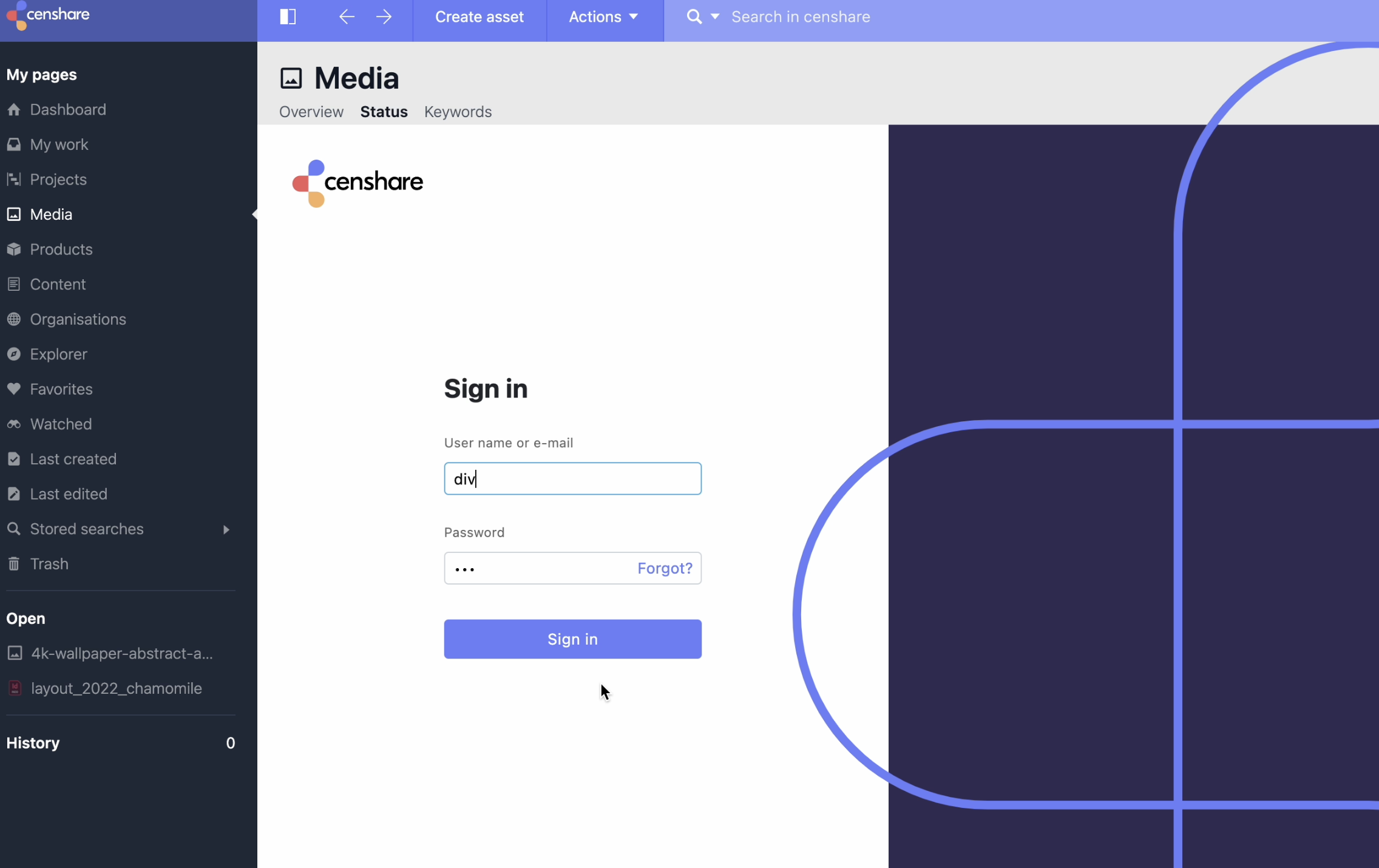
A correct session handling needs to be configured in the application.yml. See this page for complete instructions. For the particular types of error, like on the screenshots above, the following parameters are important:
-
cg.censhareLogoutUrlmust be set to: http://<<localhost:9000>>/forward/rest/service/webserver/rest/csLogout -
Values in
cg.sessionCheckIntervalMsand
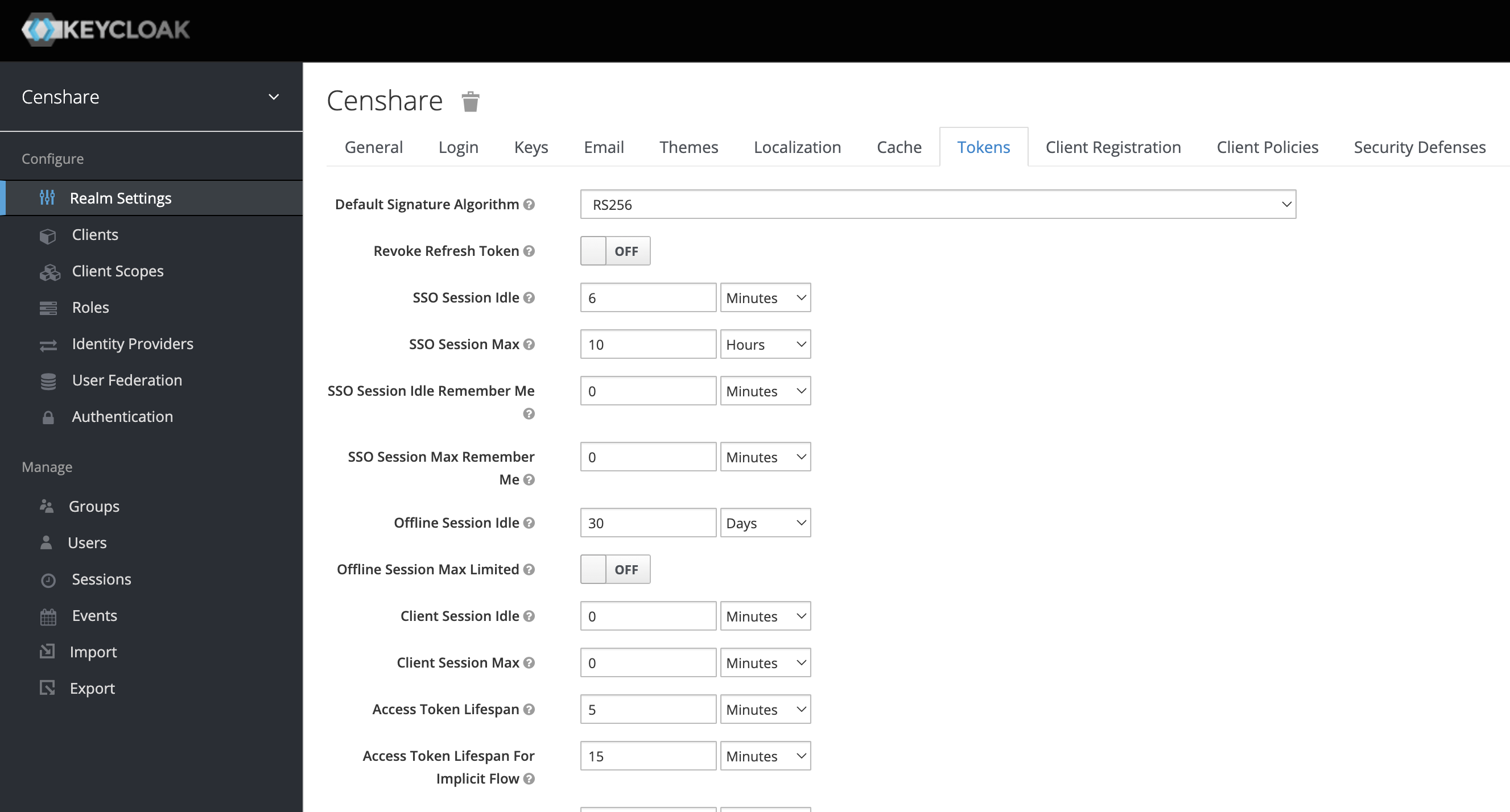
cg.sessionTimeoutSechave a dependency and are also dependent on the SSO Session Idle in Keycloak. They must be set according to this formula:SSO Session idle - 2*cg.sessionCheckIntervalMs = max cg.sessionTimeoutSec-
Where to find SSO Session Idle in Keycloak
SSO Session Idle is configured in the realm settings:
-