
In the Support portal, some actions are limited by how Jira Service Management is designed:
-
Tickets cannot be assigned to the customer’s/partner’s users. They can only be assigned to the support agents by our support team.
-
Customer/partner also cannot directly change the workflow status of a ticket (for example, you can’t set it yourself to “In Progress” or “New”).
To still give you control over your request, we provide simple actions (transitions) in the portal, such as “To 2nd Level Provider”, “To Customer”, or similar options.
When you perform these actions, the ticket status is updated in the background by the system, emails are sent to the selected party and our support team is notified if needed.
Here is an explanation, how portal users address issue to several parties.
This content below is also available as a video:
https://vimeo.com/1180763143/9247846373?share=copy&fl=sv&fe=ci
Address/assign a ticket back to Censhare:
Simply add a comment:
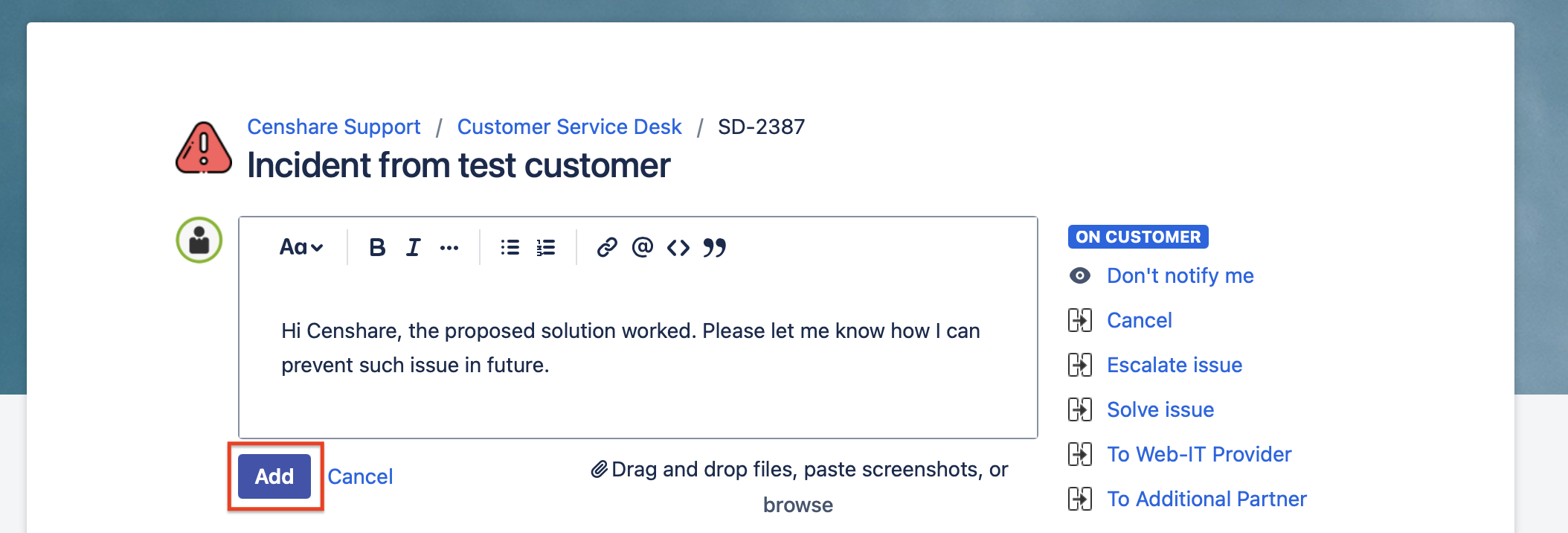
Results:
-
The comment will be added to the ticket.
-
If the status of the issue was “On Customer“ or “On Partner“, it will change to “New“.
-
It will appear in the Censhare support inbound queue.
Adresse/assign a ticket to the Customer:
Use transition “To Customer“:
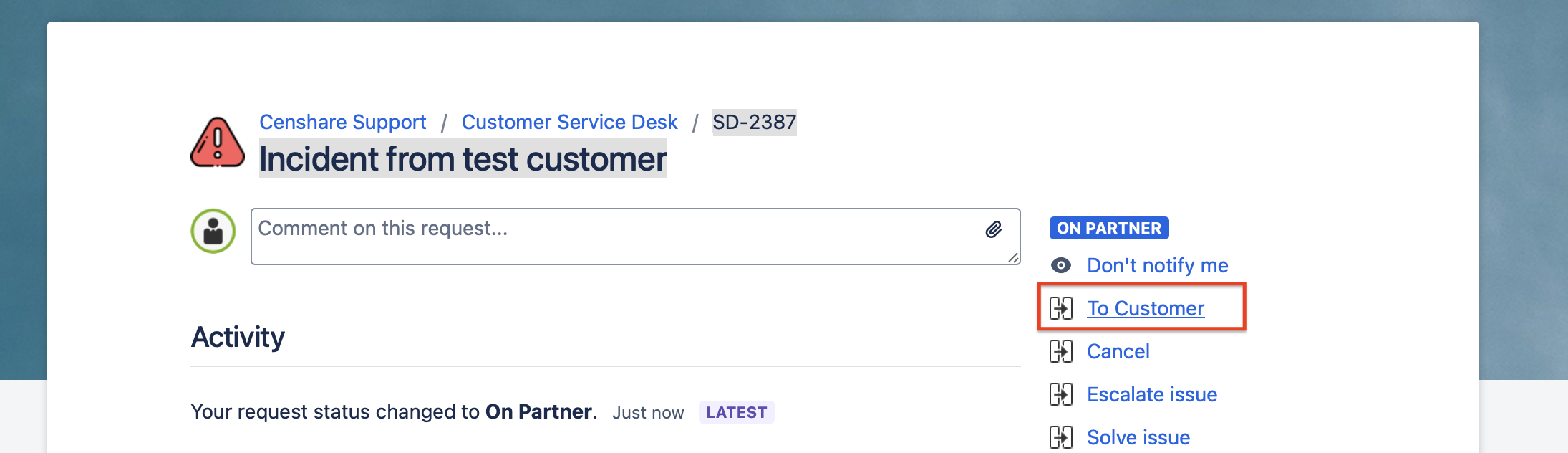
add a comment and send “To Customer“:
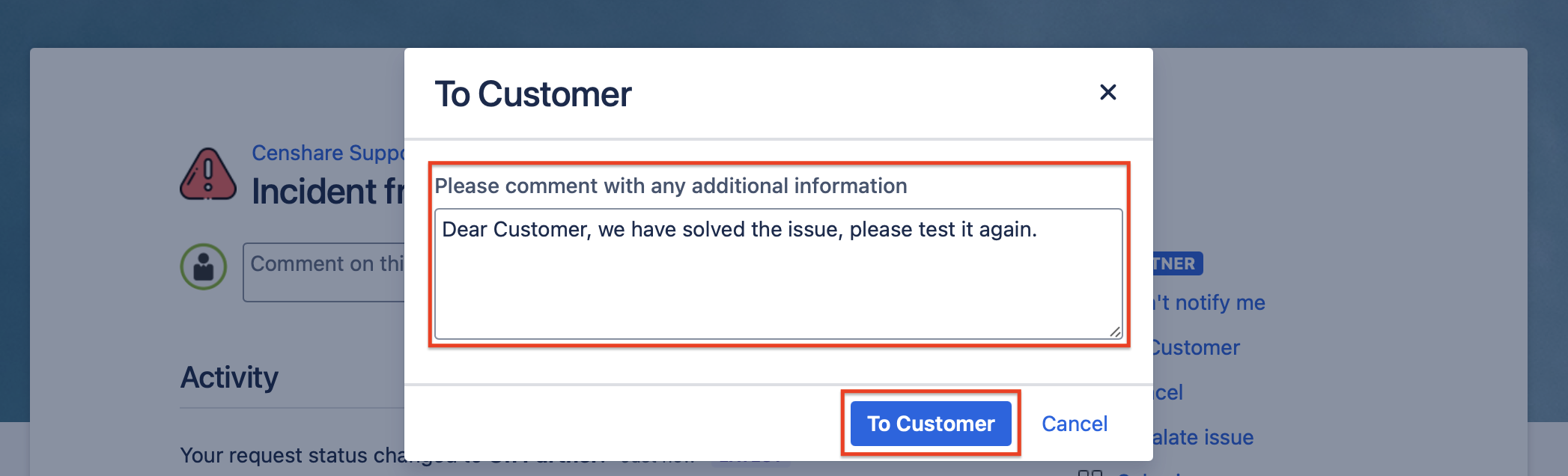
Results:
-
The comment will be added to the ticket.
-
Ticket status will change to “On Customer“.
-
An email will be sent to the customer's support group members.
Adresse/assign a ticket to a Partner:
For each involved partner, you will find a transition.
Typically a partner can be:
-
2nd Level Provider → The partner that does 2nd level application support
-
IT Provider → The partner that operates and supports the Censhare cloud and server environment
-
Web-IT Provider → The partner that operates and supports the Online Solutions environment
-
OS/HCMS Support Provider → The partner that support the Online Solutions on an application level
-
Additional Support Provider → The partner that is additionally involved in the support process. Can be the implementation partner, if the SLA is not signed with them.
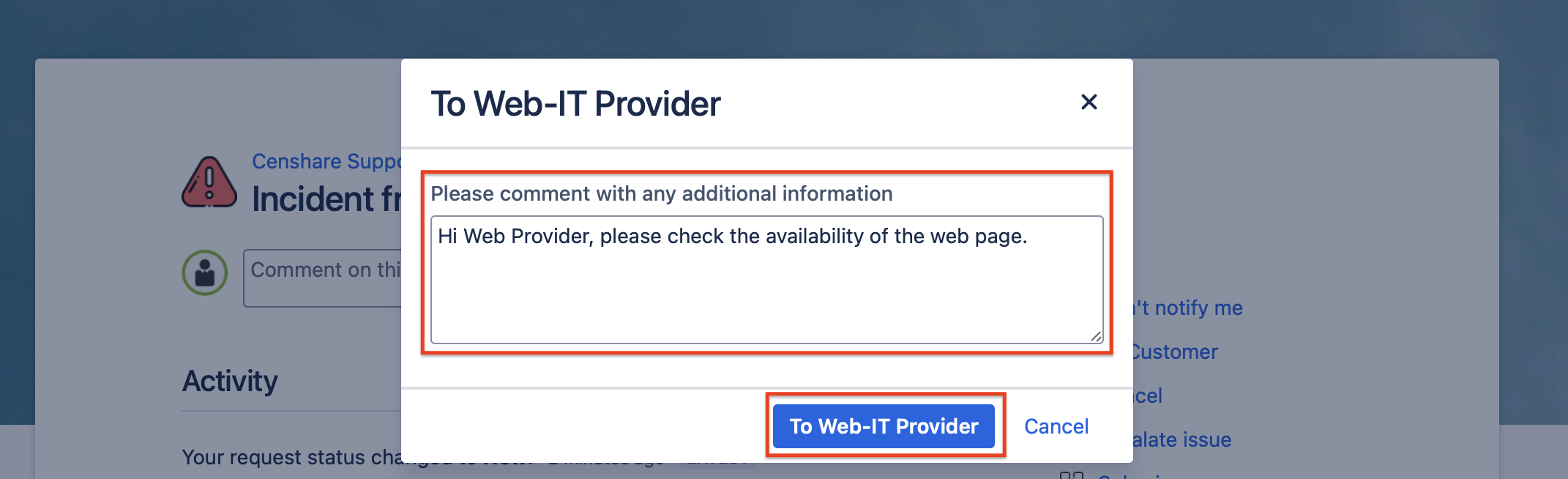
Only transitions for involved partners are available. Select the relevant transition (here “To Web-IT Provider“):
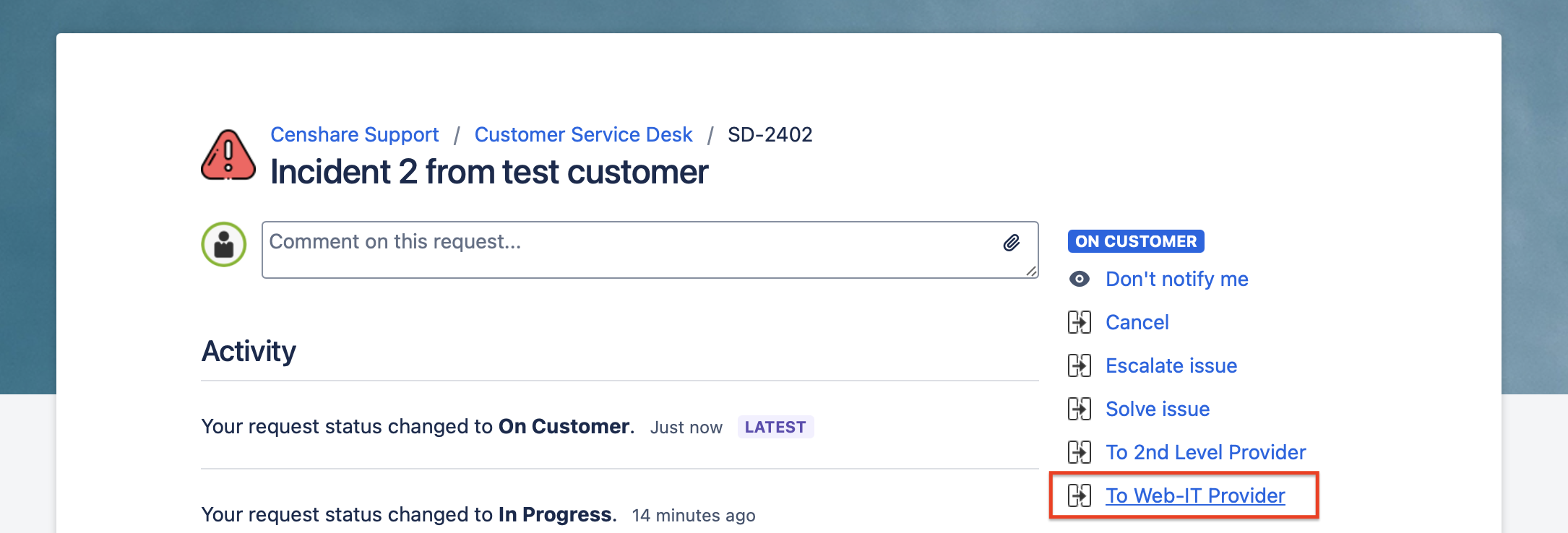
add a comment and send “To Web-IT Provider“:
Results:
-
The comment will be added to the ticket.
-
Ticket status will change to “On Partner“.
-
An email will be sent to the partner's support group members.